
How to Close and Reopen Events in SignUpJester
SignUpJester makes event scheduling simple. From the dashboard, you can close events to control signups and reopen them whenever needed. Real‑time updates ensure families always see the correct availability.
👣 Step‑by‑Step Guide
Step 1: Log in to SignUpJester
- Go to signupjester.com.
- Click Log In at the top right.
- Sign in using your magic code or password.

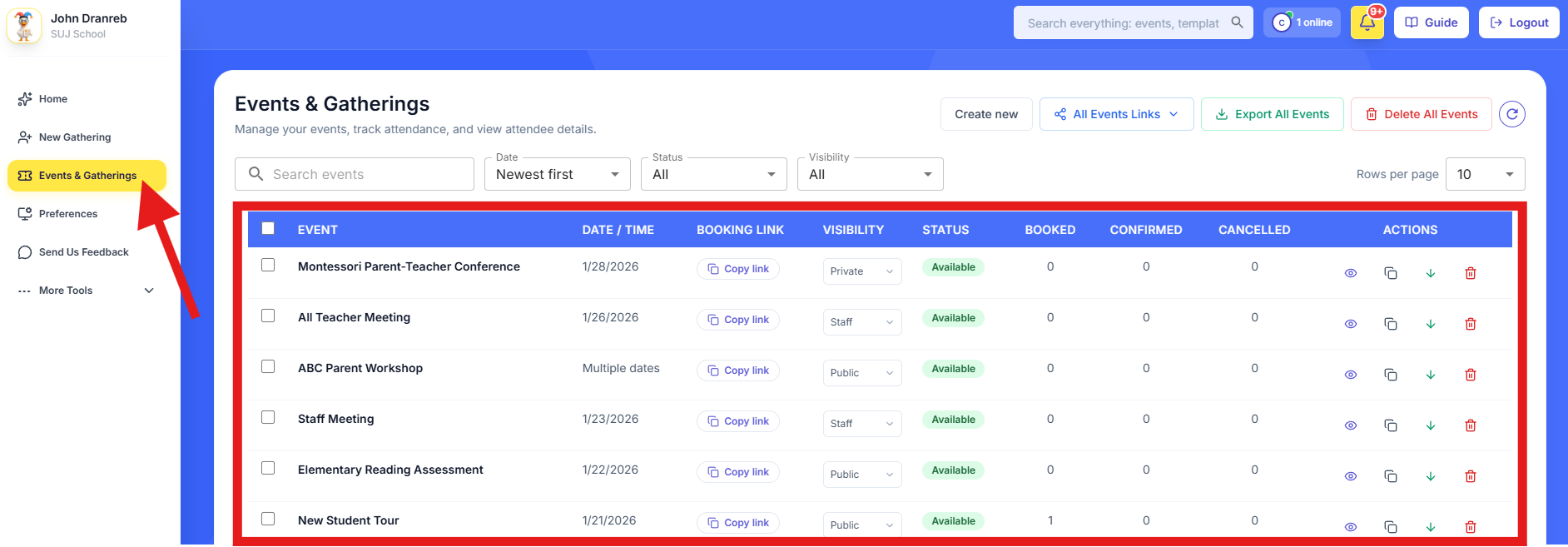
Step 2: Go to Events & Gatherings
- Find the event name you want to manage.
- Click to open the event.
- The event details will appear
✏️Note: If the event has multiple dates, clicking the event will show all available dates. Select any date to reach the event details.
🔒 Closing an Event
- Click the Close Event button

- Choose whether to close All Dates or Selected Dates
- Click Close Event to confirm

🔓 Reopening an Event
- Click the Reopen Event button (visible if the event itself is closed or if one or more dates within the event are closed)

- Select the dates you want to reopen
- Click Reopen Event to confirm
💡 Good to Know
- If an event has only one date, closing is a simple confirm step.
- If closing All Dates, the live booking form will show: “Event Closed. Please contact the event organizer.”
- When an admin closes selected dates, only those time slots are removed; the event stays active, and other dates continue working as normal.
- Rescheduling works in real time — parents only see available dates. If the event is closed, they cannot reschedule.
- Existing bookings remain visible in the SignUpJester admin dashboard.
Hooray! Your events are now easier than ever to manage. Close them when needed, reopen them when it’s time, and enjoy smoother schedules for everyone!