
How to Reschedule Bookings in SignUpJester
Sometimes life happens, plans change, schedules shift, and you need to move your booking to a new time. Don’t worry! SignUpJester makes rescheduling simple and stress‑free. With just a few clicks, you can update your booking, choose a new slot, and keep everything organized without missing a beat.
👣 Step‑by‑Step Guide
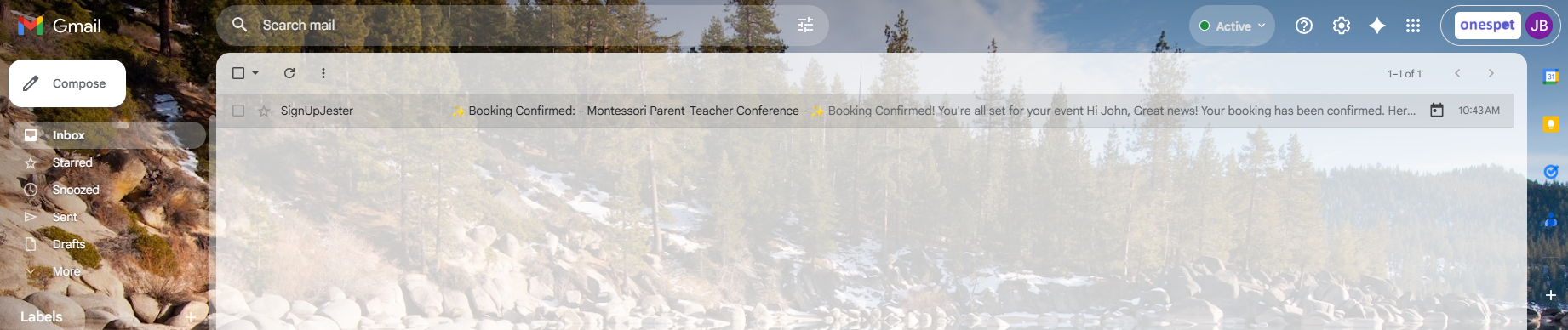
📧 Step 1: Open Your Email
- Check the inbox of the email you used to book.
- Look for your SignUpJester booking confirmation email.
🔄 Step 2: Reschedule Your Booking
- Open the email and scroll to the bottom.
- Click Reschedule in the confirmation email.

- Choose from the available slots.
- Enter your reason for rescheduling.
- Click Confirm Reschedule.

- You’ll receive a new booking confirmation with your updated schedule.
💡 Friendly Reminder
- If you try to reschedule within 24 hours before the event start time, the system will not accept rescheduling.
- Your original slot will reopen once you book a new time.