
How to Edit a Published Event in SignUpJester
Sometimes plans change, and you may need to update an event that’s already live. SignUpJester makes it easy to edit your published events so you can adjust details like dates, times, or descriptions without starting over.
👣 Step‑by‑Step Guide
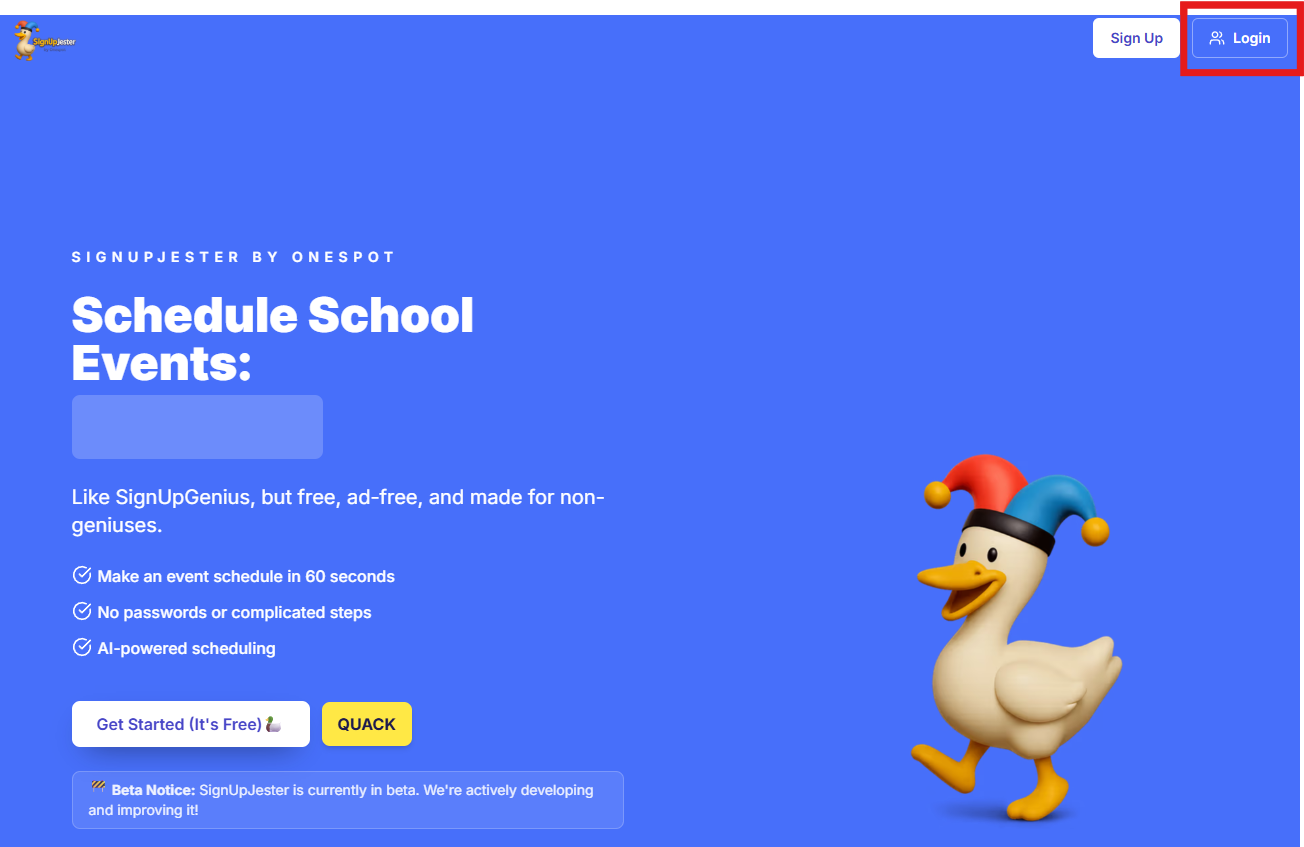
Step 1: Log in to SignUpJester
- Go to signupjester.com.
- Click Log In at the top right.
- Sign in using your magic code or password.
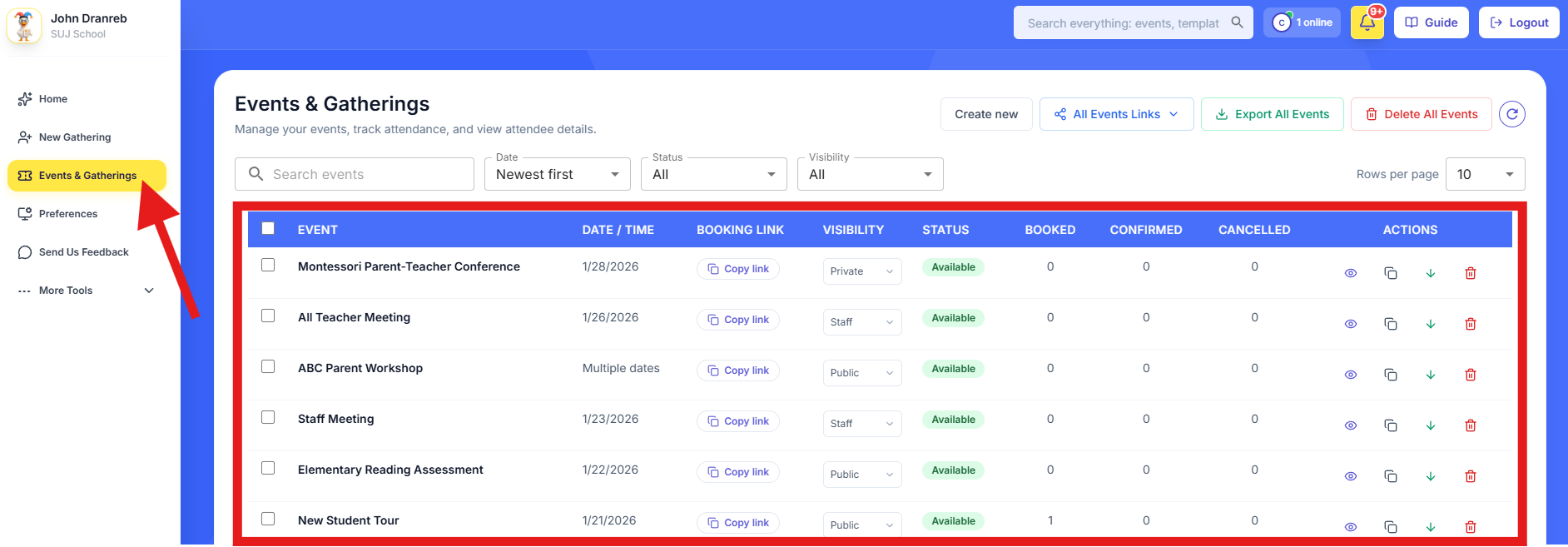
Step 2: Go to Events & Gatherings
- Find the event name you want to edit.
- Click to open the event.
- Click the Edit button to open the Form Creator – Edit Event mode.
✏️Note: If the event has multiple dates, clicking the event will show all available dates. Select any date to reach the event details.

Step 3: Edit Mode
Here, you can update everything: event title, description, location, slots, or form questions.
- Make your changes as needed.

- When editing the time slots, click Refresh Slots to update the schedule with your new times.
- Once you’re done editing, click Save Changes.

⚠️ Important: If you edit slots that already have booked participants, their bookings will be removed.
💡 Good to Know
- The live booking form locks automatically once an admin clicks Edit, preventing participants from booking while changes are in progress.

- The live booking form reflects edits immediately once saved, keeping participants aligned with the latest event setup.
- A “Save or Discard” prompt appears when leaving edit mode, helping prevent accidental loss of changes.

🎉 Hooray! You’ve successfully updated your event. Your changes are now live, and participants will see the updated details right away.