
How Admins Can Add, Import, or Remove Participants in SignUpJester
Managing camp or event signups is simple with SignUpJester. Admins can add one participant, add many participants at once with Add Multiple / Import CSV, remove one participant, or remove multiple participants from the Admin Event Details dashboard. These tools help teams keep attendance, slot availability, confirmation emails, and schedule records accurate when families need help joining, changing, or leaving a signup.
Step-by-step guide
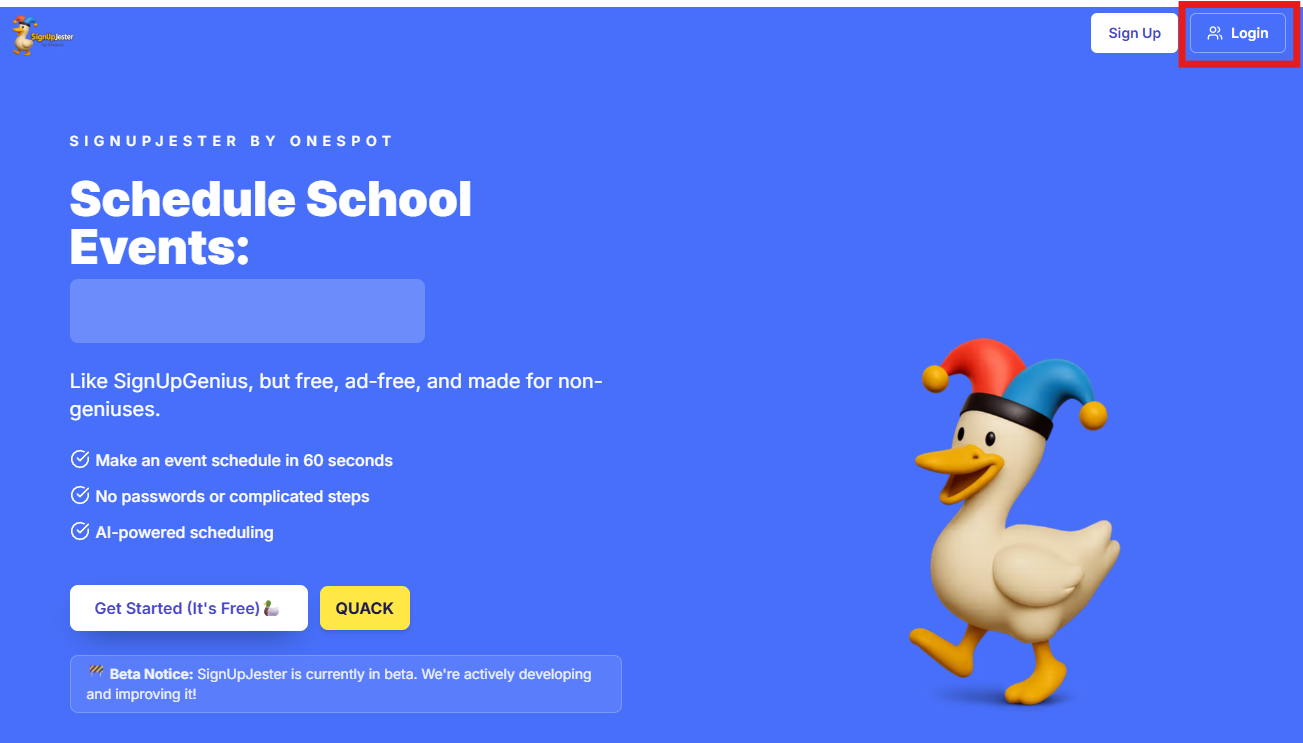
Step 1: Log in to SignUpJester
- Go to signupjester.com.
- Click Log In at the top right.
- Sign in using a magic code or password.
Step 2: Open the event details page
- From the admin dashboard, open Events & Gatherings.
- Select the camp, event, or gathering you want to manage.
- Open the event details page.
- Click the Details & Participants tab.
Step 3: Open Manage Participants
- Find the Participants section.
- Click the Manage Participants dropdown.
- Choose the action you need.
The menu can include Add Participant, Add Multiple / Import CSV, Remove Participant, and Remove Multiple.

✏️How to add one participant manually
Use Add Participant when you only need to add one person to the signup.
- Open the Manage Participants dropdown.
- Choose Add Participant.
- Enter the participant details, such as full name, email, phone, notes, and any required event fields.
- Select the correct Date and Time Slot.
- Choose whether to send a confirmation email or reminder email, if those options are shown.
- Click Add Participant.
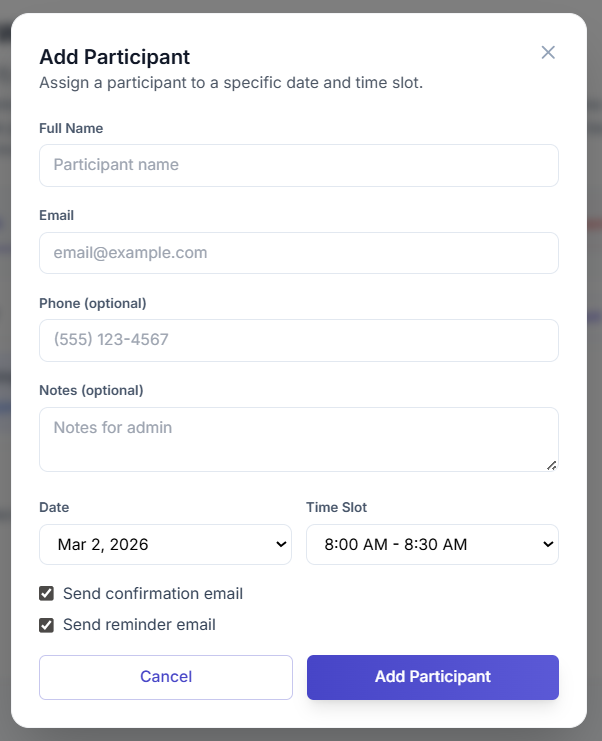
What happens after adding one participant:
- The participant is added to the selected date and time slot.
- The slot count updates automatically.
- If confirmation emails are enabled, the participant receives the correct event and slot time details.
- If the selected slot is already full, SignUpJester prevents overbooking.
✏️How to add multiple participants or import a CSV
Use Add Multiple / Import CSV when an admin needs to add several participants at once. This is useful after collecting signups outside SignUpJester, moving registrations from another system, or entering a list provided by a school or organization.
- Open the Manage Participants dropdown.
- Choose Add Multiple / Import CSV.
- Choose Manual Entry to paste participant rows, or choose Import File to upload a CSV file.
- Review the pasted or imported participant data.
- Map each column to the correct participant field or event question.
- Assign each participant to an available date and time slot.
- Choose whether to send confirmation emails.
- Choose whether to schedule reminder emails, if that option is available for the event.
- Optionally click Preview Mapping to review the rows before adding them.
- Click Add Participants when the list is ready.
✏️Manual Entry and CSV import
Manual Entry lets admins paste multiple rows directly into SignUpJester. Import File lets admins bring in a participant CSV instead of pasting rows manually. In both cases, each row should represent one participant.
Rows can include participant details such as email address, parent or guardian name, program, group, class, camp name, child name, and answers to custom event questions.

✏️Data Mapping
The Data Mapping section tells SignUpJester what each column means. Admins should check each dropdown carefully before adding participants.
- Parent Name
- Child's Name
- Program
- Custom event questions
If the event has custom questions, those questions can be mapped during import so the participant records include the correct answers.
Required email and header row rules
- Email is required for imported or bulk-added participants.
- If a participant row is missing a required email address, SignUpJester blocks that row from being added.
- Admins should correct missing email addresses before adding participants.
- Header rows are skipped automatically when SignUpJester detects them.
✏️Slot Assignment
Each participant must be assigned to an available time slot before they are added.
- Review each participant row.
- Use the time slot dropdown for each row.
- Select the correct available time slot.
- Do not leave participants assigned to full or invalid slots.
SignUpJester checks slot limits before adding participants. Full time slots cannot be overbooked. If a time slot does not have enough availability, the admin must choose another slot or remove rows before continuing.

✏️Preview Mapping
Preview Mapping lets admins verify the imported data before adding participants. The preview can show each row's status, name, email, date, time slot, child name, program, and mapped question answers.
Preview is optional. Admins can use it to double-check larger imports, but they do not have to preview before adding participants if the mapping and slot assignments are already correct.

Confirmation and reminder emails
- Send confirmation emails sends participants their event confirmation after they are added.
- Schedule reminder emails schedules reminder messages if the event supports reminders.
- Confirmation emails use the correct assigned slot times.
✏️ How to remove one participant
Use Remove Participant when only one person needs to be removed from an event or time slot.
- Open the Manage Participants dropdown.
- Choose Remove Participant.
- Select the participant to remove.
- Choose whether to send a cancellation email, if the option is shown.
- Confirm the removal.
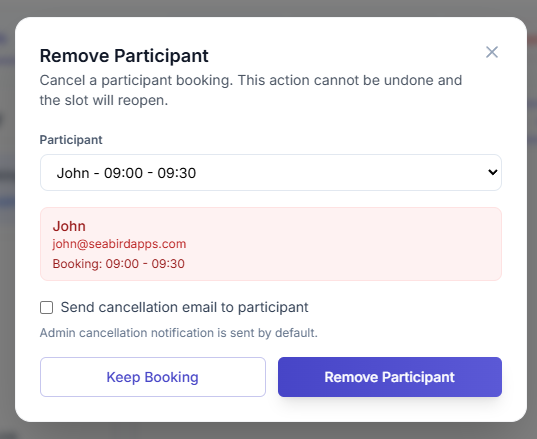
What happens after removing one participant:
- The participant's booking is removed.
- The time slot reopens based on the event capacity rules.
- If cancellation emails are enabled, the removed participant receives a cancellation message.
✏️How to remove multiple participants
Use Remove Multiple when several participants need to be removed together.
- Open the Manage Participants dropdown.
- Choose Remove Multiple.
- Select each participant that should be removed.
- Use Select All if every listed participant should be removed.
- Use Clear if you need to reset the selection.
- Choose whether to send cancellation emails to removed participants.
- Click Remove Participants to complete the removal.

What happens after removing multiple participants:
- All selected bookings are removed together.
- Removed bookings reopen their time slots.
- Optional cancellation emails can be sent to the removed participants.
💡 Important notes:
- Use Add Participant for one-off manual additions.
- Use Add Multiple / Import CSV for lists, spreadsheets, CSV imports, or bulk participant entry.
- Imported columns must be mapped correctly before participants are added.
- Custom event questions can be mapped during bulk import.
- Missing required emails are blocked.
- Header rows are skipped automatically.
- Slot limits are checked before participants are added.
- Full time slots cannot be overbooked.
- Preview Mapping is helpful for checking larger imports, but it is optional.
- Confirmation emails show the correct assigned slot time.
- Removing participants reopens the related time slots when capacity becomes available.
- Export List is separate from Add Multiple / Import CSV. Use Export List when an admin needs to download the participant list instead of adding participants.
🎉 Hooray!
You can now add, import, or remove participants directly from your event dashboard. Families stay informed, time slots stay accurate, and you stay in control of attendance with ease!