
How to Create an Event in SignUpJester
You can create an event in SignUpJester using AI or Manual setup. This guide will walk you through both options.
👣 Step-by-Step Guide
Step 1: Log in to SignUpJester
- Go to signupjester.com.
- Click Log In at the top right.
- Log in using a magic code or password.
Step 2: Navigate to New Gathering
Ways to create your Event:
🤖Using Onespot AI
- In the Describe Your Event box, type a short prompt with details like title, description, date, time, and questions.
- You can skip the description, and AI will generate one automatically.
- Click Generate Form and let AI draft the booking form for you.
📝Skip AI and Create Manually
- This option allows you to build the form from scratch.

📚Use the AI Template Library or Your Saved Booking Forms
- AI Library: These are prompt templates you can use to create your form based on your event.
- Once you select a template, click Use Prompt. It will provide a prompt in the AI box that you can edit.
- Click Generate Form.
- Your Saved Booking Forms: These are templates you save after creating an event, which you can reuse later. If no template exists yet, try AI or create your event manually.
Step 3: Event Form Creator
🦆AI Form Adjustments: Use this field to ask AI to edit your booking form by applying the changes you want.

🦆Event Details: Update the Event Title and Description.

🦆Theme: Choose from different themes.

🦆Location: Enter the event location (e.g., room name). For online events, type “Online” in the location field and add the meeting URL (Zoom, Google Meet, etc.) in the Video Meeting URL field.

🦆Dates & Times: Choose between Time‑Based Slots, Recurring Slots, Camp Slots, or Item‑Based Slots.
⏰Add Time-Based Slots
🖊️Add Item-Based Slots
📆 Add Recurring Slots
🎪Add Camp Slots
🦆Add Form Questions
- Short Answer, Paragraph, Multiple Choice, Checkboxes, Dropdown
- File Upload, Rating, Date, Time, Email, Number, Consent
- You can even add a Form Banner Image to make it more engaging.

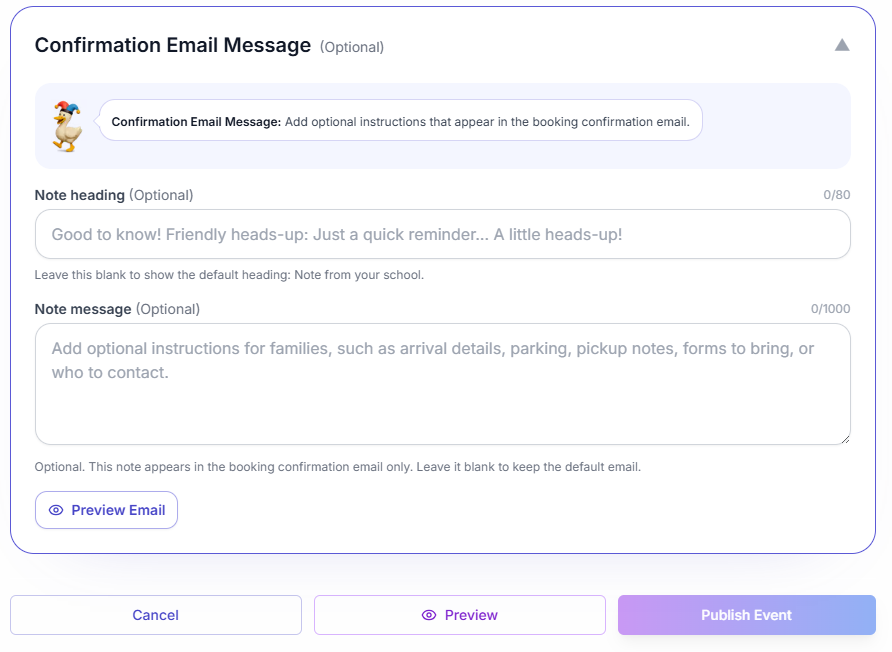
✉️ Confirmation Email Message (Optional)
Use this section to add instructions that families will see in their booking confirmation email.
• Expand Confirmation Email Message (Optional).
• Enter a Note heading (up to 80 characters). Leave it blank to use the default heading: Note from your school.
• Enter a Note message (up to 1,000 characters) with details such as arrival instructions, parking, pickup notes, forms to bring, or contact information.
• Click Preview Email to review what families will receive.
Step 4: Preview and Publish Event
- Click Preview to see the full form before publishing.
- Click Publish Event to make the form live.
- After publishing, a pop-up box will confirm that the event is published. You can also save it as a template for future events.
- Click Done.

🎉 Congratulations! You’ve created your event booking form. You can now view it anytime in the Events and Gatherings tab.
💡 Good to Know
- Event times are automatically shown in each participant’s device time zone.
- No need to manually adjust for different regions—SignUpJester handles it for you.
- Don’t want to add a note? Just leave the Confirmation Email Message blank. The rest of the confirmation email will stay the same.