
How to Create Time‑Based Slots in SignUpJester
Need to organize classroom activities, parent conferences, or student work cycles into clear time blocks? Time‑based slots make it simple! Perfect for Montessori schools, you can schedule observations, small group lessons, or family meetings in structured intervals. SignUpJester helps you break your event into manageable time slots so teachers and parents can choose the times that fit best.
👣 Step-by-Step Guide
Step 1: Log in to SignUpJester
- Go to signupjester.com.
- Click Log In at the top right.
- Log in using a magic code or password.
Step 2: Navigate to New Gathering
Choose how you’d like to create your event:
- 🤖 Using Onespot AI
- 📝 Skip AI and Create Manually
- 📚Use the AI Template Library or Your Saved Booking Forms
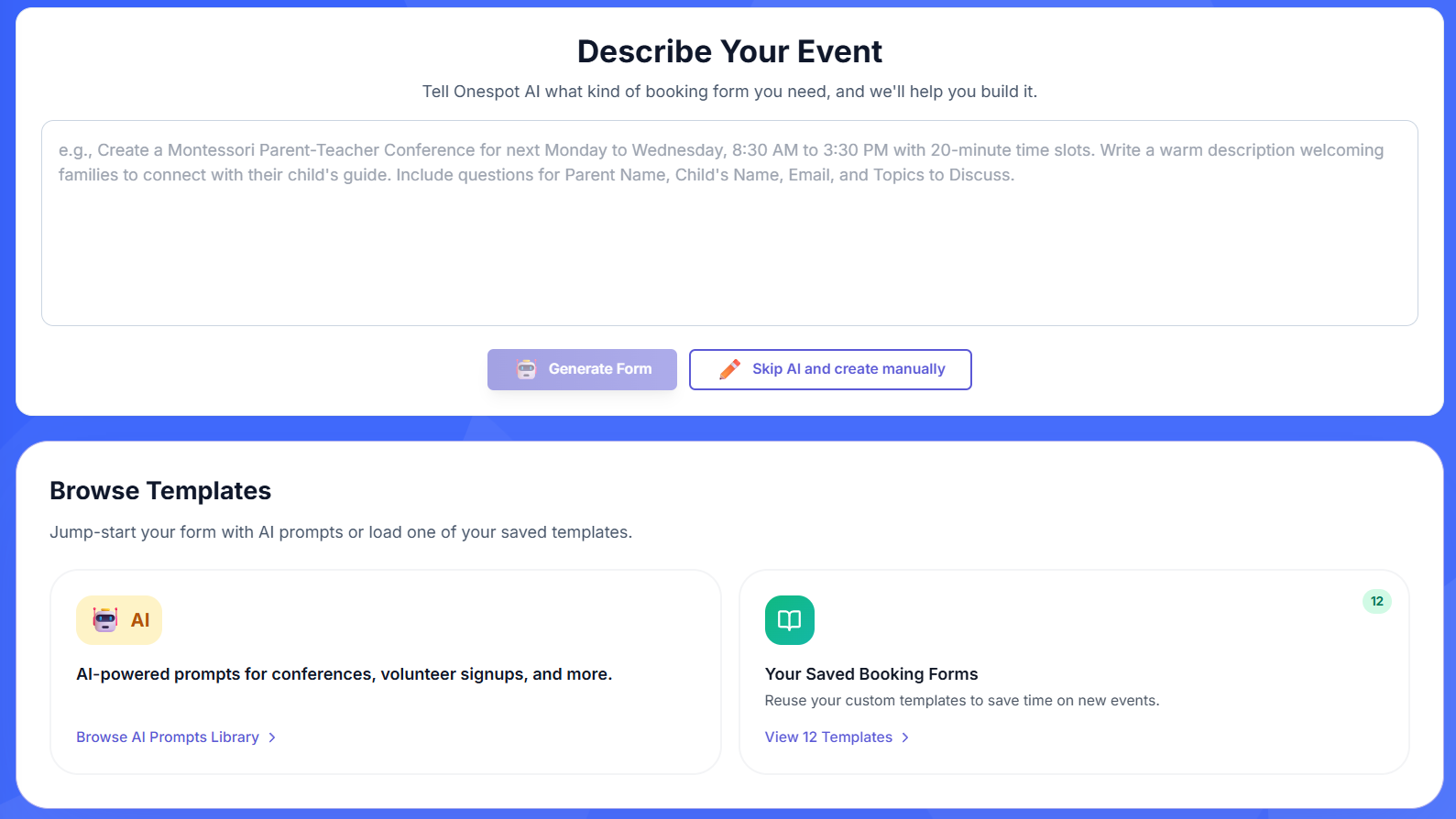
Step 3: Event Form Creator
Fill in your event details:
- Enter the Event Title and Description
- Choose from different themes
- Add the event location
⏰ Dates & Times
- Click Add Time‑Based Slots
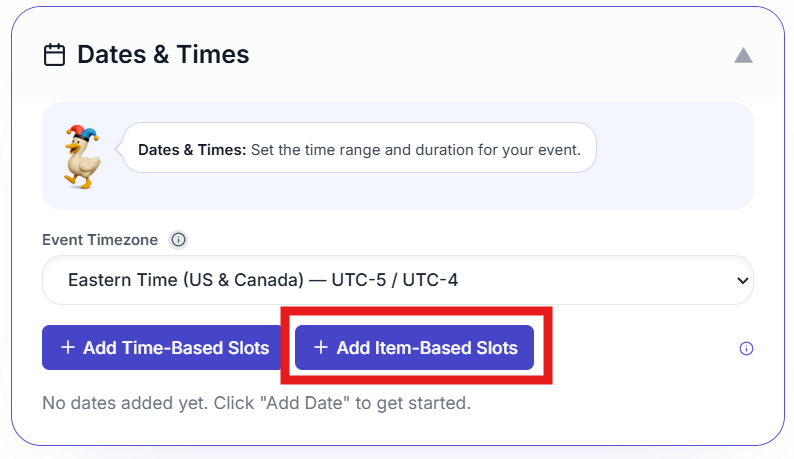
- Choose the Date
- Add the Start time and End time
Set Slot Duration:
- Add duration if you need multiple slots
- Leave at 0 for one slot
- Select minutes or hours (e.g., 30‑minute intervals from 8:00 AM–5:00 PM)
Set Attendee Limit per Time Slot:
0= unlimited sign‑ups- Enter a number (e.g., 10) for a maximum per slot
Add Breaks & Timings (Optional):
- Insert short breaks (e.g., 10 minutes between slots)
- Block longer times (e.g., 12:00–1:00 PM for lunch)
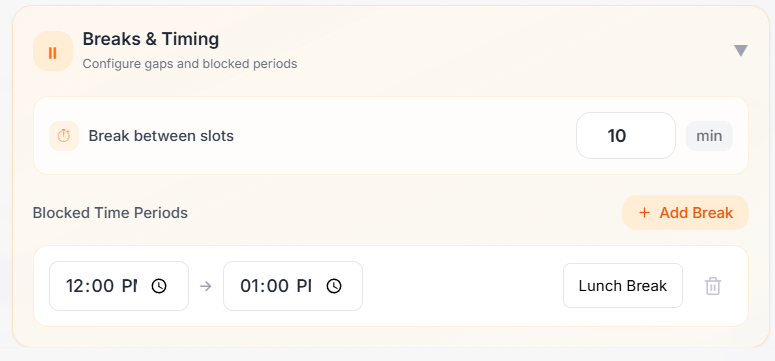
- Click Add Date
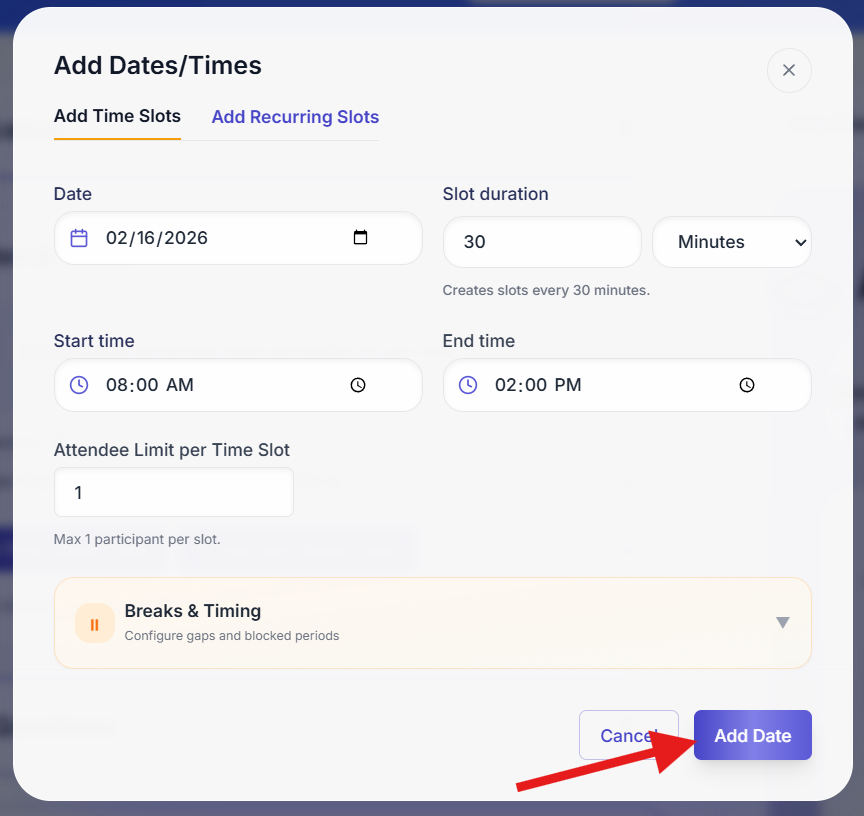
- Add Form Questions
- Set Community Visibility
🚀 Step 4: Preview and Publish Event
- Review your time‑based slots setup
- Click Publish to make your event live
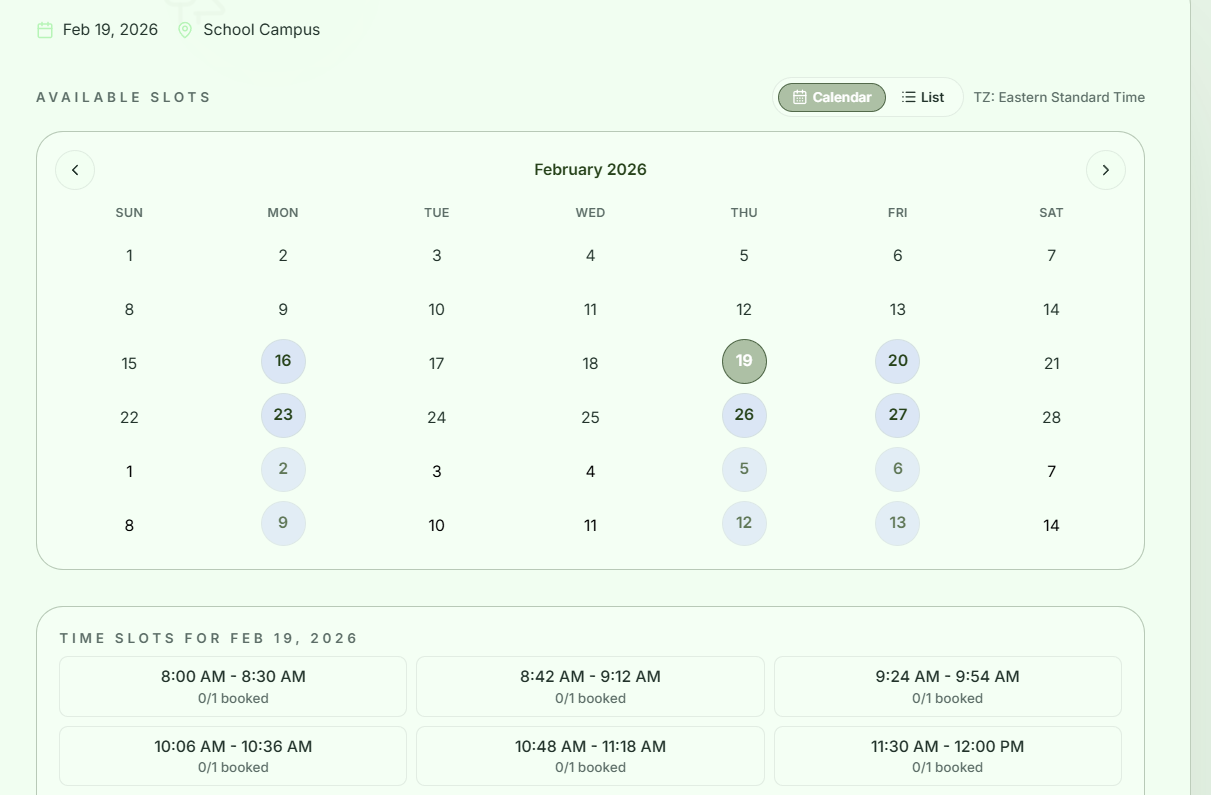
🎉 Hooray!
You’ve created your time‑based slots event booking form. You can now view it anytime in the Events & Gatherings tab.