
How to Create Camp Bookings in SignUpJester
Camps are all about fun, learning, and new adventures — organizing them should be just as easy! With SignUpJester, you can create booking slots for your camp sessions, set attendee limits, and now even organize classroom groups. Whether your camp runs by the day, by the week, or for the whole season, SignUpJester helps families reserve the times that work best for them while keeping everything organized for you.
👣 Step‑by‑Step Guide
Step 1: Log in to SignUpJester
- Go to signupjester.com.
- Click Log In at the top right.
- Sign in using your magic code or password.
Step 2: Navigate to New Gathering
Choose how you’d like to create your event:
- 🤖 Using Onespot AI
- 📝 Skip AI and Create Manually
- 📚Use the AI Template Library or Your Saved Booking Forms
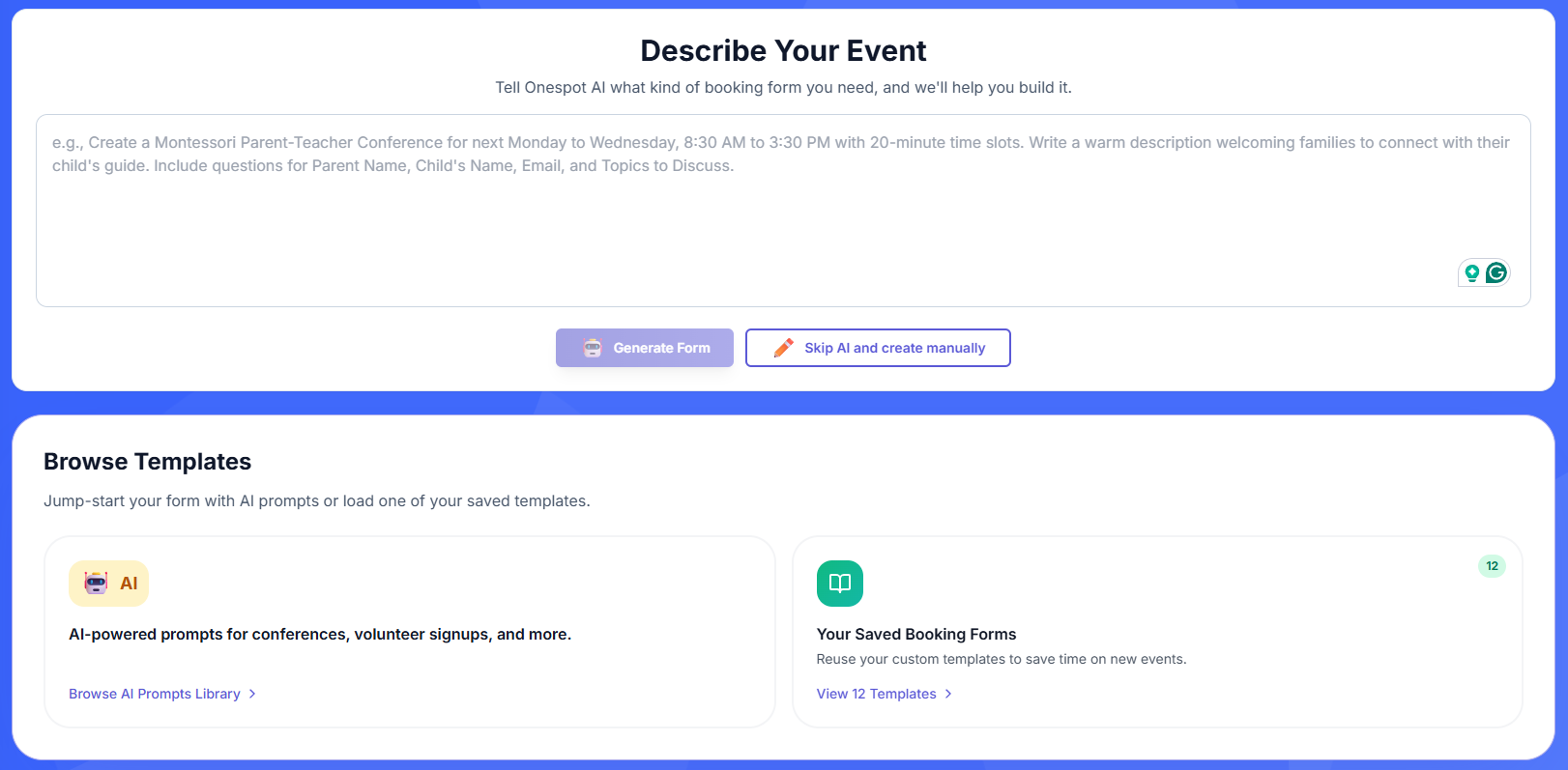
Step 3: Event Form Creator
Fill in your event details:
- Enter the Event Title and Description
- Choose from different themes
- Add the event location
⏰ Dates & Times
- Click Add Time‑Based Slots
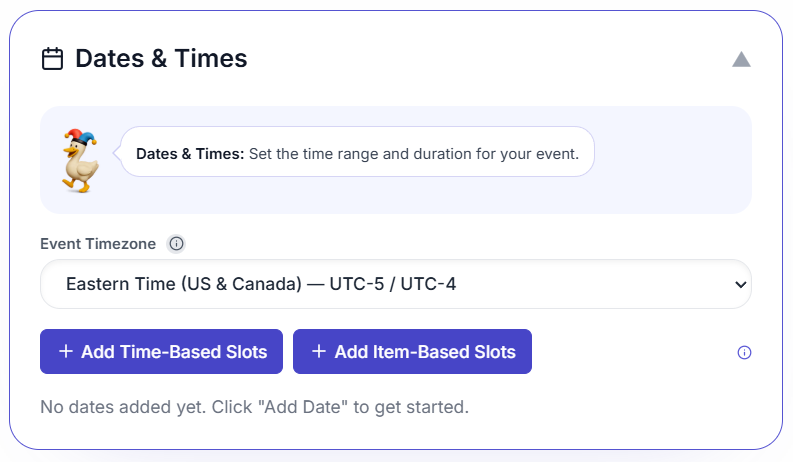
- Click Add Camp Slots
- Choose the From Date and To Date
- Add Start time and End time
- Add Camp Attendee Limit

🏫 Classroom Groups (Optional)
- Toggle Classroom Groups if you want to organize attendees by classroom
- Add a Classroom Name (e.g., Toddler, Primary)
- Set the Camp Attendee Limit for each group
- Click + Add Classroom to add more groups

- Click Add Camp Date
- Add Form Questions
- Set Community Visibility
🚀 Step 4: Preview and Publish Event
- Review your camp slots setup
- Click Publish to make your event live

🎉 Hooray!
Your camp is now set up in SignUpJester. Parents can book camps with ease — and you can relax knowing everything is organized!