
How to Share Event Views in SignUpJester
Schools often need admins to see teacher events in one place. SignUpJester makes this easy with two options: teachers can either share dashboard access directly or provide a single link to all their events. Both methods keep admins connected and ensure schedules are simple to manage.
👣 Step‑by‑Step Guide
🖥️ Option 1: Share Dashboard Access (Full Editing Rights)
This option allows admins to edit teacher events.
Step 1: Log in to SignUpJester
- Go to signupjester.com.
- Click Log In at the top right.
- Log in using a magic code or password.
Step 2: Go to the Preferences Tab
- Scroll down to Additional Admin Emails.
- Add up to 5 additional emails that will have access to the dashboard.

- Click Save Preferences at the bottom.
💡 Tip: Teachers can set their dashboard name as something like SchoolName_TeacherName to keep multiple dashboards organized and easy to identify.
Step 3: Admin Logs In
- The school admin goes to signupjester.com.
- Click Log In at the top right.
- Log in with a magic code or set a password.
- Admins will see a dashboard selection screen, giving them the option to pick which dashboard they’d like to access

- Once logged in, the admin has the same access as the account owner.
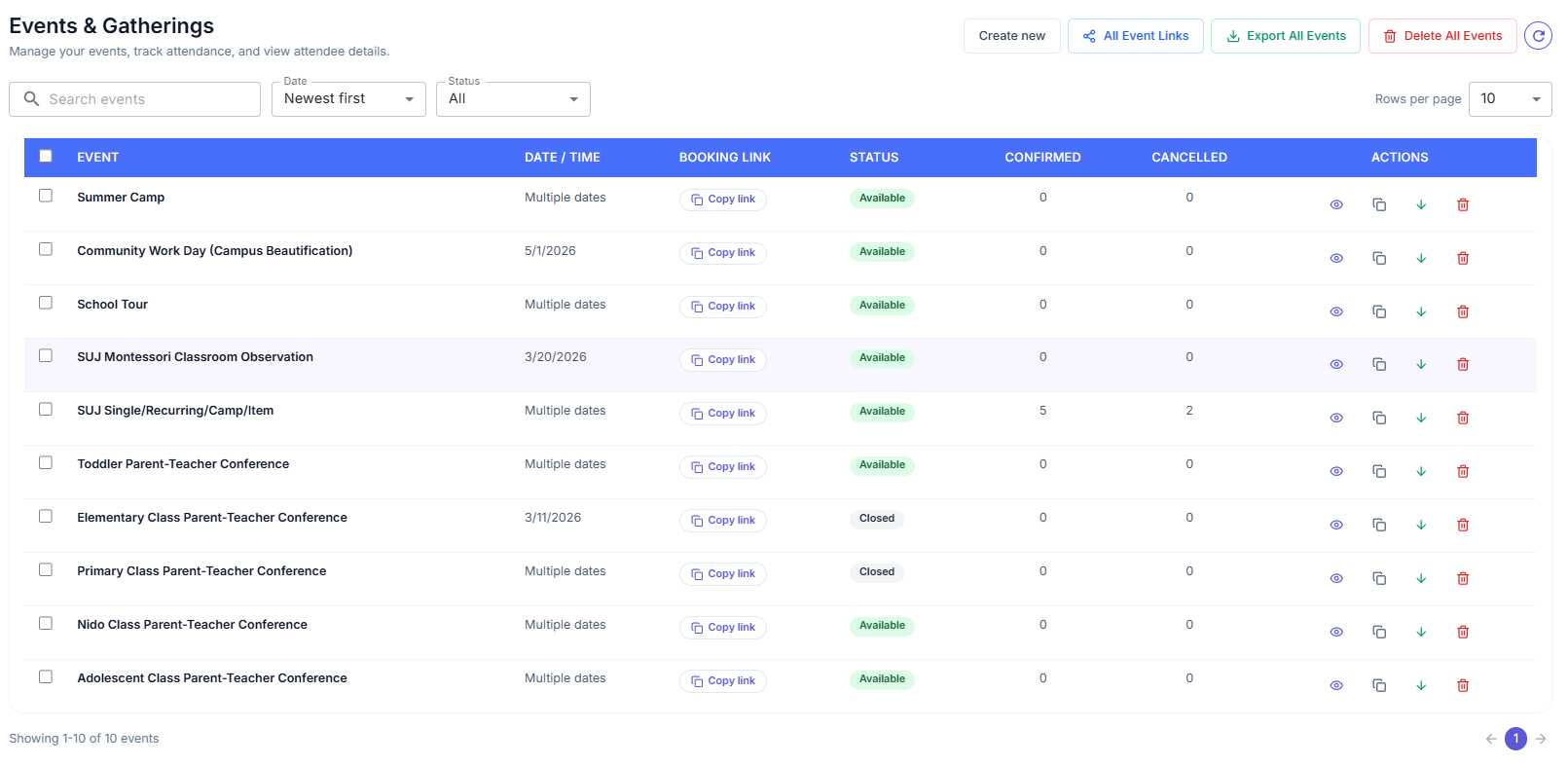
- Go to Events & Gatherings to view all events.
🔗Option 2: Share the “All Events” Link (View Only)
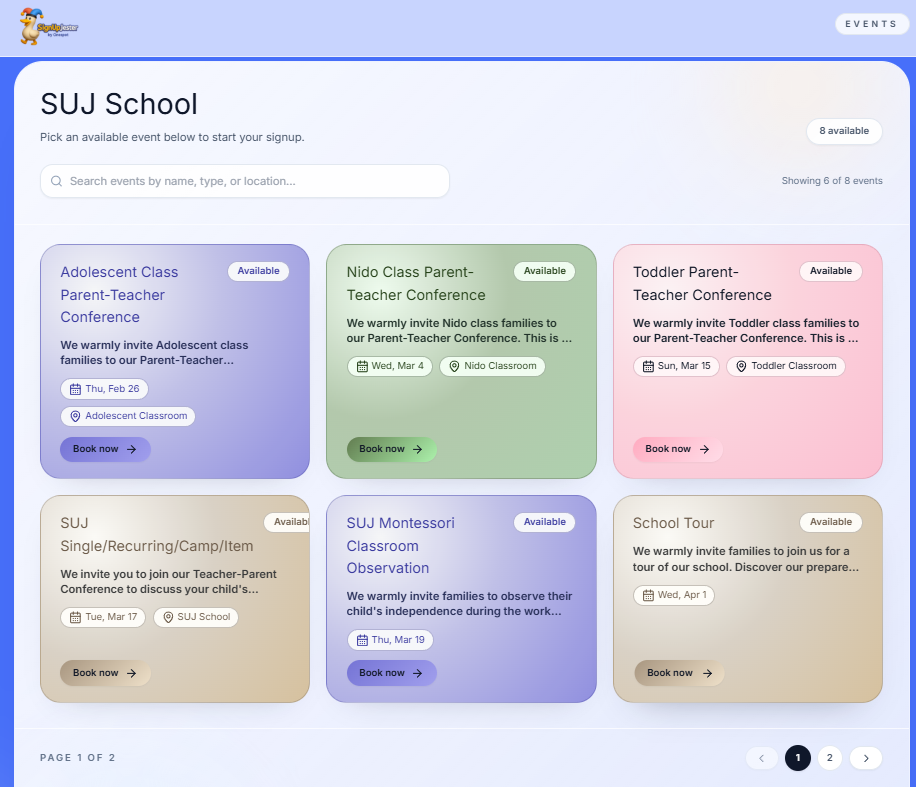
This option allows admins to view events but not edit them.
Step 1: Teacher Goes to Events & Gatherings
- Open the Events & Gatherings section
Step 2: Share the Link
- Click the All Event Links — the link will be copied automatically.
- Share this link with the admin to give them a single view of all events.

💡 Good to Know
- Event links are for viewing only — perfect for families or staff who just need visibility.
- Admin access must be granted by adding emails in the Preferences tab.
- Multiple dashboards can be organized by school and teacher names for clarity.
🎉 Hooray!
Teachers and admins are now connected, making scheduling smoother than ever.