
How Participants Can Add a SignUpJester Booking to Google Calendar
Want to keep track of your bookings without missing a beat? With SignUpJester, you can easily add your confirmed booking straight to your Google Calendar. This way, you’ll always have your events handy and get reminders right when you need them.
👣 Step‑by‑Step Guide
Step 1: Access the Booking Link
- Use the booking link provided by your school admin.
- Select and book your preferred slot.

Step 2: Check Your Email
- You’ll receive a booking confirmation email with event details.
- The email includes your responses and options to manage your booking (e.g., Add to calendar, Confirmed, Reschedule, Cancel).

Step 3: Add to Your Google Calendar
- Click Add to calendar in the confirmation email.
- Your Google Calendar will open with the event details.

Step 4: Save the Event
- Make any edits you’d like before saving.
-
Click Save.
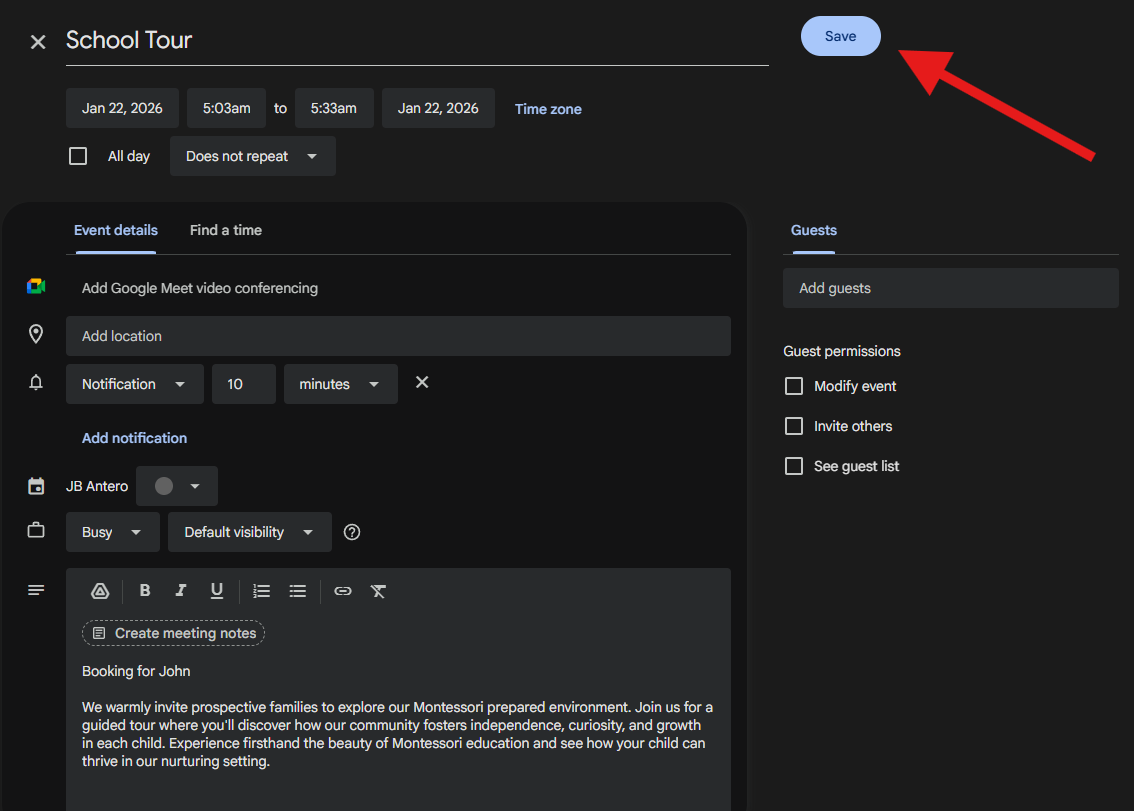
- You’ll see a confirmation message: “Event Saved”.
- The event will now appear in your Google Calendar.

🎉 Hooray! You’ve successfully added your booking to your Google Calendar.