
How to Edit Your School Profile in SignUpJester
Managing your school profile in SignUpJester is quick and simple. In just a few steps, you can update your school name, admin email, logo, and background image to keep your dashboard accurate and personalized.
👣 Step‑by‑Step Guide
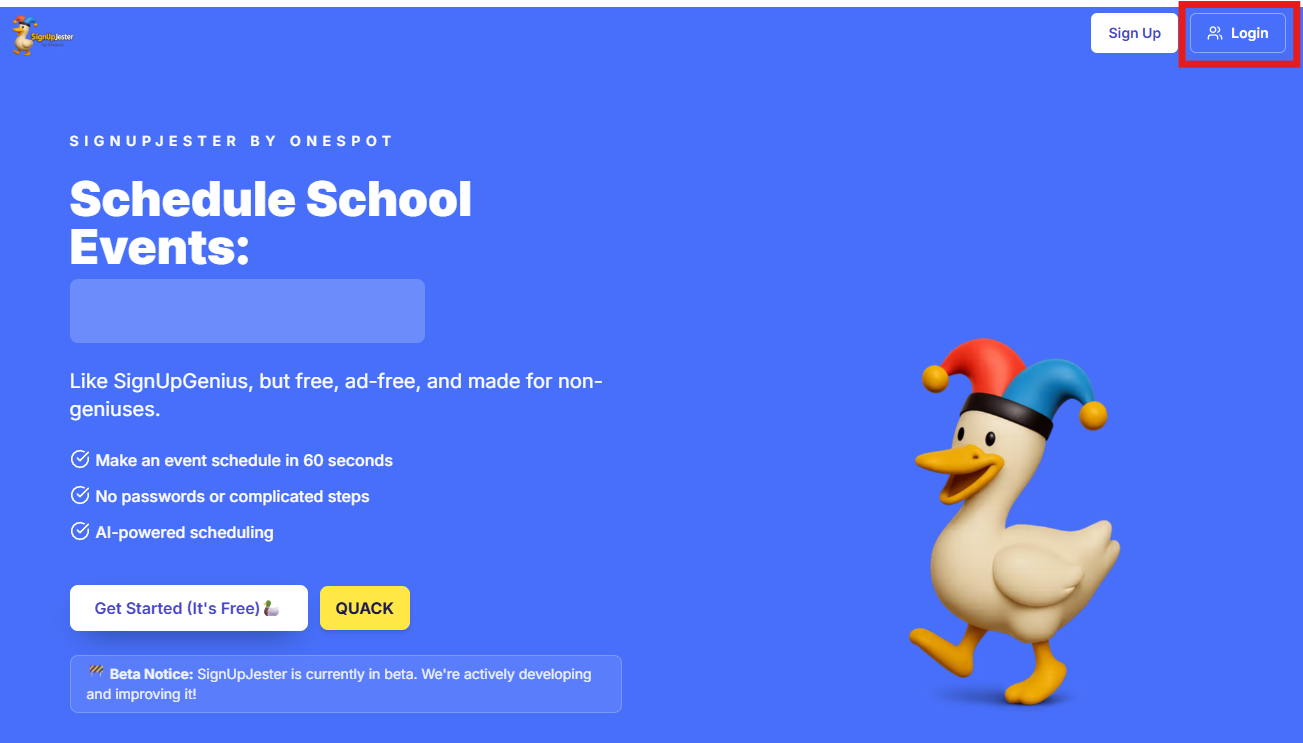
🔑 Step 1: Log in to SignUpJester
- Go to signupjester.com.
- Click Log In at the top right.
- Sign in using your magic code or password.
⚙️ Step 2: Go to Preferences
Here you can update your school’s profile details:
- 📝Name
- 🏫School Name
- 📧Admin Email -Primary admin email

- 👥Additional Emails – Add up to 5 additional emails that can access the dashboard. For example, if you have multiple admins, you can add their addresses so they can log in, create, and manage events too.

- 🖼️ Logo – Upload a file or paste a direct link to your logo. Accepted formats: JPG, JPEG, PNG, SVG (max 5MB).
- 🌄 Background Image – Upload an image or paste a link for the background. Accepted formats: JPG, JPEG, PNG, SVG (max 5MB).

💾 Step 3: Save
- After updating, click Save Preferences to apply your changes.