
How to Cancel Bookings in SignUpJester
Plans change, and SignUpJester makes it easy to cancel your booking directly from your email. It’s quick, simple, and ensures event organizers are instantly updated while freeing up the slot for other participants.
👣 Step‑by‑Step Guide
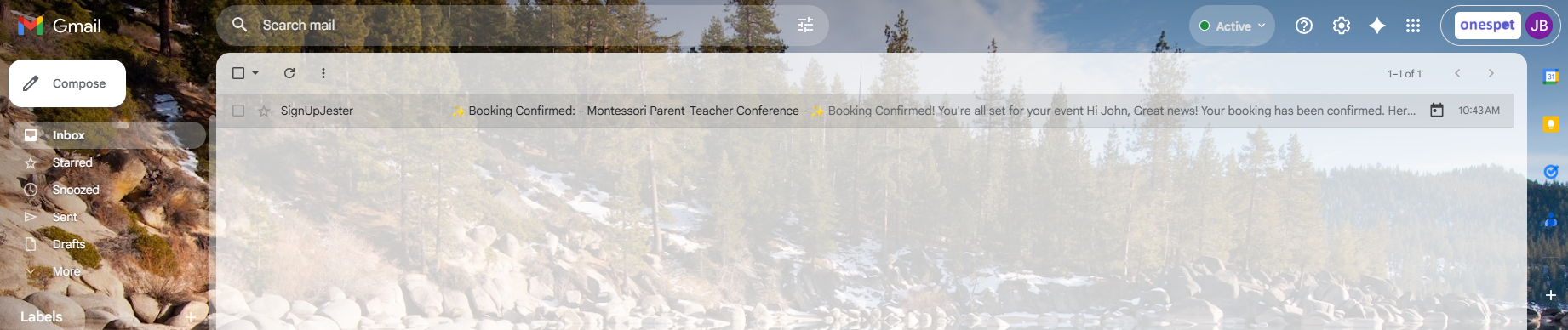
📧 Step 1: Open Your Email
- Check the inbox of the email you used to book.
- Look for your SignUpJester booking confirmation email
🔄 Step 2: Cancel Your Booking
- Open the email.
- Click Cancel in the confirmation email.

- A message will appear: “Booking Cancelled.”
- This notifies the event organizer that you won’t be attending.

💡 Good to Know
- ✅ Cancelling your booking instantly reopens the slot for other participants.
- 📢 Event organizers are automatically notified when you cancel.
- ⚠️ Once cancelled, the booking cannot be undone — you’ll need to make a new booking if you change your mind.