
How to Email Families by Application Status (Applications, Waitlist, & Enrollment)
The Email families button in the Applications, waitlist, & enrollment dashboard (beta) lets you email every family with a certain application status at once, like everyone on your waitlist. It opens a new email in your own email app with the families in BCC, so they don't see each other's addresses. Nothing is sent from Onespot.
🎥 In the video:
- 0:30 Picking families by status and opening the email
📍 Where to Find This
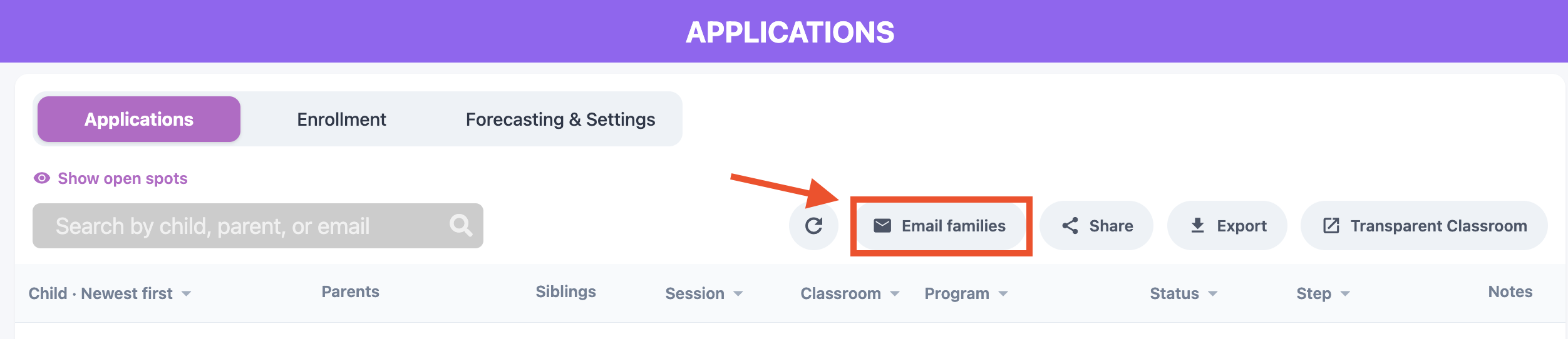
Tap the ⚡ Lightning Bolt to open Administrative Superpowers, go to Children → Applications, waitlist, & enrollment, then tap Email families above the table on the Applications tab.
✉️ Email Families by Status
- On the Applications tab, tap Email families.
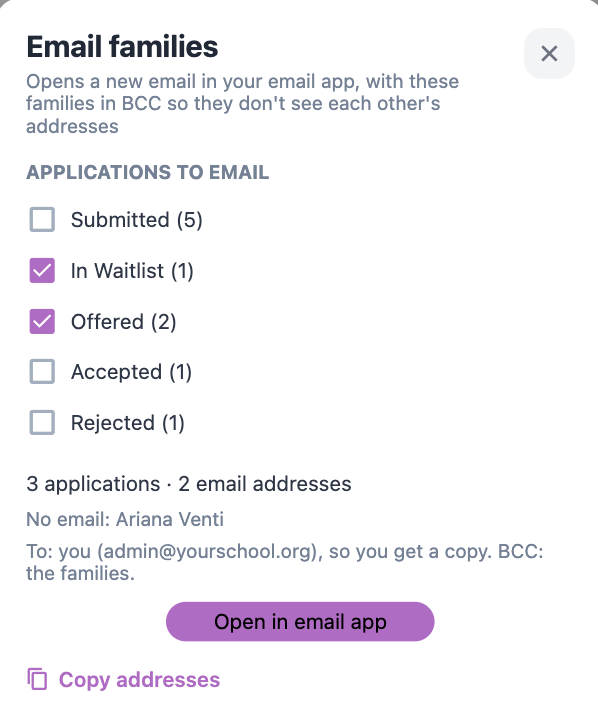
- Under Applications to email, check the statuses you want to reach: Submitted, In Waitlist, Offered, Accepted, or Rejected. Each shows how many applications it has.
- Check the count below the list to see how many applications and email addresses you've picked. Any applicants without an email are listed by name.
- Tap Open in email app.
A new email opens addressed to you, so you keep a copy, with the families in BCC. Write your message and send it from your email app as usual.
Prefer to paste the addresses yourself? Tap Copy addresses instead, then paste them into the BCC field of a new email.
👤 Email One Family
To reach a single family, use the Email or Copy button under the parent's name in the Applications table.
❓ Good to Know
- The Email families button is only on the Applications tab. It doesn't appear on the Enrollment tab.
- On a computer, if nothing opens after you tap Open in email app, your browser may not have an email app set up. Use Copy addresses and paste them into the BCC field of a new email instead.
- Nothing is sent from Onespot. The email goes out from your own email account, so replies come back to you.
- It uses the parent emails on each application, so it can reach families who haven't joined your app yet.
- Applicants without an email on file are left out. They're listed by name in the window so you can contact them another way.