
How to Manage Applications (Applications, Waitlist, & Enrollment)
The Applications tab in the Applications, waitlist, & enrollment dashboard (beta) lists every application submitted through your Transparent Classroom (TC) application form. Use it to review applicants, update their status, track your application steps, and add notes. Statuses and notes you change here save back to TC.
🎥 In the video:
- 0:40 Applications pulled from your TC application form
- 0:48 Changing a status, and seeing it update in TC
- 1:17 Sorting and filtering
- 1:35 Siblings
- 1:40 Notes and application steps
- 1:58 Exporting, and accepting a child in TC
📍 Where to Find This
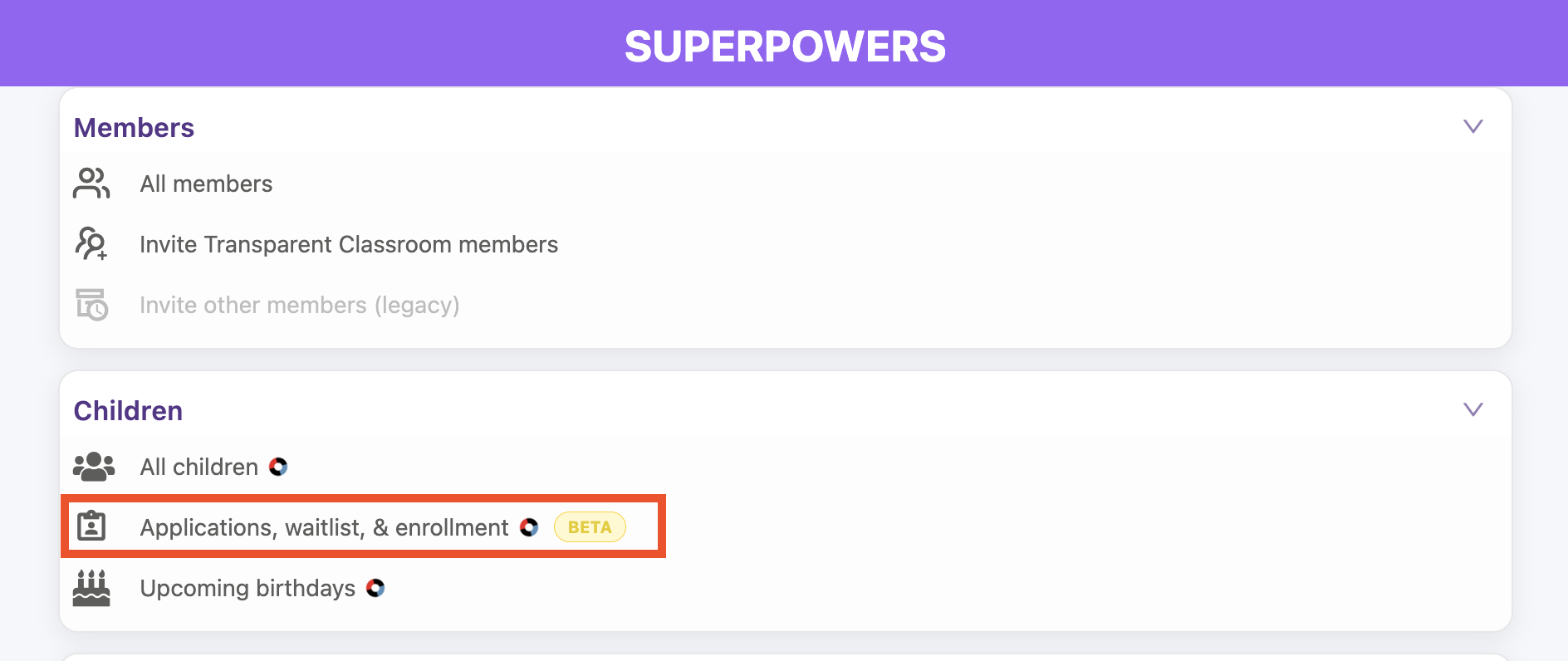
Tap the ⚡ Lightning Bolt to open Administrative Superpowers, then go to Children → Applications, waitlist, & enrollment. The Applications tab opens first.
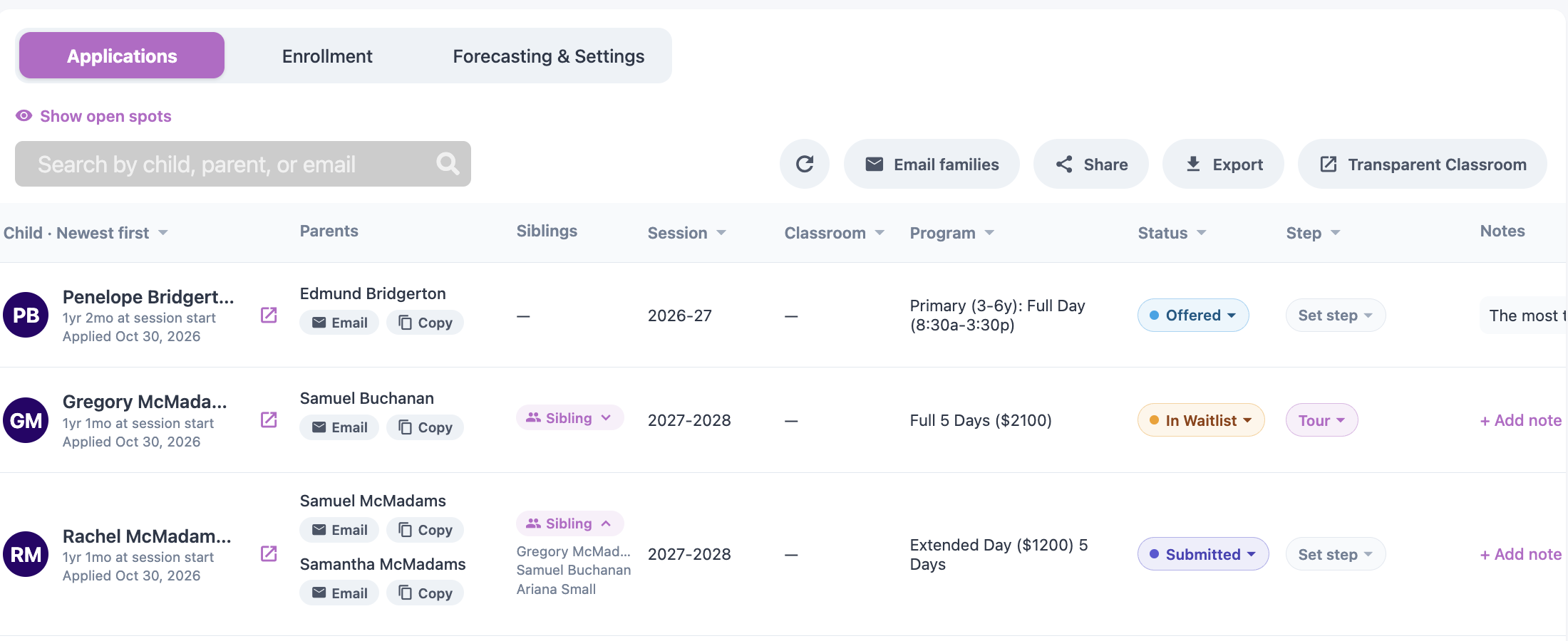
🔎 Find an Application
- Search by child, parent, or email.
- Sort by tapping the Child header: newest first, oldest first, first name, or last name.
- Filter with the ▾ in the Session, Classroom, Program, Status, and Step headers. Tap Clear all to reset.
- Tap a child's name to open their full application, or tap the ↗ icon to open it in TC.
Applications that share a parent email get a Sibling tag. Tap it to see the sibling's name.
🔄 Change an Application's Status
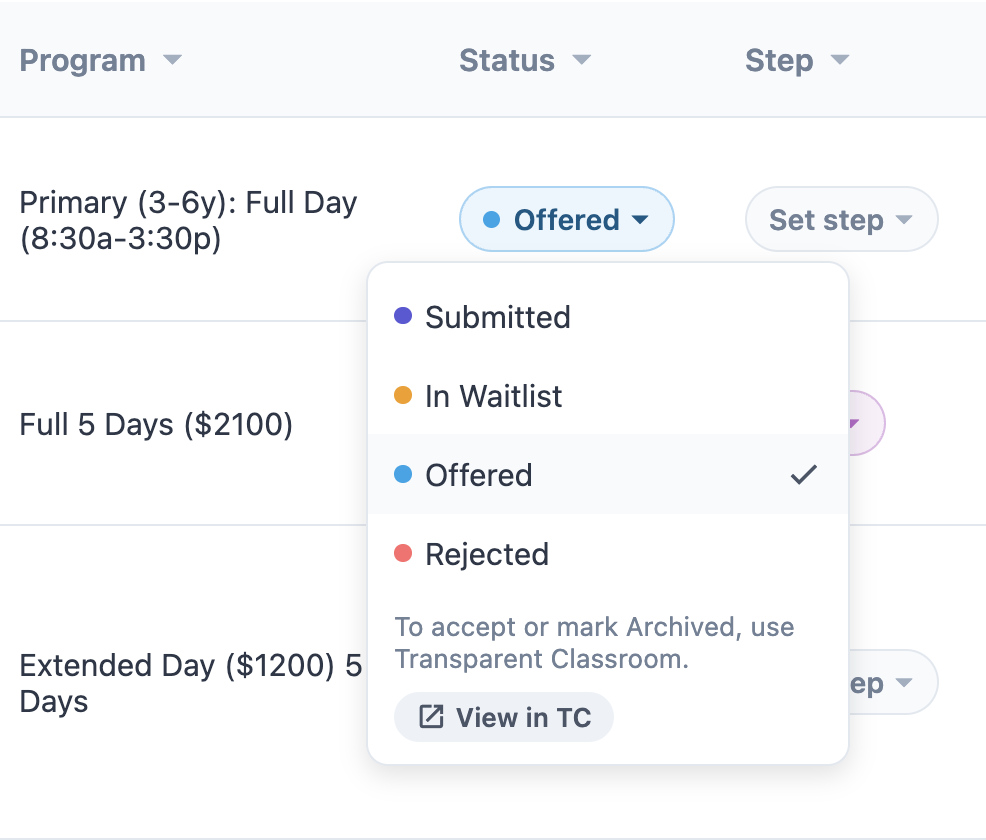
Tap the status pill and choose Submitted, In Waitlist, Offered, or Rejected. The change saves to TC, and changes made in TC show here too.
To accept or archive an application, tap View in TC in the same menu. Accepting happens in TC because it also places the child in a classroom.
🪜 Set a Step
Tap the Step pill (Set step) and choose where the family is in your process, or pick No step to clear it. Steps appear once you've created them in Forecasting & Settings.
📝 Add a Note
Tap + Add note (or an existing note), type your note, then tap Save notes. Notes save to TC.
📥 Export Applications
Tap Export to download the applications you're viewing (after any search, filters, and sort) as a spreadsheet (.csv).
❓ Good to Know
- Offered children count toward taken seats in the Open spots panel at the top of the tab.
- To email families by status, see: How to Email Families by Application Status (Applications, Waitlist, & Enrollment).
- Once you accept a child in TC, check their classroom on the Enrollment tab. See: How to Check Classroom Placement (Applications, Waitlist, & Enrollment).