
How to Set Up the Applications, Waitlist, & Enrollment Dashboard
The Forecasting & Settings tab is where you set up the Applications, waitlist, & enrollment dashboard (beta) for your school. Enter seats per classroom so open spots work, create your own application steps, and add tuition to see a forecast for the session. Do this first, before you start tracking applications.
🎥 In the video:
- 3:31 The Forecasting & Settings tab
- 3:34 Tracking seats for the whole session or by classroom
- 3:52 Saving seats and seeing Open Spots update
- 4:06 Adding tuition to forecast the session
- 4:18 Months of tuition and expected to collect
- 4:30 Creating application steps
📍 Where to Find This
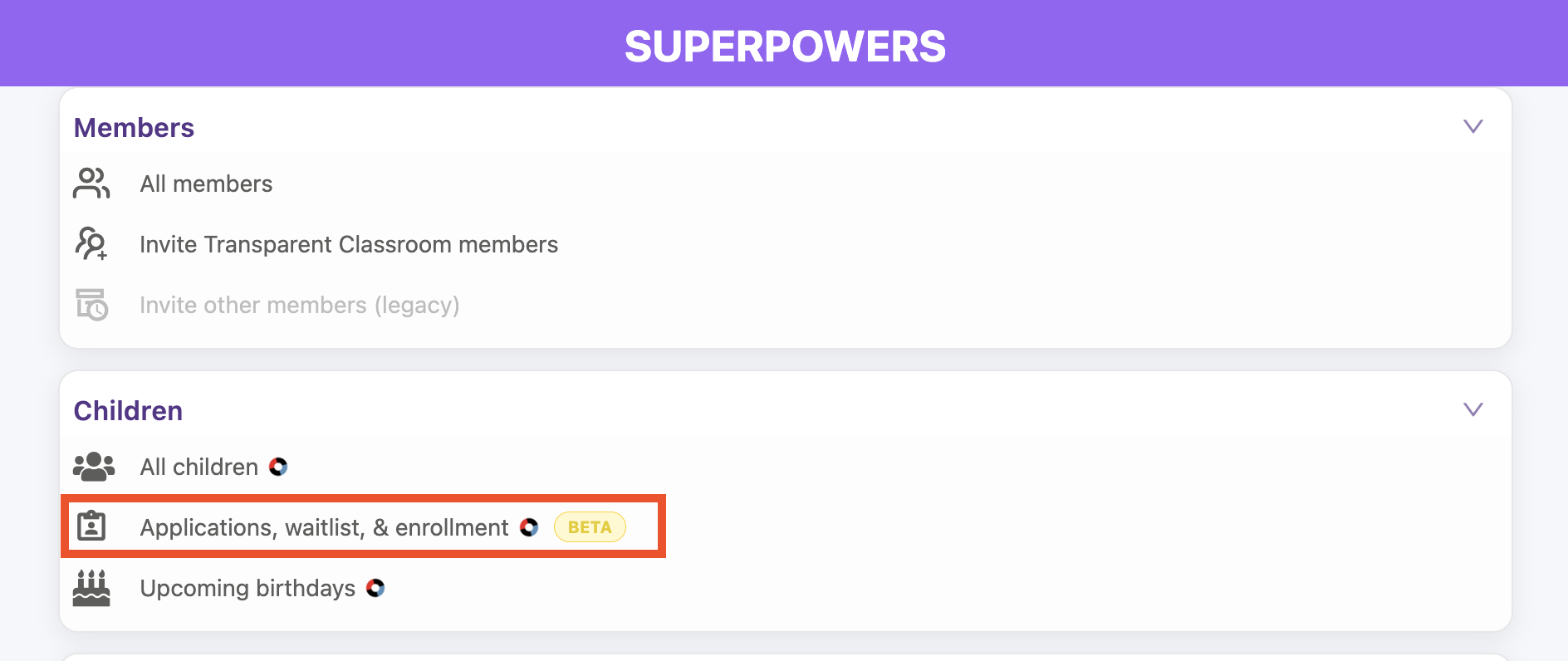
Tap the ⚡ Lightning Bolt to open Administrative Superpowers, go to Children → Applications, waitlist, & enrollment, then tap the Forecasting & Settings tab.
🪑 Set Seats for a Session
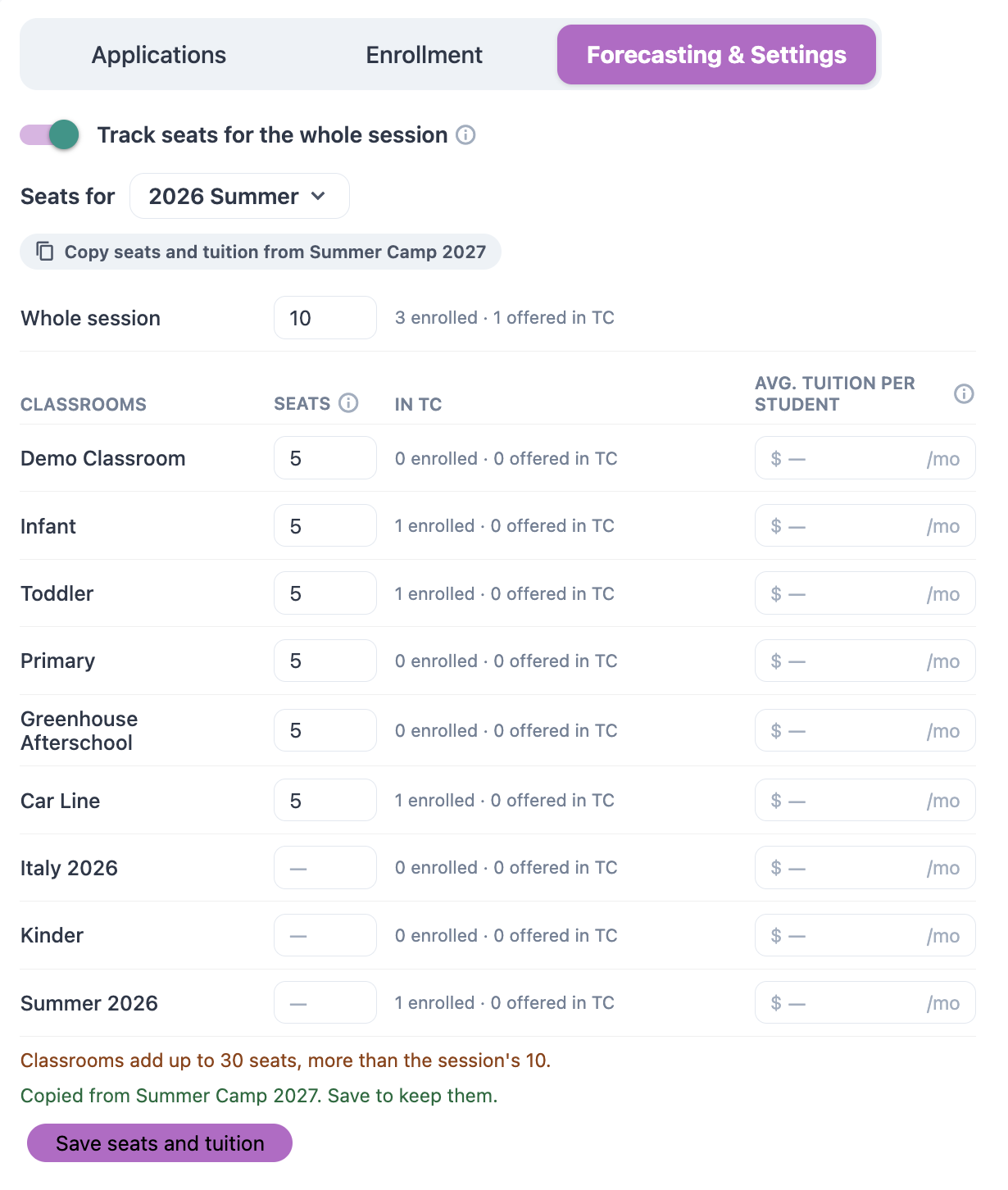
Transparent Classroom (TC) doesn't track classroom capacity, so Open Spots only appear once you enter seats here.
- Choose the session next to Seats for.
- Enter the number of seats for each classroom you want to track. Leave a classroom blank to skip it.
- To set a school-wide limit, turn on Track seats for the whole session and enter the total. If your classroom seats add up to more than that total, you'll see a warning.
- Check the In TC column to see how many children are already enrolled and offered in each classroom.
- Tap Save seats and tuition.
Open Spots now show at the top of the Applications and Enrollment tabs.
💡Tip: Tap Copy seats and tuition from to reuse the numbers from another session.
🪜 Create Your Application Steps
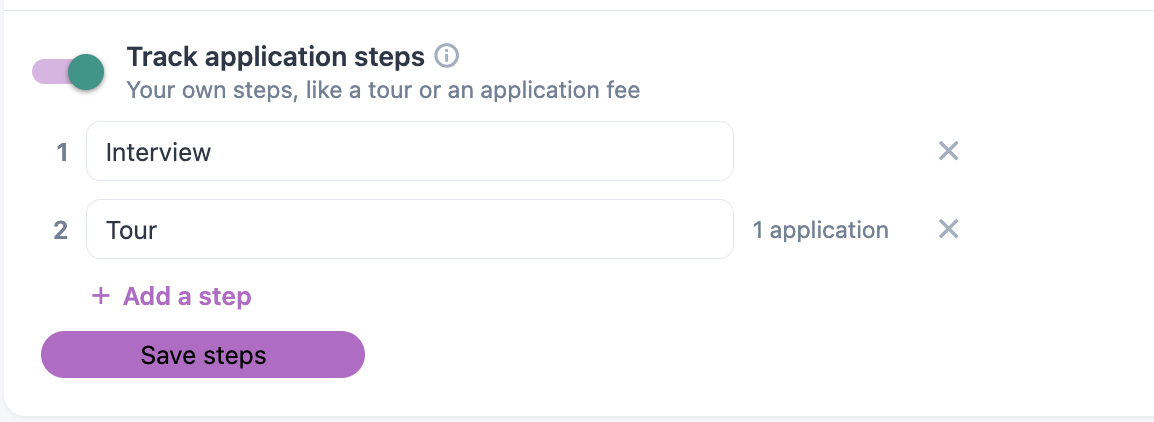
Application steps let you track where each family is in your admissions process.
- Turn on Track application steps.
- Type your own steps, like Tour scheduled, Interview, or Application fee paid. Tap + Add a step to add more, or the × to remove one.
- Tap Save steps.
A Step column now appears on the Applications tab, where you can set a step for each family.
💰 Forecast Tuition
- Enter an average monthly tuition per student for each classroom, next to its seats.
- Tap Save seats and tuition.
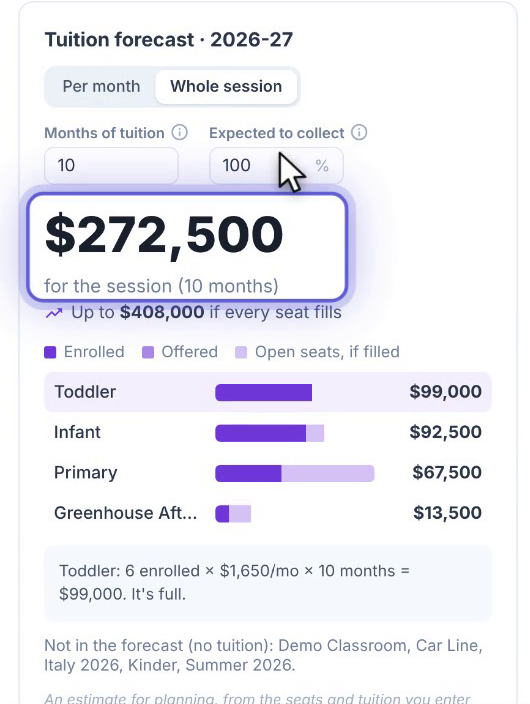
- In the Tuition forecast card, set Months of tuition and an Expected to collect percentage to allow for scholarships, discounts, or unpaid tuition.
The forecast shows:
- An estimate from your enrolled and offered children, Per month or for the Whole session.
- How much you could collect if every seat fills.
- A bar for each classroom split into enrolled, offered, and open seats, with the math written out.
- Any classrooms left out of the forecast because they have no tuition entered.
The forecast is an estimate for planning, not financial advice.
❓ Good to Know
- Seats, tuition, forecast settings, and application steps are stored only in Onespot, not in TC.
- Seats and tuition are set per session, so set them up again (or copy them) for each new session.
- Offered children count toward taken seats, along with enrolled children.