
Applications, Waitlist, & Enrollment Dashboard Overview (Beta)
The Applications, waitlist, & enrollment dashboard brings your Transparent Classroom (TC) admissions into Onespot. In one place, you can review applications, manage your waitlist, see open spots, check classroom placement, and forecast tuition. Statuses and notes you change here save back to TC.
This dashboard is in beta and available to admins who can manage users at schools connected to Transparent Classroom.
📚 Guides for This Feature
📄 How to Set Up the Applications, Waitlist, & Enrollment Dashboard
Enter seats, create application steps, and add tuition for a forecast. Start here.
📄 How to Manage Applications (Applications, Waitlist, & Enrollment)
Find applications, change statuses, set steps, and add notes.
📄 How to Email Families by Application Status (Applications, Waitlist, & Enrollment)
Email everyone with a certain status, like your waitlist, in BCC.
📄 How to Check Classroom Placement (Applications, Waitlist, & Enrollment)
See who's placed, who still needs a classroom, and compare sessions.
📍 Where to Find This
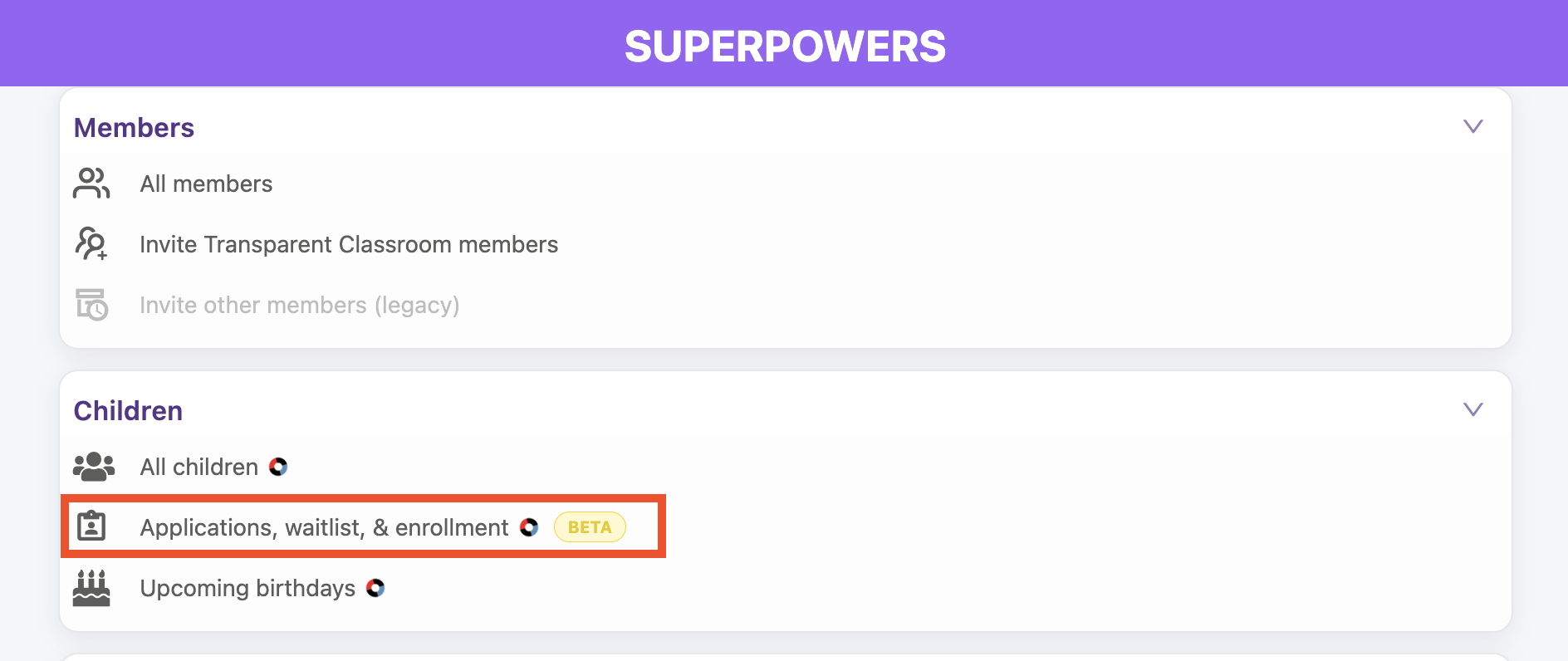
Tap the ⚡ Lightning Bolt to open Administrative Superpowers, then go to Children → Applications, waitlist, & enrollment.
🗂️ The Dashboard at a Glance
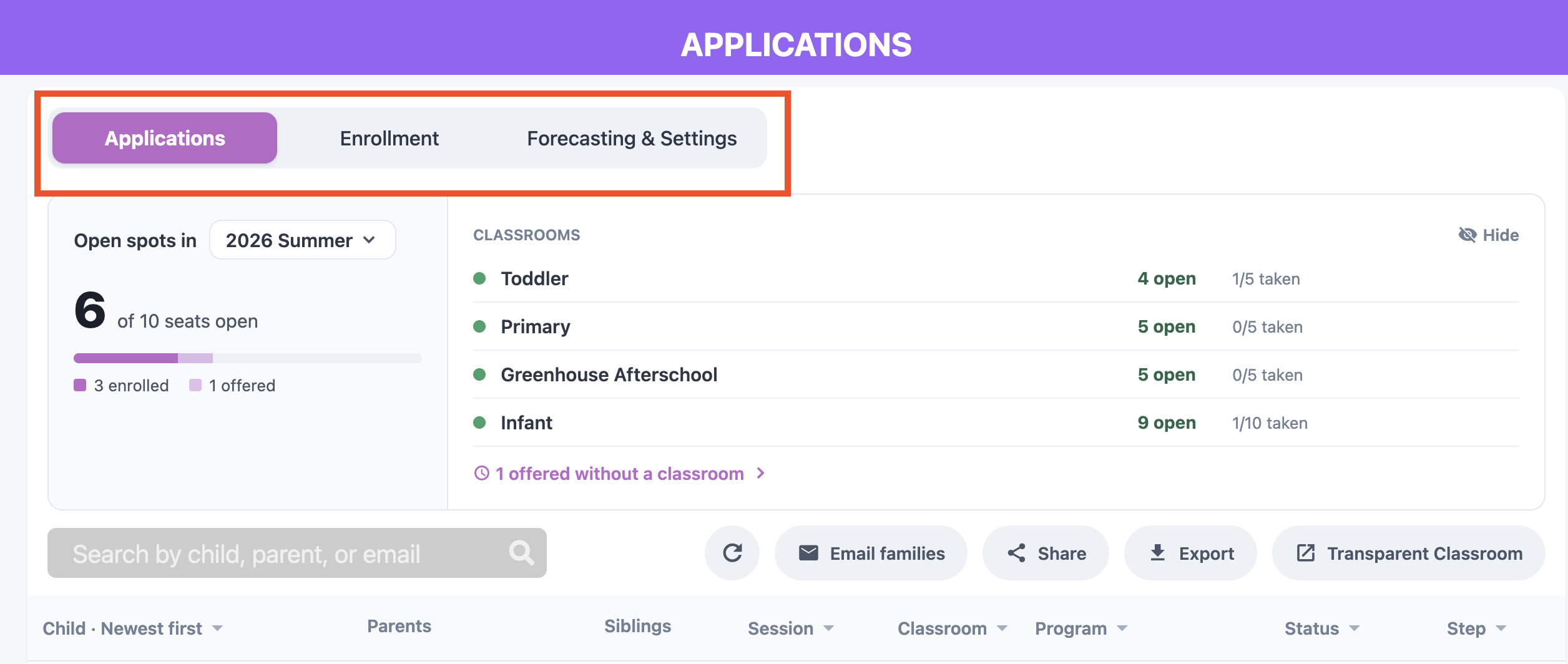
The dashboard has three tabs, plus an Open spots panel at the top of the first two.
📋 Applications
What it's for: reviewing and managing every application submitted through your TC application form.
- See each child's application with their parents, siblings, session, classroom, program, status, step, and notes.
- Search by child, parent, or email, and filter by session, classroom, program, status, or step.
- Change an application's status to Submitted, In Waitlist, Offered, or Rejected. It saves to TC.
- Track where each family is with your own application steps.
- Add notes that save to TC.
- Email families by status, with everyone in BCC.
See: How to Email Families by Application Status (Applications, Waitlist, & Enrollment)
- Export the list as a spreadsheet (.csv).

🏫 Enrollment
What it's for: checking which classroom each child is in, session by session, like TC's Classroom Placement page.
- See each child marked Placed (with their classroom) or Not placed.
- Filter by session, classroom, or status to see who still needs a classroom or re-enrollment.
- Compare sessions side by side.
- Export the list as a spreadsheet (.csv).
This tab is read-only. To enroll, re-enroll, or move children, tap Open Classroom Placement in TC.

⚙️ Forecasting & Settings
What it's for: setting up the dashboard so open spots and forecasts work for your school.
- Enter the number of seats for each classroom, or for the whole session.
- Create your own application steps, like Tour scheduled or Application fee paid.
- Add average monthly tuition per classroom to see a tuition forecast, per month or for the whole session.

🪑 Open Spots
What it's for: seeing at a glance where you have room.
What you'll see: open seats for the session, and each classroom marked Full or with its number of open spots, seats taken, and children waitlisted. Offered children count toward taken seats.
Open spots appear once you enter seats in Forecasting & Settings, since TC doesn't track classroom capacity.

✅ Getting Started
- Enter seats per classroom in Forecasting & Settings.
- Add your application steps (optional).
- Review applications and update statuses on the Applications tab.
- Accept applications and place children in TC.
- Check placement on the Enrollment tab.
❓ Good to Know
- Saved to TC: status changes and notes.
- Stored only in Onespot: seats, tuition, forecast settings, and application steps.
- Still done in TC: accepting and archiving applications, classroom placement, re-enrollment, and priority. Accepting happens in TC because it also places the child in a classroom.
- Questions or ideas? Use the email link in the beta banner at the top of the dashboard.