
How to Limit Each Email to One Booking per Event in SignUpJester
Heading into conference season or a school event? If you want each family to book just one slot, SignUpJester has a setting for that. This guide explains how to turn it on and what families will see.
👣 Step-by-Step Guide
Step 1: Log in to SignUpJester
• Go to signupjester.com.
• Click Log In at the top right.
• Sign in using your magic code or password.
Step 2: Open Preferences
- From your dashboard, select Preferences.
- Find Limit each email address to one booking per event.
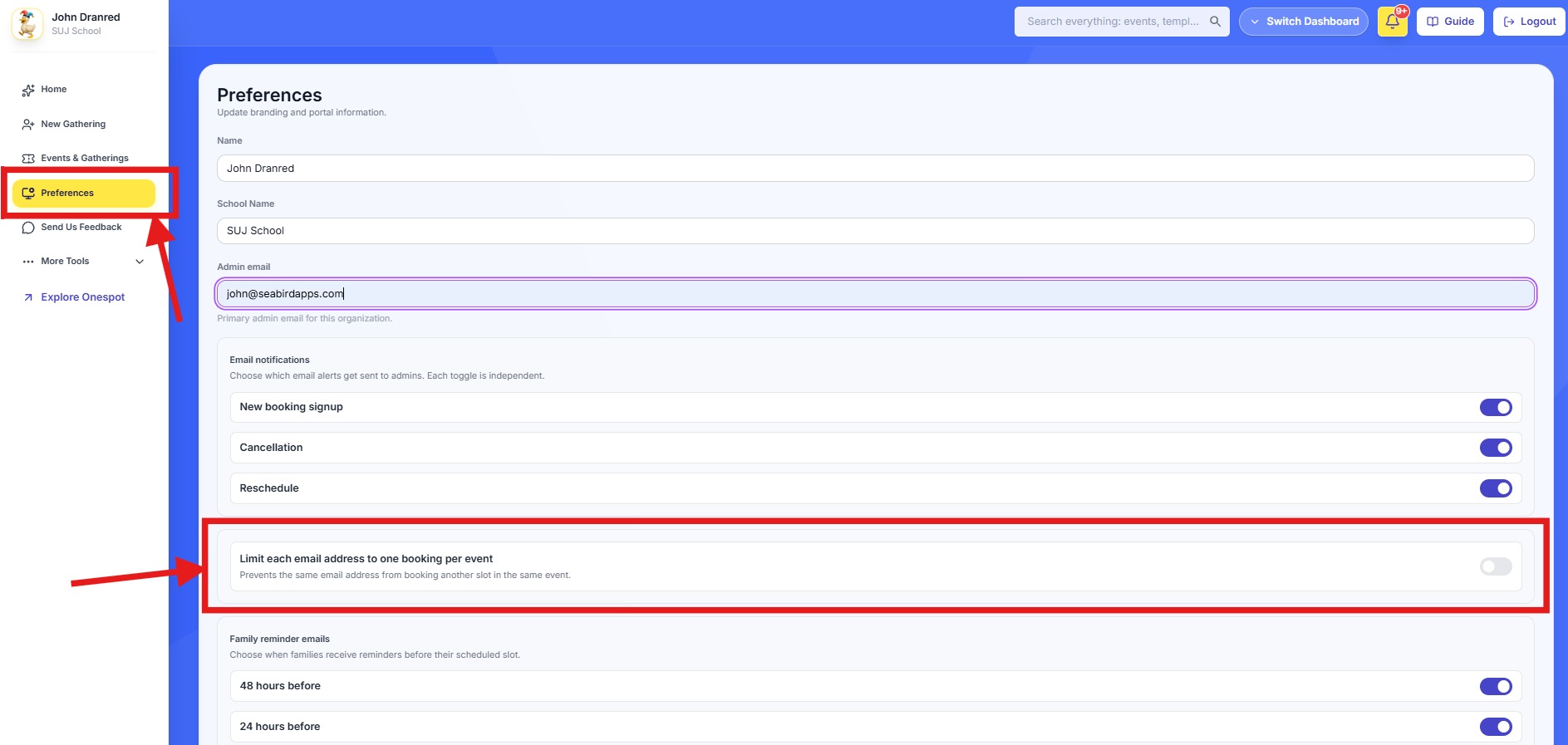
Step 3: Turn on the booking limit
- Turn on the setting.
- Click Save Preferences at the bottom of the page.
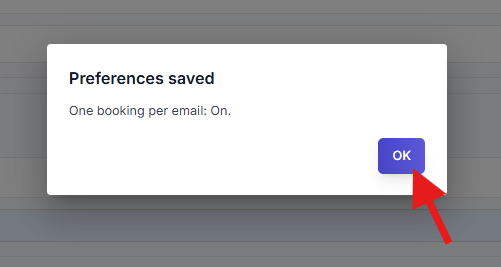
- When you see Preferences saved and One booking per email: On, click OK.
To turn off the limit later, switch off the setting and save your preferences again.
💡 Good to Know
- When a parent has booked, they won’t see Book Another Slot, and the same email address can’t make another active booking for that event.
- If a parent cancels, the same email address can book another slot for that event.
- The limit allows each email address one active booking for an event.