
Printing All Events Lists in SignUpJester
SignUpJester makes it easy to keep track of everything at once. With the Print All Events List option, admins can quickly generate a full overview of every event, complete with sorting, filtering, and grouping tools. Perfect for planning, sharing, or keeping records!
👣 Step‑by‑Step Guide
Step 1: Log in to SignUpJester
- Go to signupjester.com.
- Click Log In at the top right.
- Sign in using your magic code or password.
Step 2: Go to Events & Gatherings
- Click More Options
- Select Print All Events List

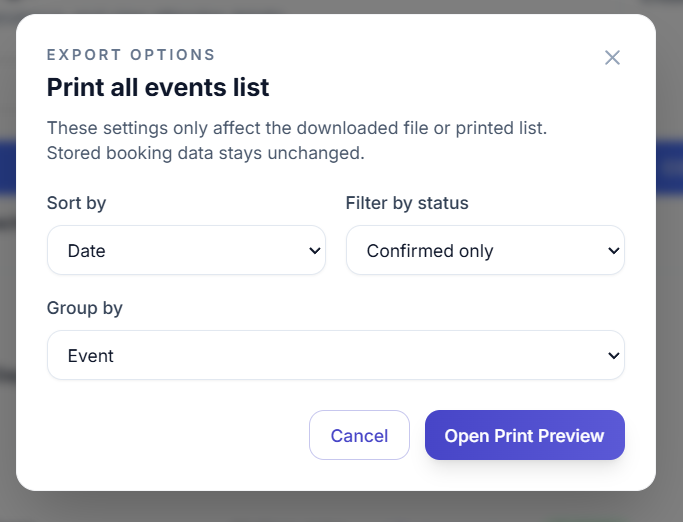
⚙️ Step 3: Export Options
🔄 Sort by:
- Date
- Name
- Time Slot
🎯 Filter by Status:
- All Statuses
- Confirmed only
- Cancelled only
📅 Group by:
- Event
- Date
🖨️ Step 4: Destination Options
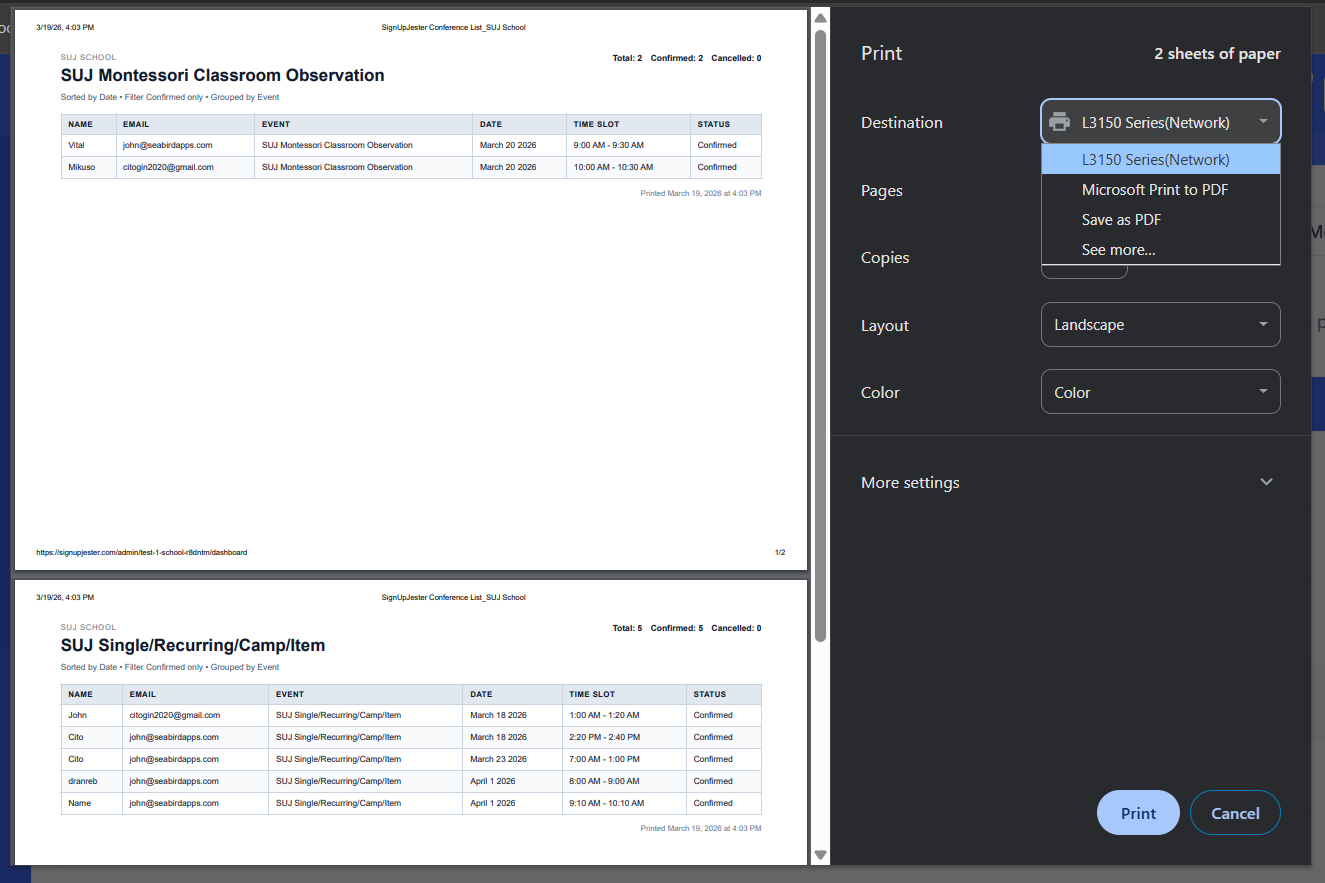
Printer (connected via cable or Wi‑Fi)
- Choose printer
- Select pages (specific or all)
- Number of copies
- Layout
- Color and other settings
- Save as PDF
- OneNote (Desktop)
- Microsoft Print to PDF
🎯 Optional Tip:
If you only want to print a single event instead of the entire list:
- In the Print Preview window, go to Pages
- Select Custom
- Enter the specific page number where your event appears
- Click Print — only that event’s page will be printed

💡 Good to Know
- Sorting, filtering, and grouping help you customize the list exactly how you need it.
- Printed lists are perfect for sharing with staff or keeping records.
- Saving as PDF ensures you always have a digital copy handy.
🎉 Hooray!
You can now print all event lists — or just one event — in SignUpJester with ease. Organizers stay prepared, families stay informed, and your events run smoother than ever!