
How to Invite Staff or Parents via Email
Admins can easily invite staff and parents to join the Onespot app by sending email invitations. Each invite includes a unique invitation code and instructions for downloading and joining the app. Invitations can be tracked, edited, or revoked at any time.
This is also how you add staff or parents who are not in Transparent Classroom, or who don't have a Transparent Classroom account. They join using an invitation code, with no TC login needed.
Using Transparent Classroom?
If your school is connected to Transparent Classroom and has texting enabled, use Invite Transparent Classroom members from the admin menu instead of the steps below. This is the recommended way to invite your TC roster by text, email, or both—without invitation codes. Members simply sign in using their Transparent Classroom email address, and their accounts link automatically.
👣 Step-by-Step Guide
- Click the ⚡ Lightning Bolt.
- Select All Members.
- Click Send Invites.
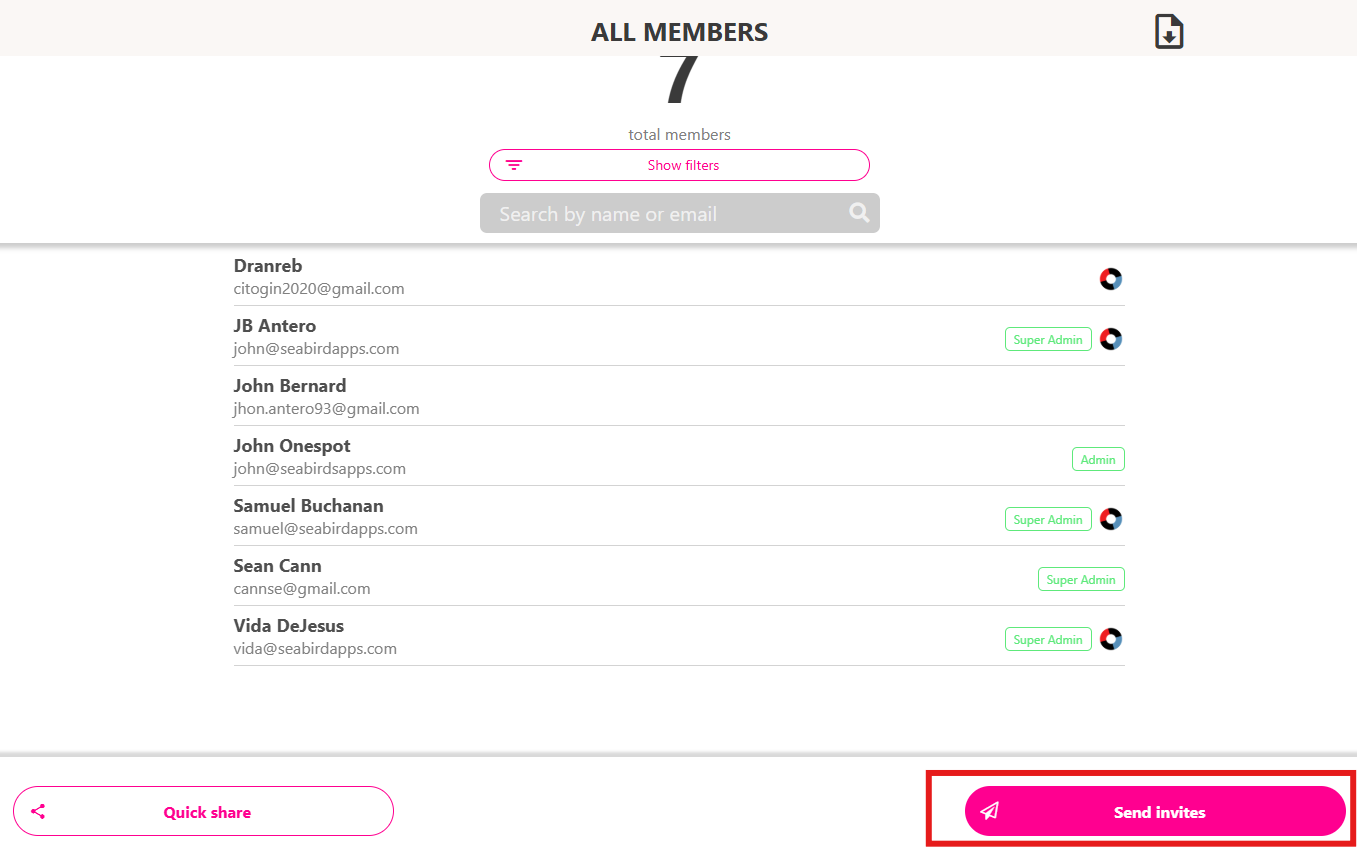
- Choose how you want to invite:
- Enter emails manually – Type the email addresses of everyone you’d like to invite. Onespot will send each person a unique invitation code.
- Import members via CSV file – Upload a CSV with parent or staff emails to send bulk invitations quickly.


- (Optional) Add a message to include in the email.
Sample message:
Hi from [School Name]! Download the [School Name] app to sign up, get updates, messages & more. Here’s the link to join. yourschoolname.app Use the invitation code in this email to sign in. (If your school uses Transparent Classroom, you can sign in with your TC email instead.)
- Click Send Invitations.
🎉 That’s it! Staff and parents will receive an email with their invitation code and instructions to join the app.
Important:
If you have pending invitations, new users will be asked whether they already have an invitation code when joining your app. This helps match invitations correctly to the right accounts.
💡 Helpful Tip
If you’ve locked your app, you’ll also need to provide the passcode for each account type (Parent, Staff, Admin, etc.) so they can join.
Remember: The invitation code is different from the passcode.