
How Teachers/Admin Can Manually Add Parents to Chats
This guide explains two ways to add parents to group chats — either by editing an existing chat or while creating a new one.
🧩 Option 1: Add Parents to an Existing Chat
Step 1: Open the Target Chat
- Find the group chat where you want to add parents.
- Open the chat.

Step 2: Add Parents
- Click the Group icon at the top of the chat.

- Then, click the Add User icon.

- Select the parents you want to add from the list.
Add everyone at once: Click Subscribe All Members to bulk-add all eligible parents.

All set! 🎉
- The members you added will now receive push notifications whenever a new message is posted in that chat.
How to Use Filters to Find and Add Members
When adding members to a chat, you can use filters to quickly find the right people—especially helpful if your school has many users.
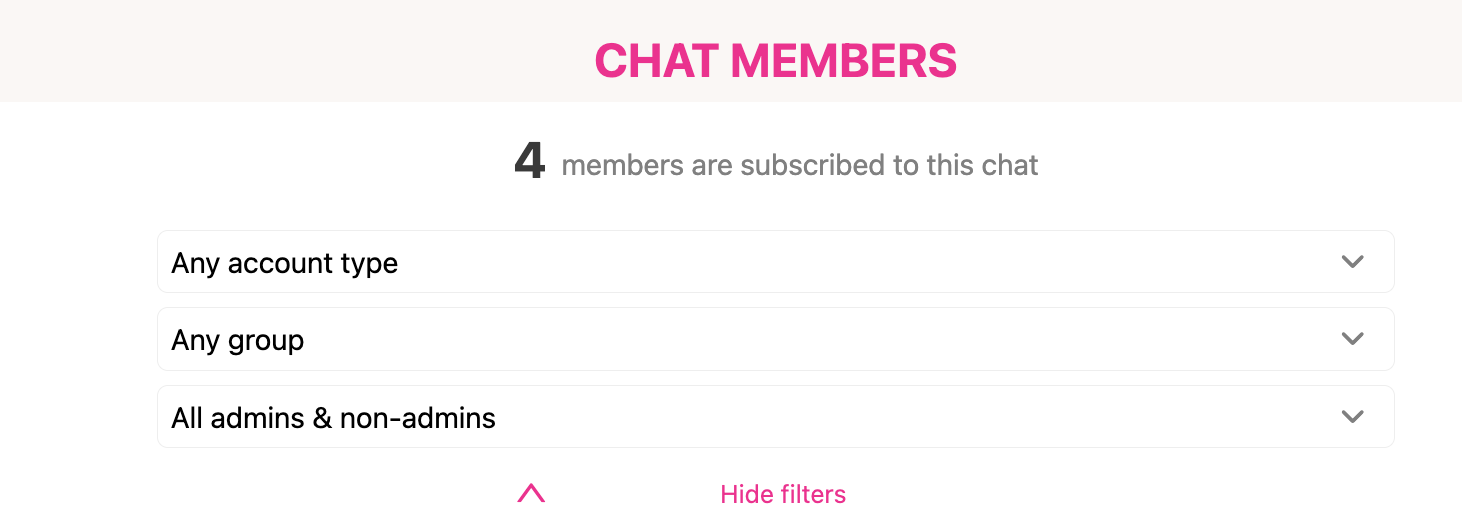
Where to Find Filters
At the top of the Chat Members screen, you’ll see:
- Any account type (e.g., Parent, Staff)
- Any group (e.g., Toddler, Lower Elementary)
- All admins & non-admins (e.g., Admins, Non-admins)
🧩 Option 2: Add Parents When Creating a New Group Chat
You can also add members right away while creating a new group chat — as long as the parents have already joined the app.
Step 1: Open Admin Superpowers
- Click the ⚡ Lightning Bolt icon to open Administrative Superpowers.
- Select New Screen → Group Chat.


Step 2: Add Members
- After creating a group chat Title, go to Manage Members → Add Members.


- Choose the parents you want to include.

- Hit Create once done to finalize the new group chat. ✅