
How to Copy a Message in a Group Chat
Want to reuse something someone wrote in a group chat, like an address, a link, a meeting time, or a phone number? You can copy the full text of any group chat message with a couple of taps, then paste it wherever you need it.
👥 Who Can Copy a Message?
Anyone who can see the message can copy it. You don't need to be an admin, a moderator, or the person who wrote it.
Copy text works in group chats on iOS, Android, and the web.
📱 How to Copy a Message on the Mobile App
- Open the group chat.
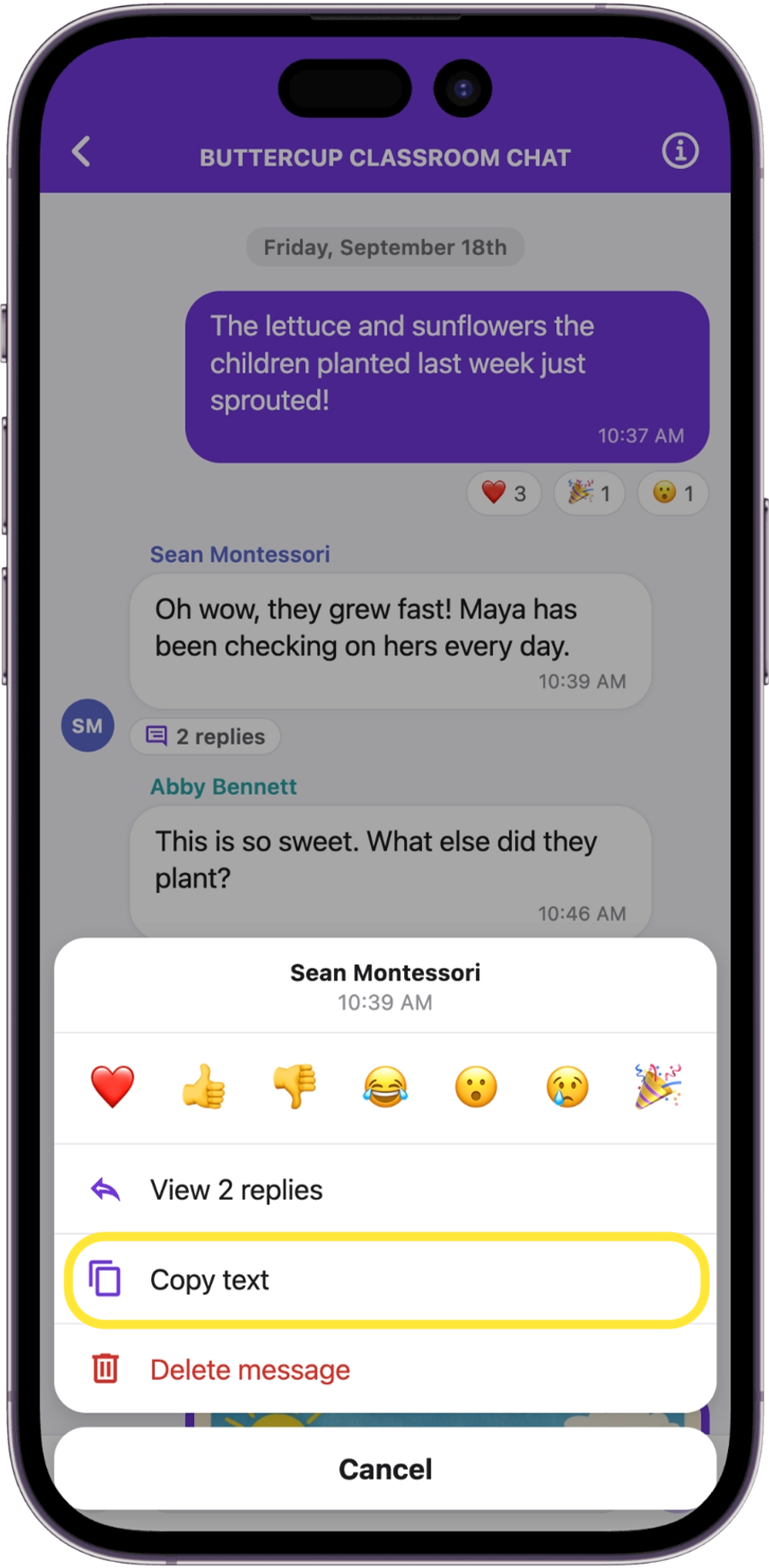
- Long-press the message you want to copy.
- In the menu that appears, tap Copy text.
- You'll feel a small vibration (on supported phones), and the message's timestamp briefly changes to Copied ✓.
- Paste it anywhere you like, such as Notes, Messages, or an email.
💻 How to Copy a Message on the Web
- Open the group chat.
- Hover over the message and click the … menu.
- Click Copy text.
- The timestamp briefly shows Copied ✓.
- Paste with Ctrl+V (Windows) or Cmd+V (Mac).
❓ Good to Know
- The whole message is copied. Copy text copies the entire message, even a long one that's shortened with Read more.
- Don't see Copy text? The option only appears on messages that contain text. Messages with only a photo, video, or poll won't show it. To save a photo on a computer, see How to Download Images in Group Chats (Web).
- Still don't see it? Update the Onespot app to the latest version. See How to Find Your Onespot App Version.
- Copy didn't work? If you see Couldn't copy this message, just try again. On the web, refreshing the page can help.
- It's private. Copying a message doesn't notify the person who sent it and doesn't change the message.