
Where to Find Billing Plans
Once you've created a Billing Plan (see: How to Set Up a Billing Plan (Invoice Installments)), you can view it in two places: on a child's row in Billing, or school-wide in Upcoming Billing.
Option 1: View a Child's Billing Plans
Step 1: Go to Billing
- Click the ⚡ Lightning Bolt (Admin Superpowers)
- Select Billing — Payments, Invoices, Subscriptions
Step 2: Find the Child
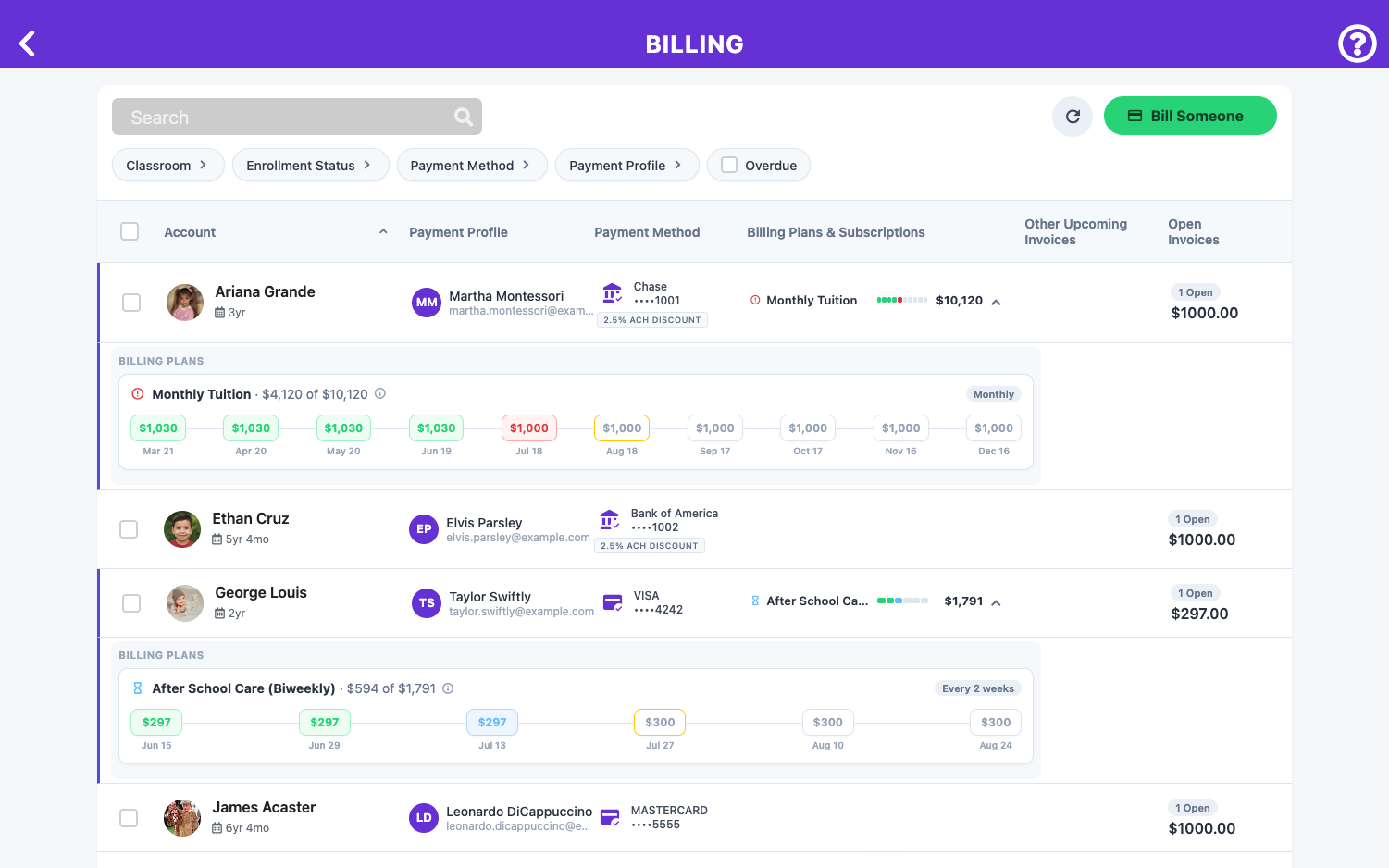
- Use the search bar, or narrow the list with the filters: Classroom, Enrollment Status, Payment Method, or Payment Profile
Step 3: View Their Plans
- The Billing Plans & Subscriptions column shows each of the child's plans with its name, progress, and total amount
- Click the Billing Plans & Subscriptions section on the child's row to expand it—an overview of each of the child's Billing Plans is displayed as a timeline of installments with amounts and billing dates.
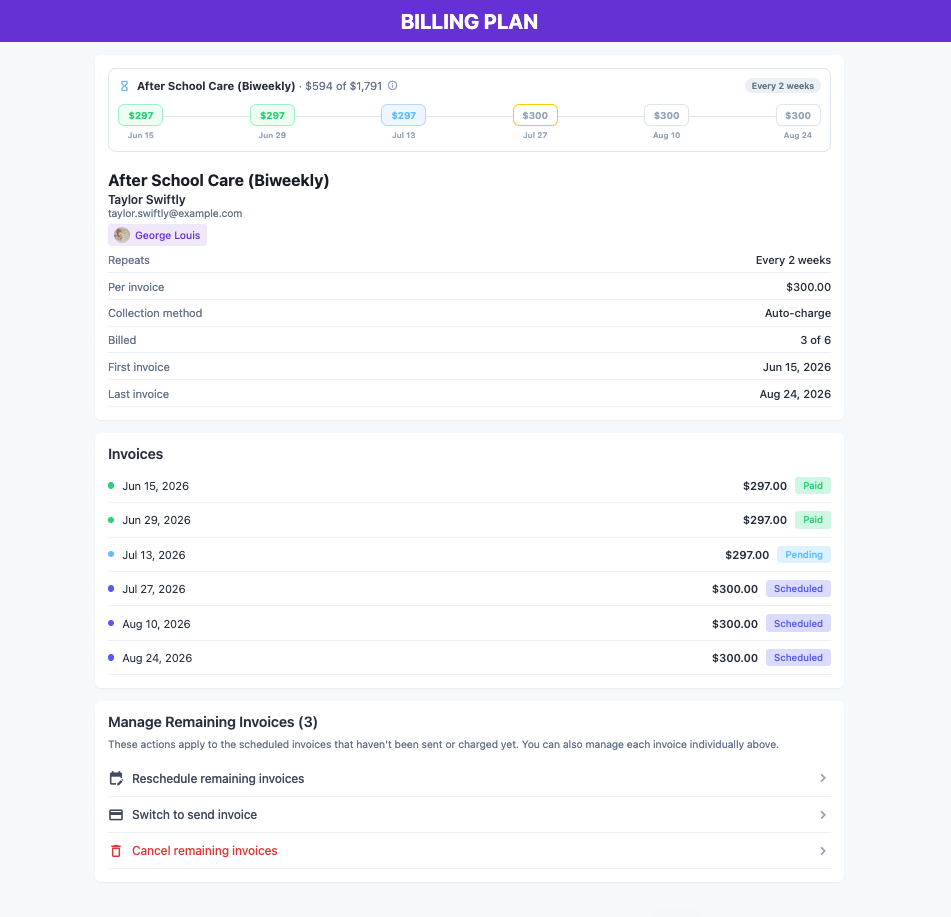
- Click a Billing Plan to open its full page for that specific product—plan details plus every invoice and its status (e.g. Invoice sent, Scheduled, Paid)
Option 2: View All Billing Plans School-Wide
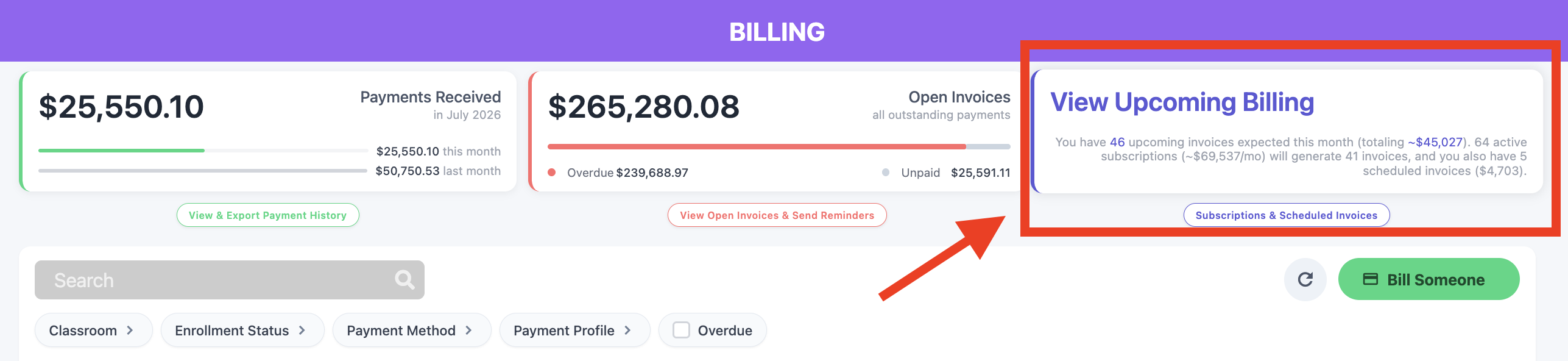
Step 1: Open Upcoming Billing
- Go to Upcoming Billing and select the Billing Plans tab
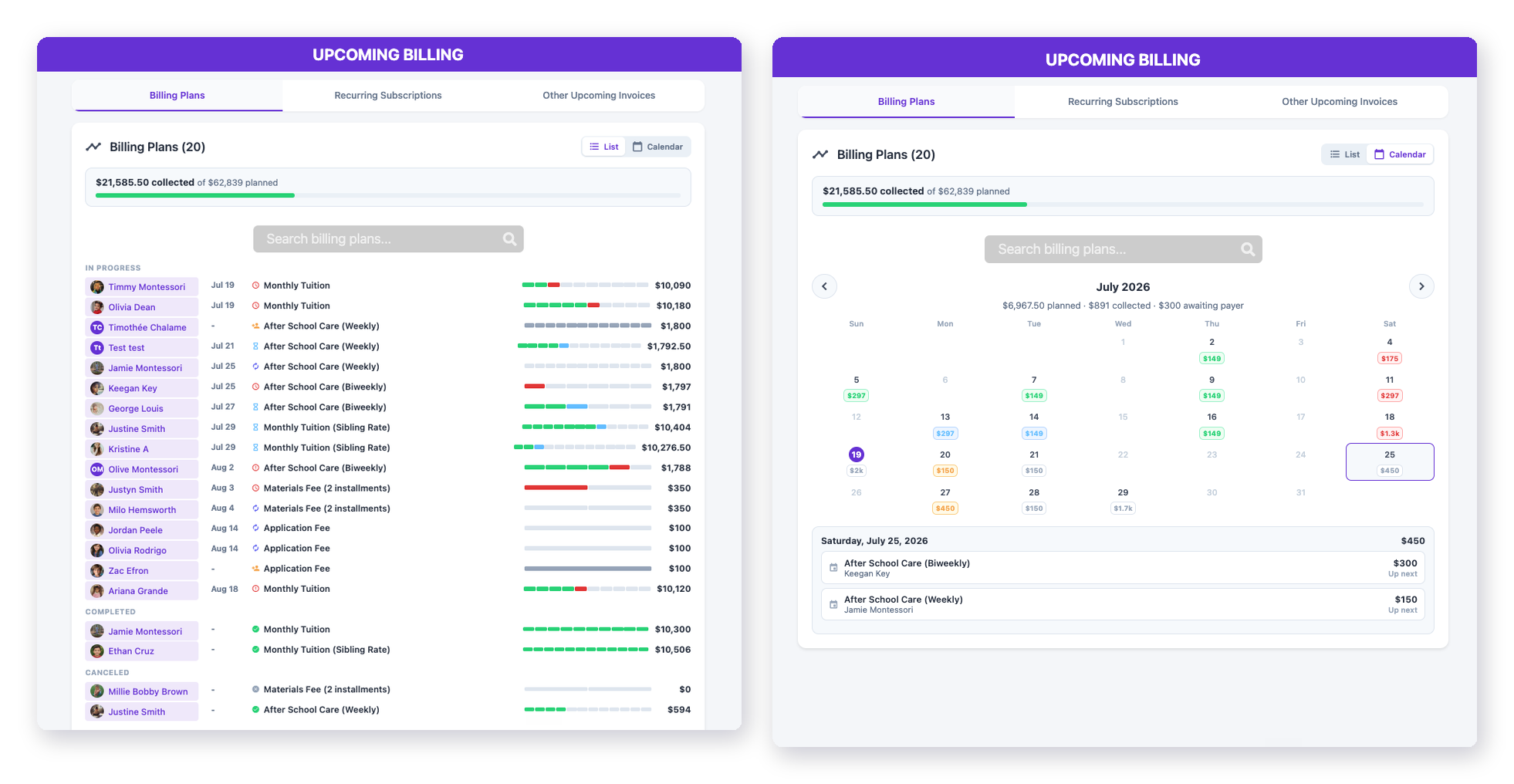
- The bar at the top shows your total collected vs. planned across all plans
Step 2: Choose a View
- List: every plan grouped by In Progress, Completed, and Canceled—each row shows the child, next billing date, plan name, progress, and total
- Calendar: a month view with each day's billing total; the header shows the month's planned, collected, and awaiting-payer amounts, and clicking a day lists exactly which plans bill that day
Step 3: Find a Specific Plan
- Use the Search billing plans bar to jump straight to a child or plan