
How to Schedule an Invoice
Scheduling an invoice lets you send invoices or charge a parent at a specific date and time in the future—instead of doing it manually later.
This is very similar to creating a regular invoice (see: How to Invoice a Student (Onespot Payments)). The main difference is that scheduled invoices are used for one-time invoices that you want to process later.
What’s New
- You can now schedule one-time invoices to send or auto-charge at a future date.
- The top summary card in Billing now shows all upcoming billing (subscriptions + scheduled invoices).
- You can view scheduled invoices in Upcoming Invoices → Scheduled Invoices.
- Scheduled invoices can be rescheduled or canceled anytime before they run.
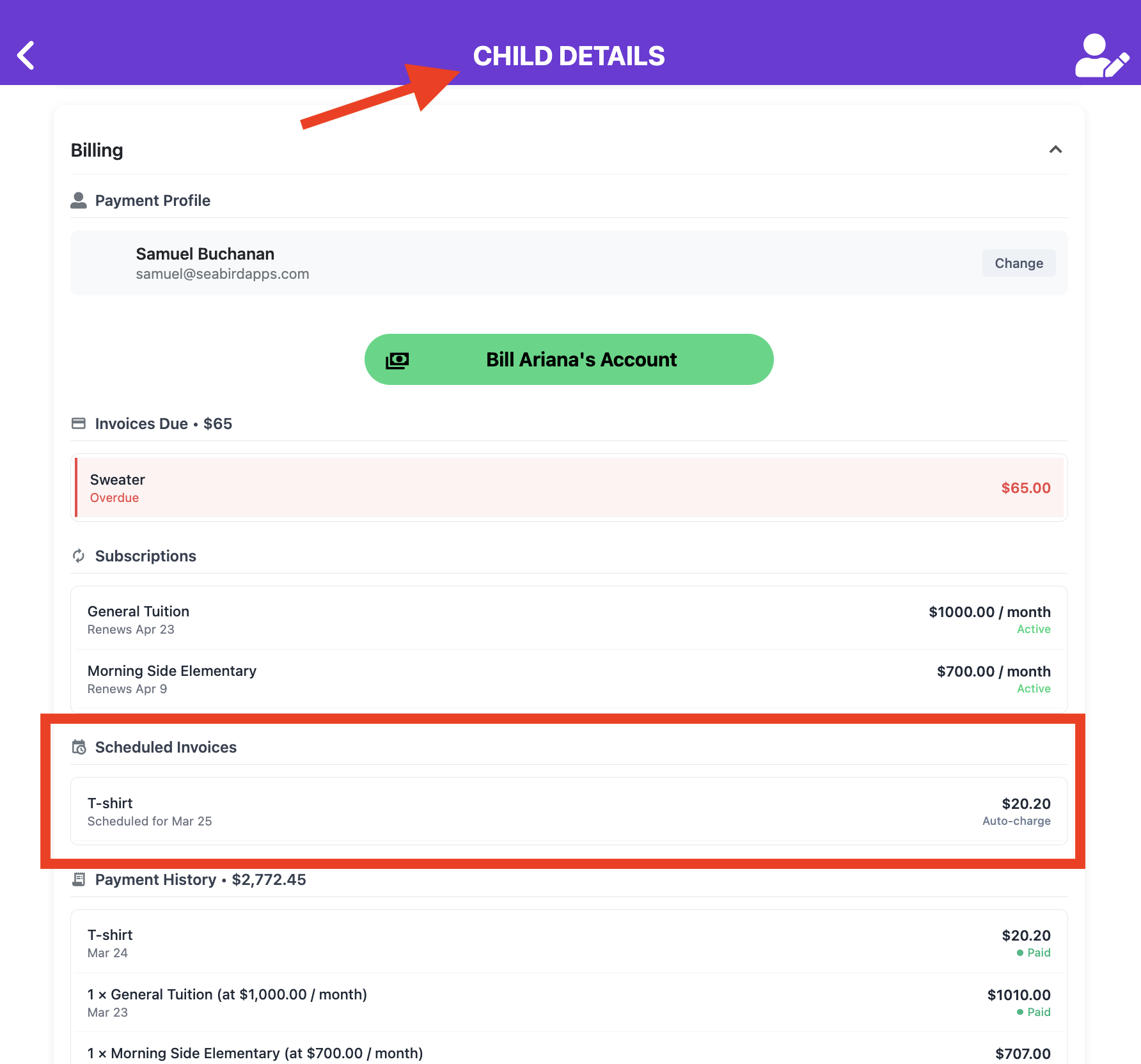
- They also appear in the Billing section of each child’s detail screen.
Step-by-Step: How to Schedule an Invoice
Step 1: Go to Billing
- Click the ⚡ Lightning Bolt (Admin Superpowers)
- Select Billing — Payments, Invoices, Subscriptions
- Click Bill Someone

Step 2: Select Who to Bill
- Choose the child (or multiple children)
- Click Continue
Step 3: Add Items & Choose Payment Method
- Click Add Item
- Select what you are billing for (e.g., Fieldtrip Fee)
Then choose how the charge will be handled:
- Charge Automatically (if a payment method is on file), or
- Send Invoice (parent pays manually later)
Step 4: Schedule the Invoice (Key Step)
Instead of charging immediately:
- Under Schedule Invoice, select Schedule
- Choose the date you want the invoice to be processed
- Set the time
- Review the invoice summary
- Click Schedule Invoice

A note on due dates: If you chose Send Invoice, the payment due date is calculated from when the invoice is actually sent — not from when you schedule it.
For example, if you schedule an invoice to send in 2 months with a 20-day due window, the due date will be ~2 months + 20 days from now, not 20 days from today. If you reschedule the send date, the due date automatically shifts with it to preserve that same window.
Where to Find Scheduled Invoices
- Go to Upcoming Invoices → Scheduled Invoices


-
Or go to All Children → select a child’s profile → under Billing, you’ll see the Scheduled Invoices section.
View Invoice Details
- Go to Upcoming Billing → Scheduled Invoices (or open it from the child’s profile)
- Click on a specific scheduled invoice
- This will open the Invoice Details page where you can see:
- Status (Scheduled)
- Charge date and time
- Amount due
- Line items and fees

Edit Scheduled Invoices
Click on a scheduled invoice to:
- View details (amount, date, fees, etc.)
- Reschedule → update the date and time
- Cancel → stop the invoice before it runs
Note: For invoices set to Send Invoice, rescheduling also shifts the due date — the time between sending and payment being due stays the same.
Need to add a fee, give a credit, or remove a charge on a Billing Plan invoice that hasn't been sent yet? See: How to Edit Line Items on Billing Plan Invoices (One or All Remaining)
Case Scenarios
-
Future Deposit or One-Time Fee
A parent needs to be charged a deposit or one-time fee on a specific date. Instead of remembering to send or charge it that day, you can schedule it ahead of time so it runs automatically.
-
Field Trip Fee
You’re collecting $75 for a field trip next week. Schedule the invoice to charge on the exact due date so all families are billed at the same time.
-
Materials Fee at Start of Month
You know you’ll charge a one-time materials fee on the 1st. You can schedule all invoices in advance so they go out automatically.
-
Workload Planning
Instead of logging in daily to send invoices, you can batch your work—set everything up at the beginning of the week and let the system handle the rest.