
How to Add a Search Bar to a Custom Screen or Form
Have a long screen, like an FAQ, a staff directory, a policy page, or a big form? You can add a search bar at the top so families and staff can quickly find what they need.
🛠️ How to Turn On the Search Bar
- Tap the ⚡ Lightning Bolt and go to All Screens.
- Open the screen or form you want to edit.
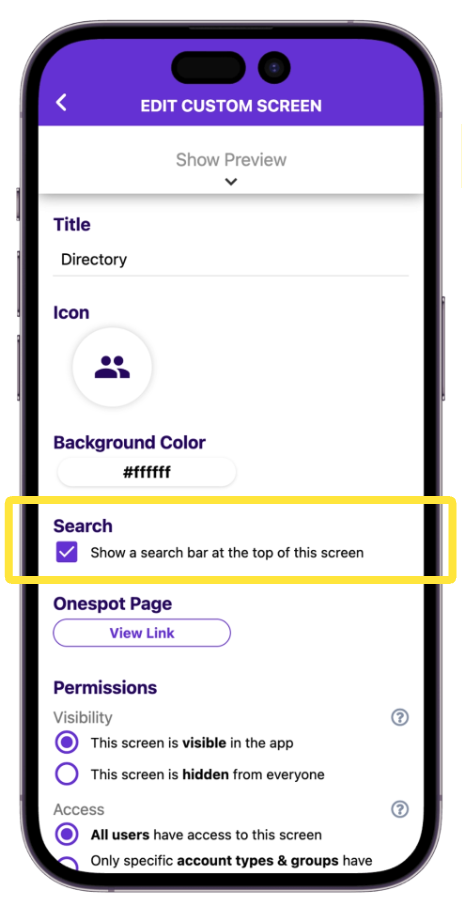
- Scroll to the Search section, just below Background Color.
- Check Show a search bar at the top of this screen.
- Save the screen.
💡 Works on custom screens and Onespot forms
🔎 How Searching Works
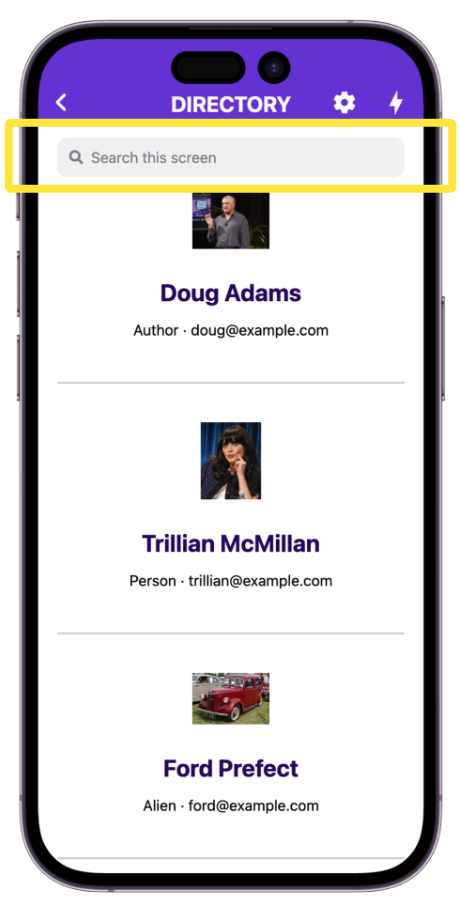
- A Search this screen bar appears at the top. Type to narrow the screen down to what matches.
- Every word you type has to appear, in any order.
- Capitalization doesn't matter.
- Tap the × in the search bar to clear it.
- If nothing matches, you'll see No matches.
💡 Helpful Tips
- Use clear, specific wording in headers and button titles, since that's what people will search for.
- Accordion sections don't open on their own. Tap a matching section to open it.
- Text typed inside a Personal Note isn't searchable, only the note's label.
- Looking to search the responses people submitted to a form? That's a separate admin tool. See Managing Form Responses (Search, Filter, and View).