
Catching Up on Unread Messages in Group Chats
Onespot shows you which group chats and activity feeds have messages you haven't read yet, and helps you pick up right where you left off.
📥 How to Tell Which Chats Have Unread Messages
Tap the chat bubble 💬 in the top left of the home screen to open Messages. A chat or activity feed with unread messages shows:
- an unread dot on the left
- a bold title
- the time in your app's color
- a count of how many messages are waiting, like "3" (or "99+" if there are a lot)
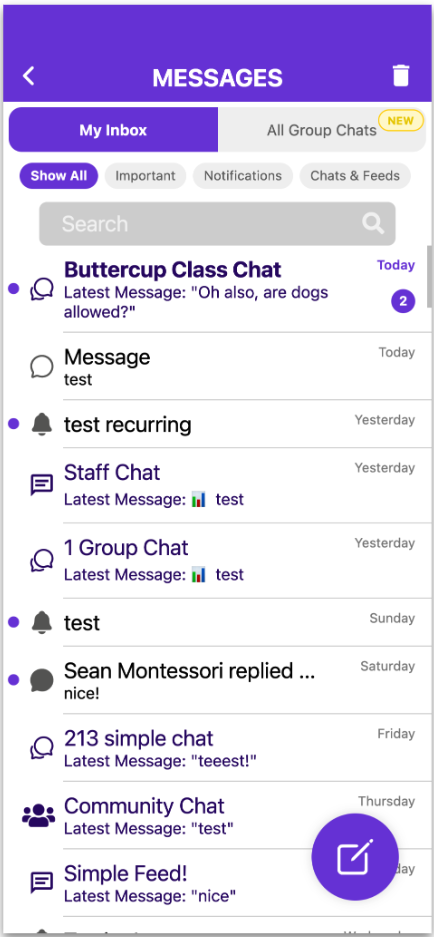
New messages in a chat you're in are grouped into that chat's row, instead of showing a separate notification for every message. Replies to your messages still show up as their own rows.
💡 Tapping a new-message notification opens the chat directly, so you can start reading right away.
💬 How to Find Where You Left Off
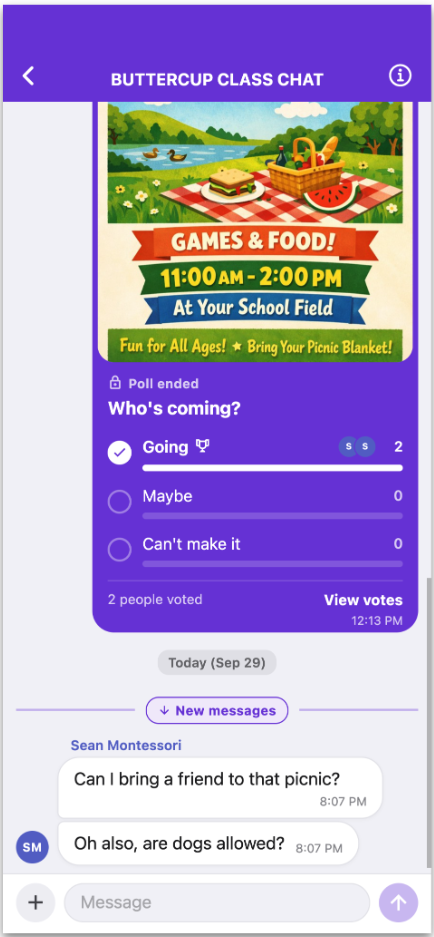
A chat always opens at the newest messages. If some were unread when you opened it, you'll see:
- A New messages line above the first message you hadn't read yet.
- A button at the top of the chat, like ↑ 14 new messages since 3:14 PM, while that line is off screen. Tap it to jump up to where you left off, or tap the × to dismiss it. It also goes away on its own once you've scrolled past the line.
❓ Good to Know
- A message counts as read once you open the chat after it was posted, the same way most messaging apps work.
- Replies in threads aren't included in unread counts.
- Counts are close, not exact. They can be slightly off for very old chats or if messages were deleted.
- Your existing chats won't suddenly all show as unread. For chats you haven't opened since this update, only messages posted after the update are counted.
- Can other people see that I've read a message? Other members can't. Depending on your school's settings, chat managers, screen editors, and some admins can see who has read each message. See Seeing Who Has Read a Message in a Group Chat.