
Personal/Private Notes on Custom Screens
The Personal Note item lets you add a private, autosaving text box to any custom screen. Each user gets their own note that saves automatically — making it easy to keep personal, school-related context right inside the app. Only the person who wrote a note can ever read or write it, not other users, and not even admins.
🛠️ How to Add a Personal Note
- Tap the Lightning Bolt to open Administrative Superpowers, then go to the custom screen you want to edit (or create a new one).
- Tap Add Item, then open the Advanced section.
- Select Personal Note.
- Fill in:
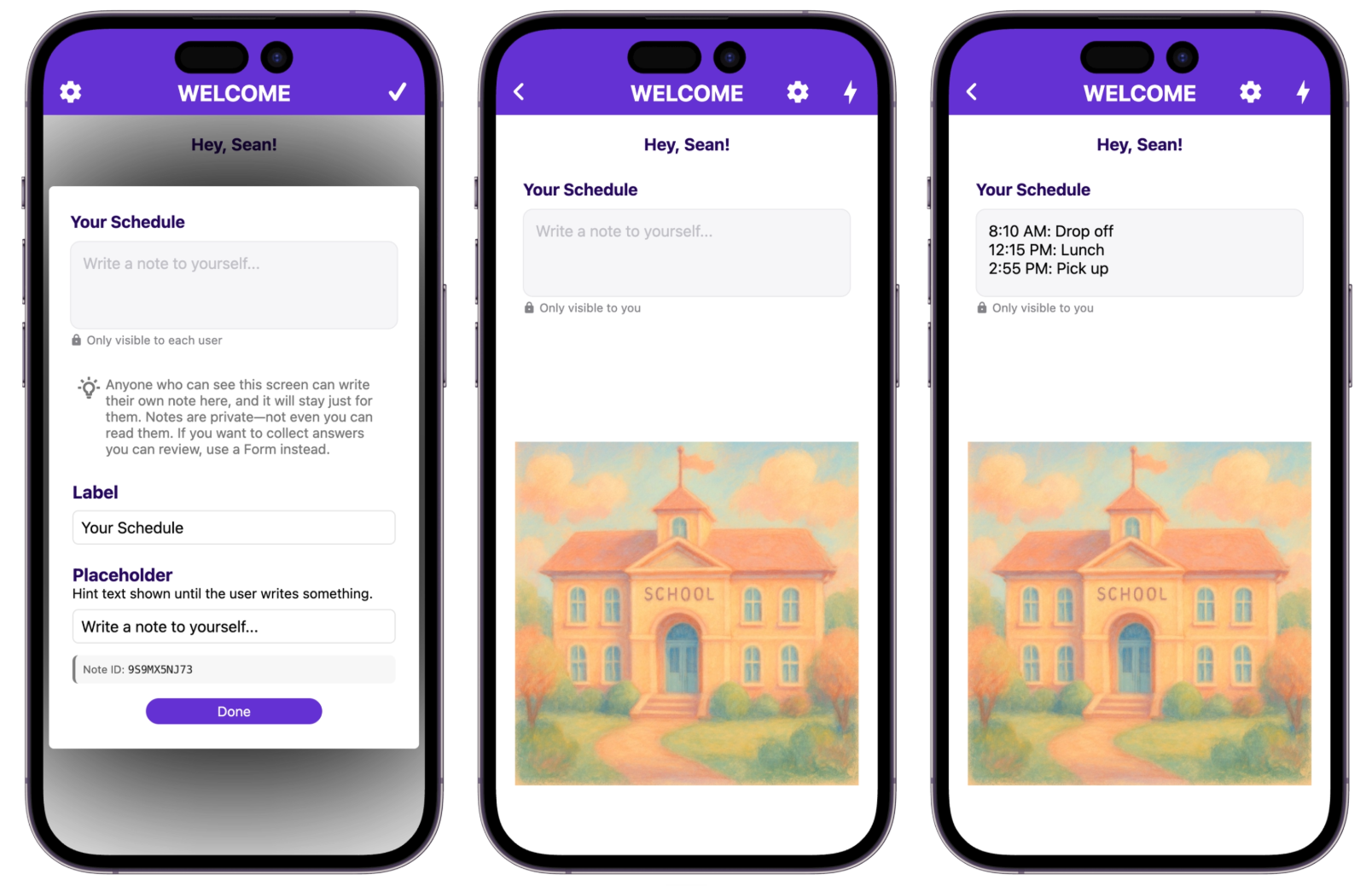
- Label — the title shown above the note box (e.g. "Your Schedule").
- Placeholder — hint text shown until the user writes something (e.g. "Write a note to yourself...").
- You'll see a Note ID field below that, already filled in for you — this is generated automatically and ties each user's note to this specific item. You don't need to do anything with it.
- Tap Done and save the screen.
That's it — every signed-in user who visits the screen now sees their own blank note box, ready to fill in.
✍️ What Users See
When a user opens the screen, they'll see a card with your label, a text box, and a small 🔒 "Only visible to you" note underneath. As they type, it saves automatically after about a second of no typing (and again if they tap away) — there's no Save button. The next time they open the screen, on any device, their note is exactly as they left it. For example, a parent might jot down their own daily reminder:
Signed-out visitors see the box grayed out with "Sign in to write a note" — notes require an account, since they're tied to a specific user.
🔒 Privacy: Who Can See These Notes?
Personal Notes are completely private. Only the person who wrote a note can ever read it back — this is enforced at the database level, so it's not just hidden from the UI. Admins, editors, and Onespot support cannot view note contents, even to help troubleshoot.
You'll see this same reminder right in the editor when you add the item: "Anyone who can see this screen can write their own note here, and it will stay just for them. Notes are private—not even you can read them. If you want to collect answers you can review, use a Form instead."
That's the line to keep in mind: Personal Notes are for things a user wants to remember for themselves — not for anything you need to collect, review, or export as an admin. If you want to gather information from your community (RSVPs, sign-ups, requests, feedback), use Onespot Forms instead.
💡 Example Use Cases
- A parent jotting down their child's locker combination or a gate/door code
- A staff member keeping personal meeting notes on a classroom or committee screen
- A quick daily schedule reminder tied to a specific screen (e.g. drop-off, lunch, and pick-up times)
❓ Good to Know
- Notes are tied to the item's Note ID, not the screen name — if you rename the screen, existing notes stay intact. If you delete the Personal Note item itself, existing notes become unreachable (they aren't shown anywhere else).
- Duplicating a Personal Note item gives it a new Note ID, so it starts everyone off with a fresh, empty note — it does not copy anyone's existing text.
- Personal Notes don't appear inside repeating data-feed sections (e.g. a repeated list of classrooms), since every repeated row would otherwise share one note.
- Notes are capped at 5,000 characters.