
How Can a Teacher Send a Group Notification in Onespot
A teacher can send a group notification only after an admin grants them the Send notification superpower. Once it's granted, they compose it from Messages. Below is how to grant access, how to fine-tune what they're allowed to send, and how the teacher then sends it.
⚠️ For admins: before granting "Send Notification" superpower
The Send Notification superpower covers more than a single message. Granted in full, it lets the teacher:
- Send to all account types and groups
- Schedule notifications and banners for later
- Send SMS texts and phone calls, if your app has texting and calling enabled (the texts-and-calls send action checks this same permission)
If you'd rather they reach only certain families or staff, use Limit Notification Permissions (Part 2).
Note that the All members superpower is what allows a person to grant this power to others, so reserve it for staff you fully trust.
Part 1 — Grant the teacher "Send notification" access (admin)
You need the All members superpower to do this (it's the privilege that lets you edit other members).
1. Open your ⚡️Admin Superpowers page and tap All members.
2. Find and tap the teacher to open their Manage Member page.
3. Scroll to Administrative Superpowers.
4. Check Send notification.
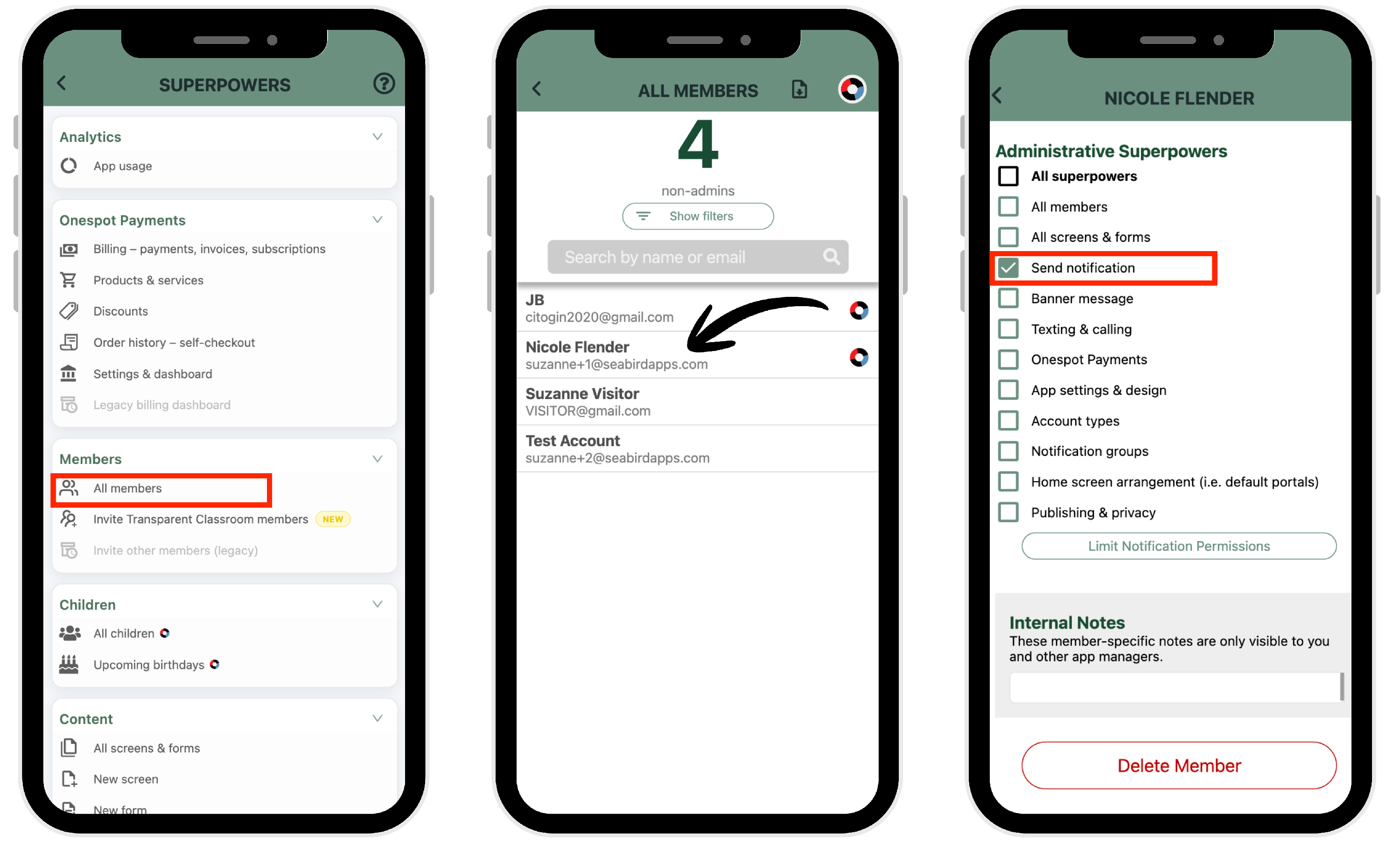
Heads up! Checking All Superpowers would grant everything — don't use that just for notifications.)
That's all it takes — the teacher can now send to every account type and group. If you want to narrow that down, continue to Part 2.
Part 2 — Set the teacher's Notification Permissions (admin, optional)
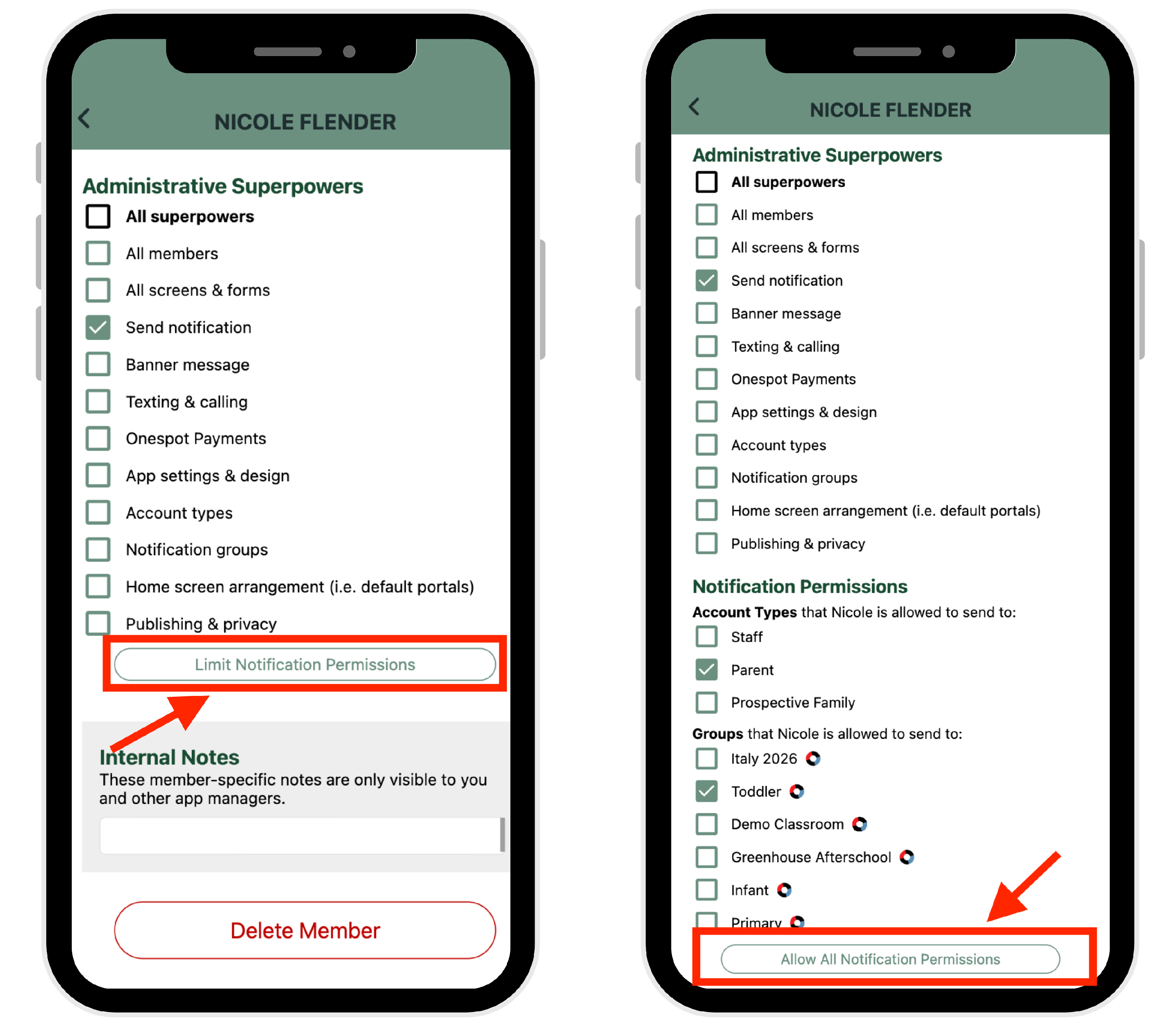
This granular step is available when your app has granular security turned on. Right after you check Send notification, a Limit Notification Permissions button appears.
1. Tap Limit Notification Permissions.
2. A Notification Permissions section opens with two checklists:
• Account Types they're allowed to send to (e.g. Staff, Parent).
• Groups they're allowed to send to (e.g. Toddler Classroom, Primary).
3. Check only the account types and groups this teacher should be able to reach. They won't be able to send to anyone outside those selections.
4. Changed your mind? Tap Allow All Notification Permissions to give them full reach again.
Part 3 — The teacher sends the notification
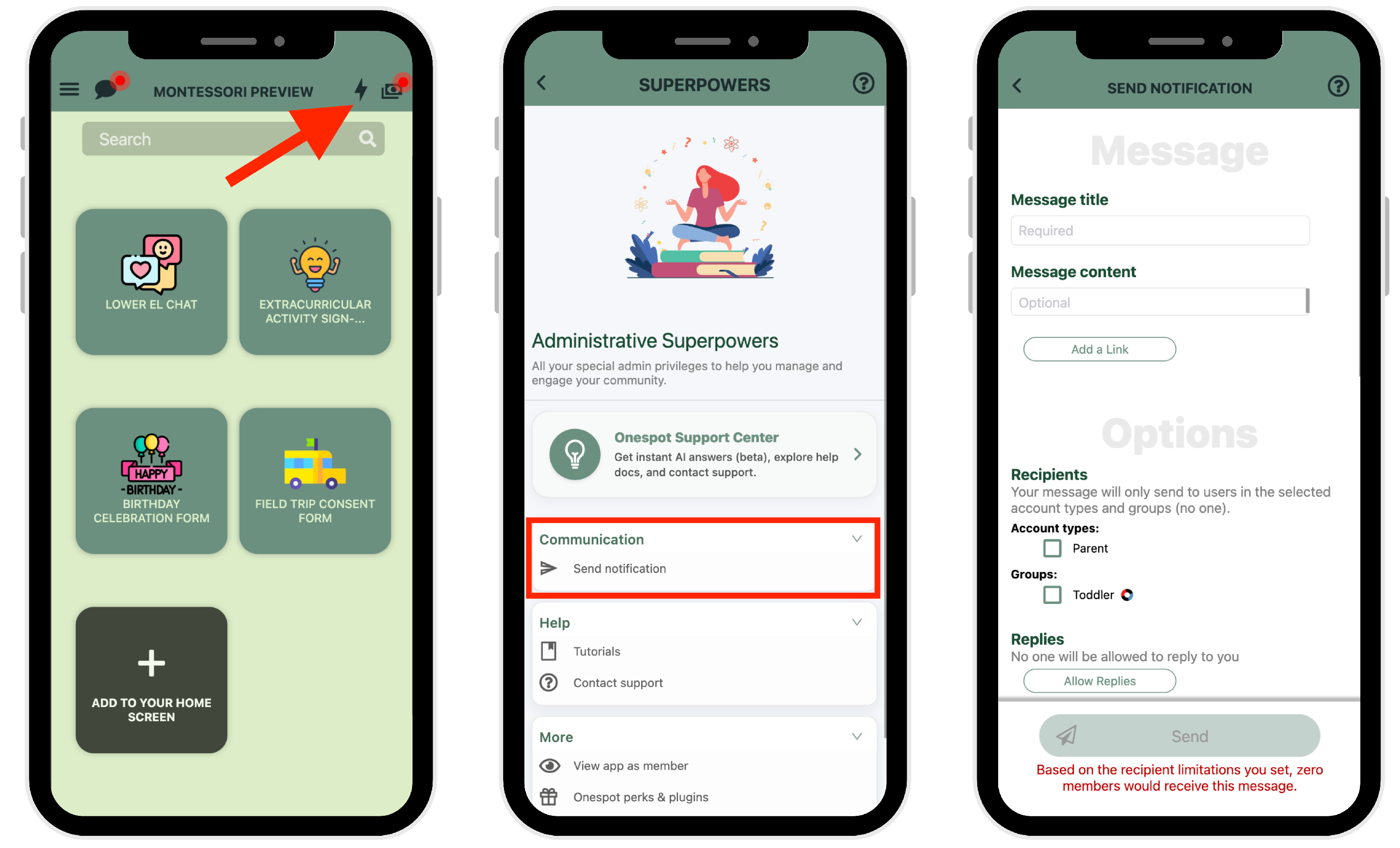
Once the teacher has the Send notification permission, they carry a Limited Admin badge and gain access to a lightning-bolt Admin Superpowers menu.
Opening it, they'll see Send notification under Communication — the same composer an admin uses.
To send:
- Open ⚡️Admin Superpowers, then tap Send notification under Communication.
2. On the SEND NOTIFICATION screen, fill in Message title (required) and Message content (optional), and optionally Add a Link.
3. Under Recipients, pick who it goes to by Account types and Groups
Heads up! A teacher only sees the ones you allowed in Part 2.
4. Choose whether to Allow Replies, then send.
For the full composer walkthrough, see Sending a Push Notification.