
How to Invite Transparent Classroom Members to Your App
If your school is connected to Transparent Classroom and has texting enabled, you can invite members from your TC roster to join your Onespot app by text, email, or both.
No invitation code is required. Recipients simply tap the invitation link, download the app, and sign in using the same email address they use for Transparent Classroom. Their Onespot account will then link automatically.
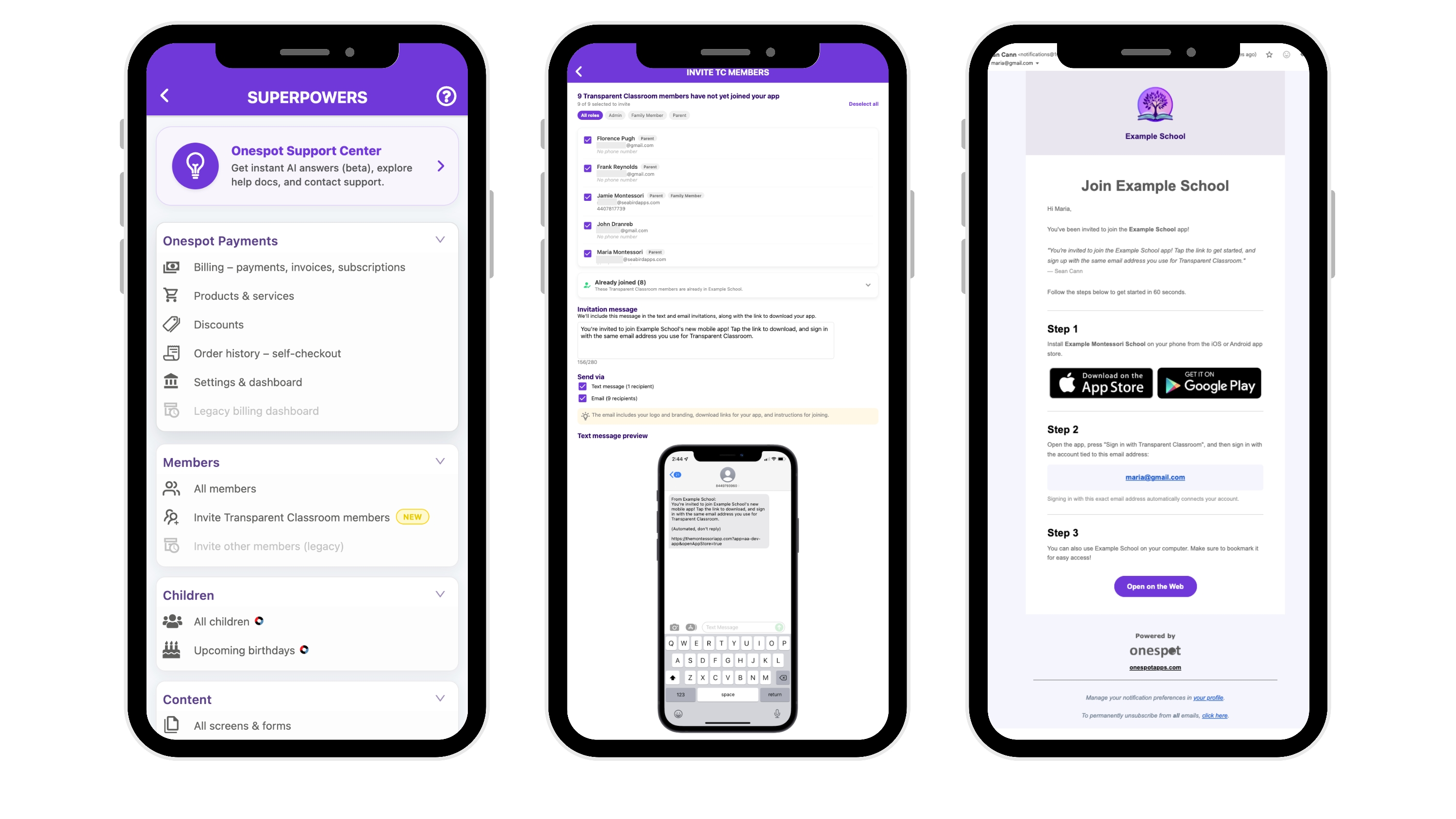
👣 Step-by-Step Guide
- Click the ⚡ Lightning Bolt in the admin panel.
- Under Members, select Invite Transparent Classroom members.
You'll see your Transparent Classroom roster divided into groups:
- Members who have not yet joined your app — this list only shows current members (parents/family members linked to a child currently enrolled, plus all staff). They're pre-checked for you.
- Past members — a collapsed card for parents/family members who aren't linked to any currently enrolled child (e.g., families whose kids have already left the school). Nothing here is pre-checked. Tap the card to expand it if you want to invite alumni families — you can select individuals or use Select all.
- Members who have already joined
- Use the role filters to narrow the list, such as Admin, Family Member, or Parent.
- Select the members you want to invite. You can check individual names or select everyone currently shown in the filtered list.
- Review or edit the invitation message.
The message will be included in both the text and email invitations. A live preview shows how it will appear as a text message, along with the current character count.
- Under Send via, choose one or both options:
- Text message
The screen will show how many selected recipients can receive each type of invitation.
- Click Send invitations.
🎉 That’s it!
Selected members will receive a branded invitation with links to download or open your app. They do not need to enter an invitation code. Once they sign in using their Transparent Classroom email address, their account will link automatically.
Helpful Tips
- Text invitations use your school’s texting credits. The screen will show the number of text recipients, and you’ll be notified if you do not have enough credits to send all selected invitations.
- Members without a phone number can still be invited by email, provided an email address is available in Transparent Classroom.
- The invitation email includes your school’s logo and branding, app download links, sign-in instructions, and an option to open the app on the web.
- Members who have already joined are shown separately, helping you avoid sending them another invitation.