
How to Share a PDF Using a Public Link
You can upload a PDF to Onespot and share it with anyone using a direct public link. This is helpful when you want someone to view or download a document without needing to find it in the app.
Upload and share the PDF
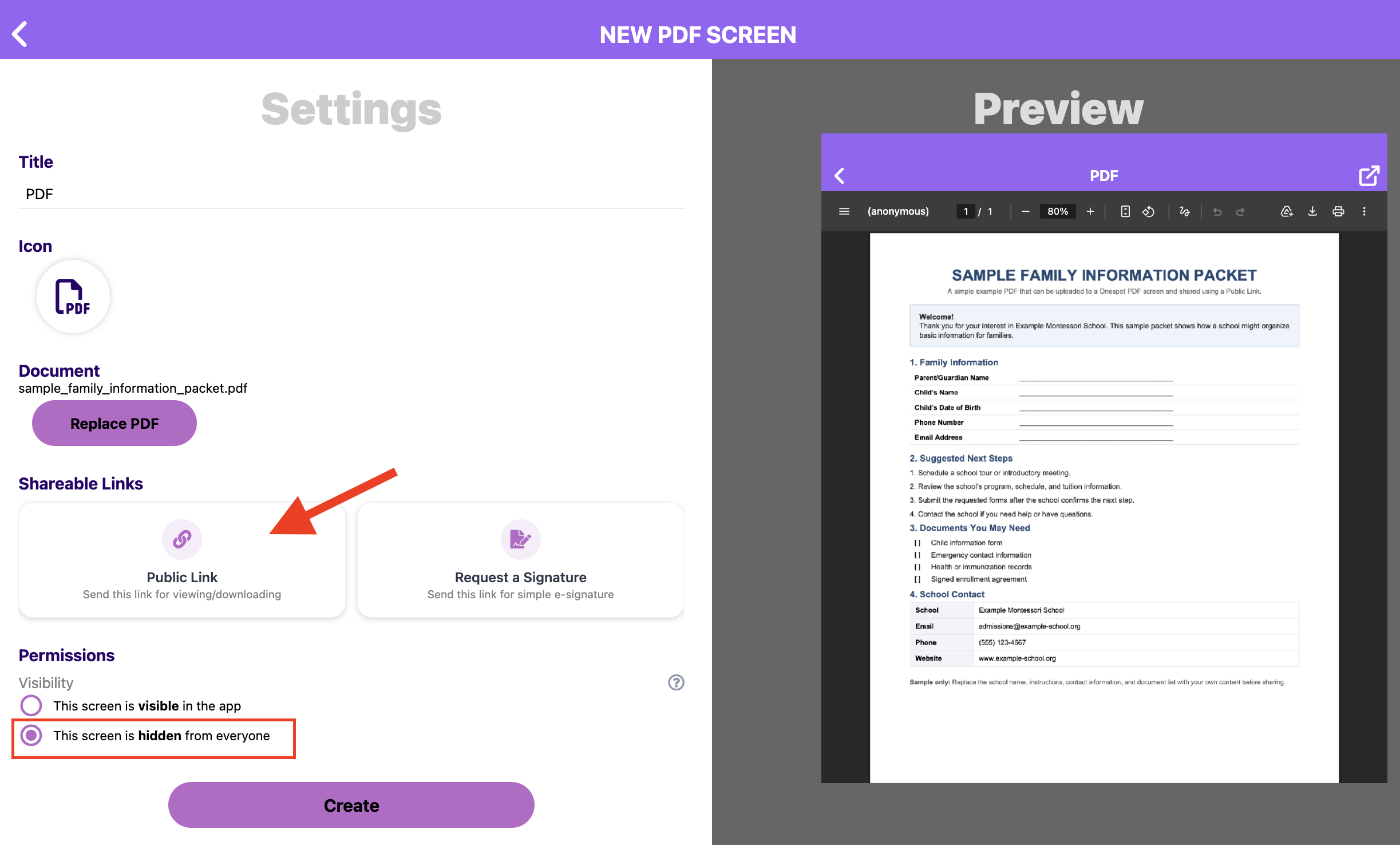
- Go to New Screen.
- Select Upload a PDF.
- Upload your document and add a title.
- Under Shareable Links, select Public Link.
- Copy the link and send it by email, text, or chat.
Anyone with the link can open, view, and download the PDF.
You can also keep the PDF screen hidden from the app under Permissions and still share its Public Link directly.
Example: A school may keep an Enrollment Packet hidden from the app and send the Public Link only when a family is ready to receive it.
For more details about PDF shareable links and signature requests, see Shareable Links for PDF Screens.