
Adding a New Screen to Members' Home Screens (and Notifying Users)
When you create a new screen, Onespot shows a confirmation page with a few optional next steps: adding the screen to members' home screens, and notifying users about it. Which of these you see depends on your admin superpowers. None of them are required. Your screen already exists and is ready to use either way.
📍 Where to Find This
After you save a new screen, you'll land on the Created Custom Screen page. A green banner confirms the screen was created and added to your own home screen. The optional steps are listed below it.
Why Doesn't a New Screen Show Up on Everyone's Home Screen?
A new screen is added to your own home screen right away, but not to anyone else's. That's because members fall into two groups, and each group is reached in a different way:
- Members using the default layout see the home screen arrangement set for their account type. To reach them, add the screen to that default layout (Step 1).
- Members who have customized their own home screen keep their personal layout, so changes to the default don't reach them. To reach them, use Add to Custom Home Screens (Step 2).
To reach everyone, you'll usually want to do both.
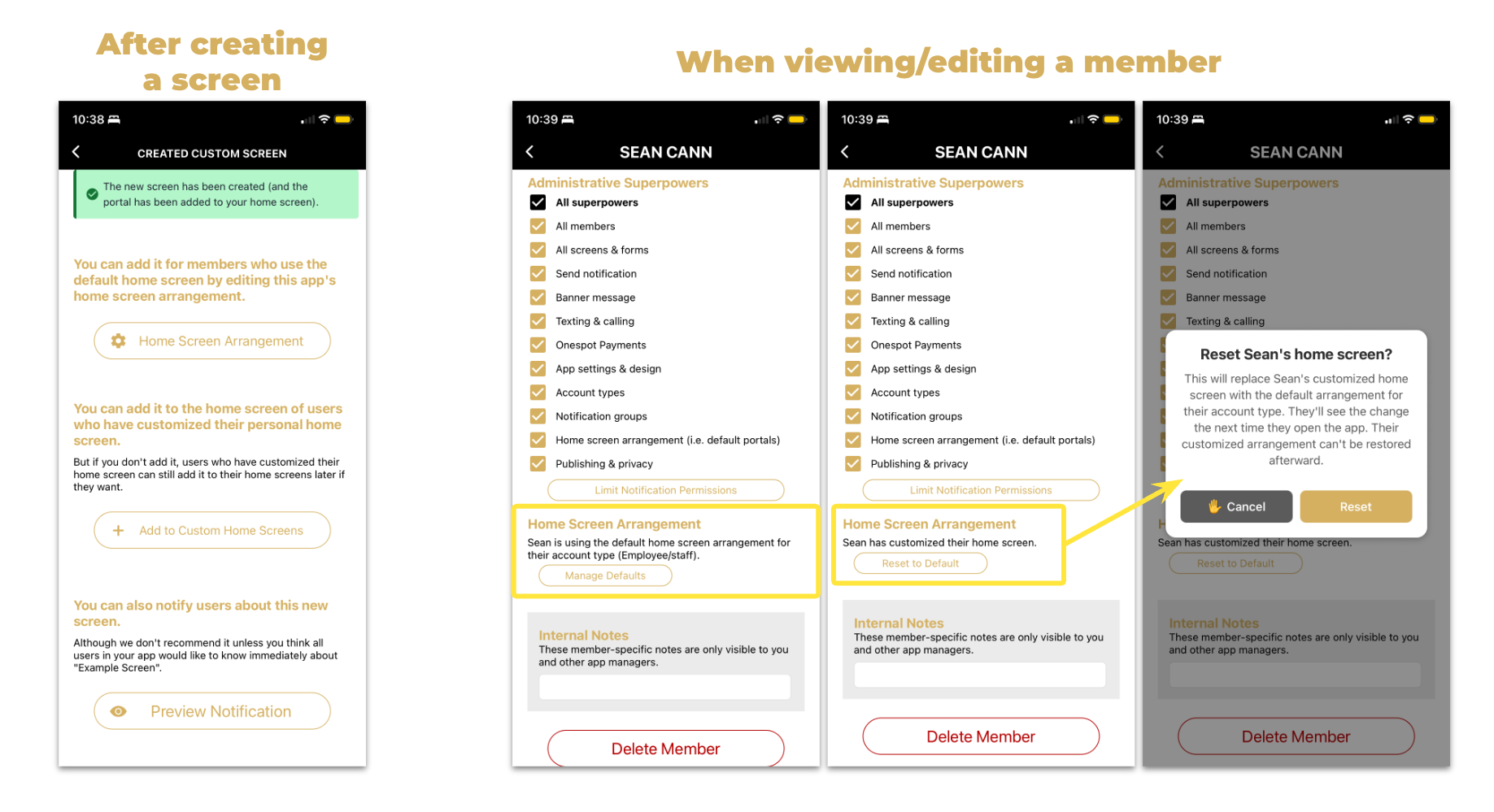
📝 Step 1: Add the Screen to the Default Home Screen Layout
You'll see this if you have the Home screen arrangement superpower.
- Under "You can add it for members who use the default home screen by editing this app's home screen arrangement," tap Home Screen Arrangement.
- This opens the default layout editor. Add the new screen to the default layout for each account type that should see it.
📝 Step 2: Add the Screen to Customized Home Screens
You'll see this if you have the All Members superpower. Without it, this option won't appear.
- Under "You can add it to the home screen of users who have customized their personal home screen," tap Add to Custom Home Screens.
- Under Where on their home screen?, choose one:
- Add as the last portal (recommended) — adds it to the end
- Add as the first portal (maximum visibility) — puts it at the very top
- Add in a specific spot (advanced) — enter a position number
- Once it's added, you'll see "This screen has been added to every customized home screen."
This only reaches members who have customized their home screen. It does not reach members on the default layout (use Step 1 for those). If you skip it, members who customized their home screen can still add the screen themselves later.
📝 Step 3: Notify Users About the New Screen (Optional)
You'll see "You can also notify users about this new screen" if your admin account has permission to send notifications and the new screen is open to all of your users (no restrictions by account type, user group, or feed subscriber status, and not hidden).
- Tap Preview Notification to see exactly what your users will receive.
- Tap Send Notification to send it to everyone.
After sending, you'll see a note that your notification will be delivered to all users over the next few minutes. We don't recommend sending one unless you think every user in your app would want to know about the new screen right away.
💡 Good to Know
- Don't see the Home Screen Arrangement button? You need the "Home screen arrangement" superpower.
- Don't see Add to Custom Home Screens? You need the "All members" superpower.
- Don't see the option to notify users? It only appears for brand-new screens that every user can open. It won't appear for screens restricted to certain account types, user groups, or feed subscribers, for hidden screens, or when you edit an existing screen.
- Both home screen tools respect access. If the screen is restricted to certain account types or groups, only members with access will see it, even if it was added to their layout.
- Need to reset one member's home screen? Tap the Lightning Bolt, go to All Members, and tap the member's name. In the Home Screen Arrangement section of their profile, you'll see whether they're on the default layout or have customized it, and you can tap Reset to Default if needed.