
How to Use Emoji & Vote Reactions in Group Chats and Activity Feeds
Group chats and activity feeds support multiple reaction types, giving schools more flexible and meaningful ways to engage families and staff. Instead of only using a basic “Like,” you can now enable Emoji reactions or Vote (Upvote/Downvote) reactions.

Available Reaction Types
Admins can choose one reaction type per chat or feed:
❤️ Like (Default)
A simple, familiar reaction for general acknowledgment.
Best for:
- Basic updates
- Low-friction engagement
😀 Emoji Reactions
Allows members to react using a variety of emojis instead of just a single “like.”
Examples include:
❤️ 👍 😂 😮 😢 🎉
Best for:
- Announcements
- Photos and celebrations
- Community-building posts
👍👎 Vote Reactions
Limits reactions to Upvote or Downvote, making feedback clear and measurable.
Best for:
- Quick polls
- Yes/No questions
- Event interest checks
- Reducing reply clutter

🚫 None (No Reactions)
Disables reactions entirely for a post, chat, or feed.
Best for:
- Informational or compliance-related announcements
- Messages that should not receive feedback
- Sensitive updates where reactions aren’t appropriate
💡When set to None, members can still read and comment (if comments are enabled), but no reactions will appear.
Why This Is Important
Different situations call for different types of feedback:
- Emoji reactions make communication more expressive and friendly
- Great for celebrations, announcements, photos, and classroom updates
- Vote reactions make it easy to gather quick input
- Ideal for polls, preferences, or decision-making without cluttering the chat
This helps schools:
- Increase engagement
- Reduce unnecessary reply messages
- Collect feedback quickly and clearly
How to Enable Reaction Types
Step 1: Open the Chat or Feed Settings
-
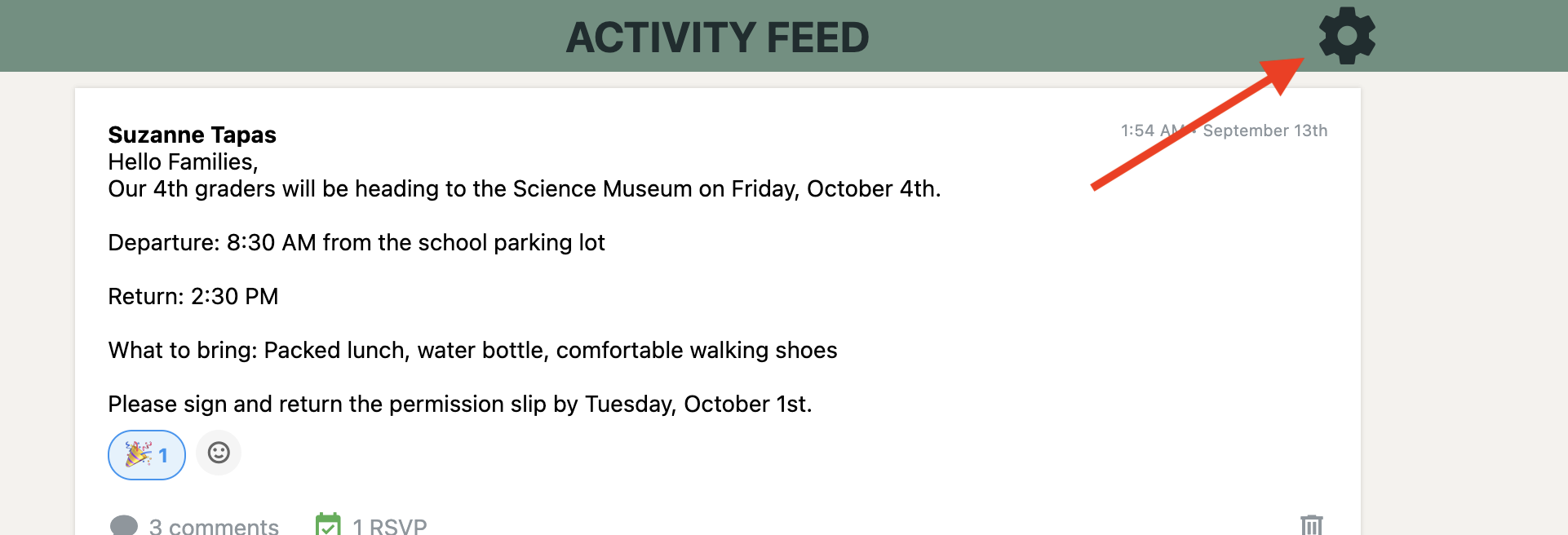
Open the Group Chat or Activity Feed you want to edit, then click the gear icon (⚙️) in the top-right corner to open the settings.
Step 2: Choose a Reaction Type
-
Locate the Reaction Type setting.
Select one of the following:
- Like
- Emoji
- Vote (Upvote/Downvote)

Step 3: Save Changes
- Save your settings to apply the new reaction type.
- The selected reaction style will immediately apply to that chat or feed.
Backward Compatibility (Good to Know)
This update is mostly backward-compatible:
- If an existing chat is switched to Emoji reactions, previous “Likes” will appear as 👍
- If switched to Vote reactions, previous “Likes” will appear as ↑
No reactions are lost during the switch.