
How to Edit Line Items on Billing Plan Invoices (One or All Remaining)
Need to add a fee, give a credit, or remove a charge on a billing plan invoice that hasn't gone out yet? You can edit the line items on any unsent invoice in a billing plan, one invoice at a time or across all of the plan's remaining invoices at once. Invoices that were already sent are never changed.
📍 Where to Find This
Open the child's billing plan from either:
- Billing → find the child → Billing Plans & Subscriptions → click the plan
- Upcoming Billing → Billing Plans → click the plan
From there:
- One invoice: click the invoice in the plan's timeline or Invoices list, then click Edit in the Line Items card.
- All remaining invoices: scroll to Manage Remaining Invoices → Bulk edit remaining invoices.
✏️ What You Can Change
| Item type |
Add |
Edit |
Remove |
|---|---|---|---|
| Custom items (description + amount) |
✅ |
✅ |
✅ |
| Products |
❌ |
❌ |
✅ |
| Coupons / discounts |
❌ |
❌ |
✅ |
Products keep the price they had when the plan was created. To add a new charge or credit, use a custom item instead. To use a different product or coupon, cancel and recreate the invoice or plan.
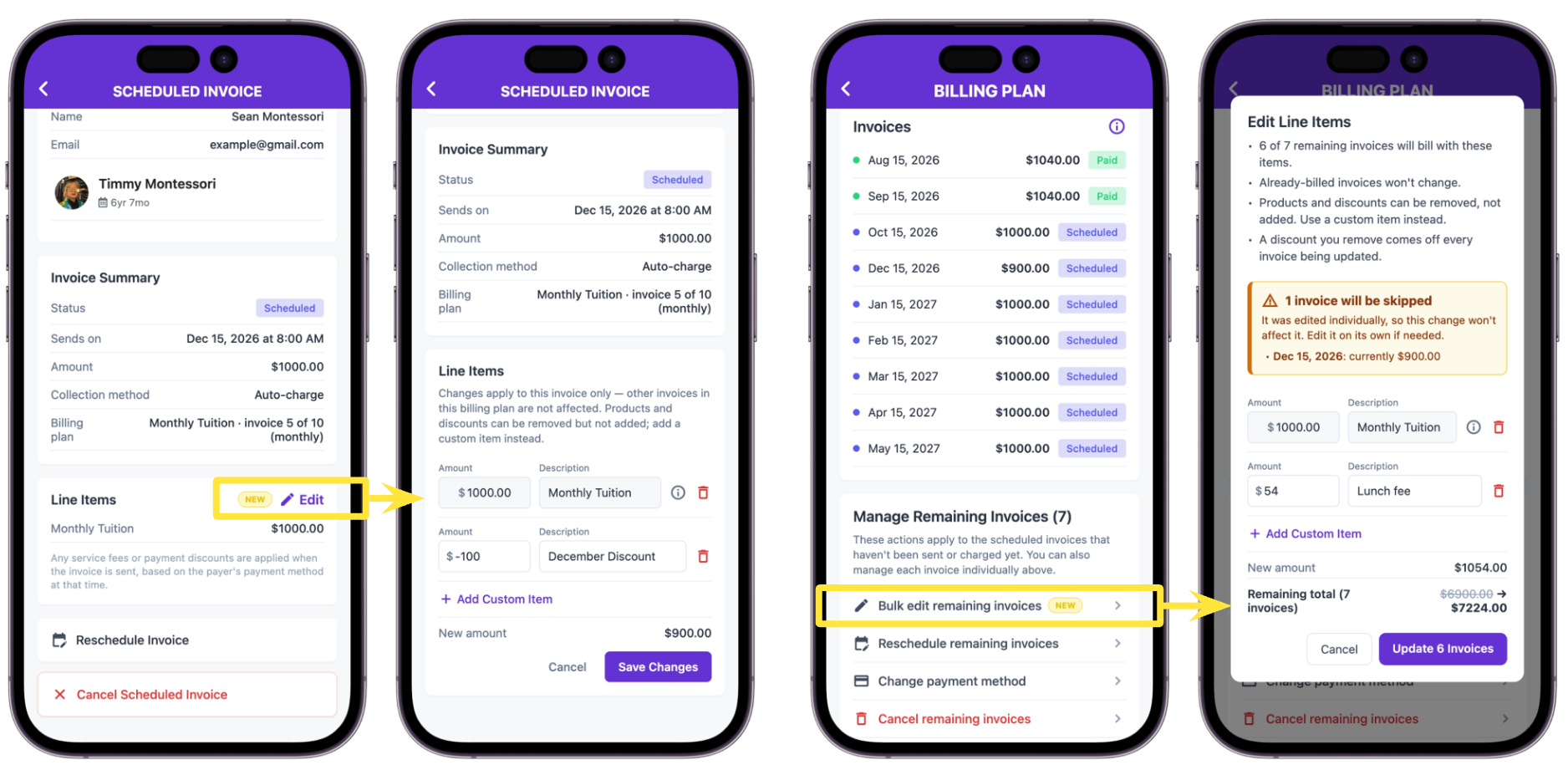
📝 How to Edit Line Items on a Single Invoice
Step 1: Open the Invoice
- Click the unsent invoice to open its Scheduled Invoice page.
Step 2: Click Edit
- In the Line Items card, click Edit (pencil icon), or tap the line items.
Step 3: Make Your Changes
- Click + Add Custom Item to add a fee or credit, then enter an amount and description.
- Enter a negative amount (for example, -100) to give a credit.
- Click the trash icon to remove an item.
- Amounts accept numbers only. The New amount total updates as you edit.
Changes apply to this invoice only. Other invoices in the plan aren't affected.
Step 4: Save
- Click Save Changes. Reschedule, Cancel, and Retry are hidden while you edit and come back once you save or cancel.
📝 How to Edit All Remaining Invoices at Once
Step 1: Open Bulk Edit
- In Manage Remaining Invoices, click Bulk edit remaining invoices.
- The editor opens pre-filled with the items from the next invoice it will update.
Step 2: Make Your Changes
- Add, edit, or remove items using the same rules as above.
- Check Remaining total to see the plan's total before and after your change.
Step 3: Check for Skipped Invoices
- Invoices you edited individually are skipped. A yellow warning lists each one with its current amount. Edit those separately if they need the same change.
Step 4: Review Coupons (if any)
- Removing a coupon here removes it from every invoice being updated.
- If some later invoices carry a coupon the next invoice doesn't, a callout names them. Click Remove it from these invoices too to clear it from those as well. Otherwise they keep it.
Step 5: Click Update
- Click Update [N] Invoices. The count only includes invoices that will actually change.
If an invoice couldn't be updated (for example, it started sending at that moment), it's listed after you save with its send date and the reason.
Fixing Billing Plan invoices after a discount is deleted
1. Open the failed (or upcoming) invoice and click Edit in the Line Items card.
2. Click the trash icon next to the deleted discount to remove it.
3. Click + Add Custom Item and enter the same discount as a negative amount (e.g., -200, "Siblings Discount"). Check that the New amount matches what the family should owe.
4. Click Save Changes, then click Retry on a failed invoice. Saving doesn't resend it on its own.
5. For the rest of the plan, use Bulk edit remaining invoices to remove the discount and add the same custom item. Invoices you already edited one at a time are skipped, so check the yellow warning and edit those separately.
❓ Why Can't I Edit This Invoice?
- It was already sent or canceled. Only unsent invoices can be edited.
- It's in the middle of sending. Wait for it to finish.
- It's a failed invoice that was already created in Stripe on an earlier attempt. These can't be edited.
- I can't add a product or coupon. Only custom items can be added. Use a custom item for new charges or credits.
- Save won't go through. You can't remove every item, and a discount can't be larger than the total of the items.
- One invoice was skipped in my bulk edit. It was edited individually, so plan-wide edits skip it from then on. Edit it on its own instead.
👪 What Parents See
The parent's upcoming invoice and the invoice sent through Stripe both show your updated items.
💡 Helpful Tips
- Works on pending and failed invoices. Editing a failed invoice doesn't resend it. Click Retry when you're ready.
- If invoices in a plan no longer bill the same amount, the plan's Per invoice amount shows "Varies." Each invoice row shows its own amount.
- Invoices are listed in send-date order, so a rescheduled invoice appears where it will actually bill.
- Service fees and payment discounts are still applied when each invoice is sent, so the final total can differ slightly from the amount shown here.
- My invoice failed with "No such coupon." The discount on this plan was deleted from Discounts after the plan was created. Remove the coupon line, add a custom item with the same negative amount, save, then click Retry. Do the same for the remaining invoices (Bulk edit works for invoices you haven't edited one at a time).