
Where to Find Your Transparent Classroom Drop-off PIN
If your school has drop-off enabled in Transparent Classroom, you may be asked to enter a PIN when dropping off or picking up your child. You don't need to log into Transparent Classroom separately to find it — your PIN is available right in the Onespot app, in the same place you'd see it in Transparent Classroom.
📍 Where to Find It
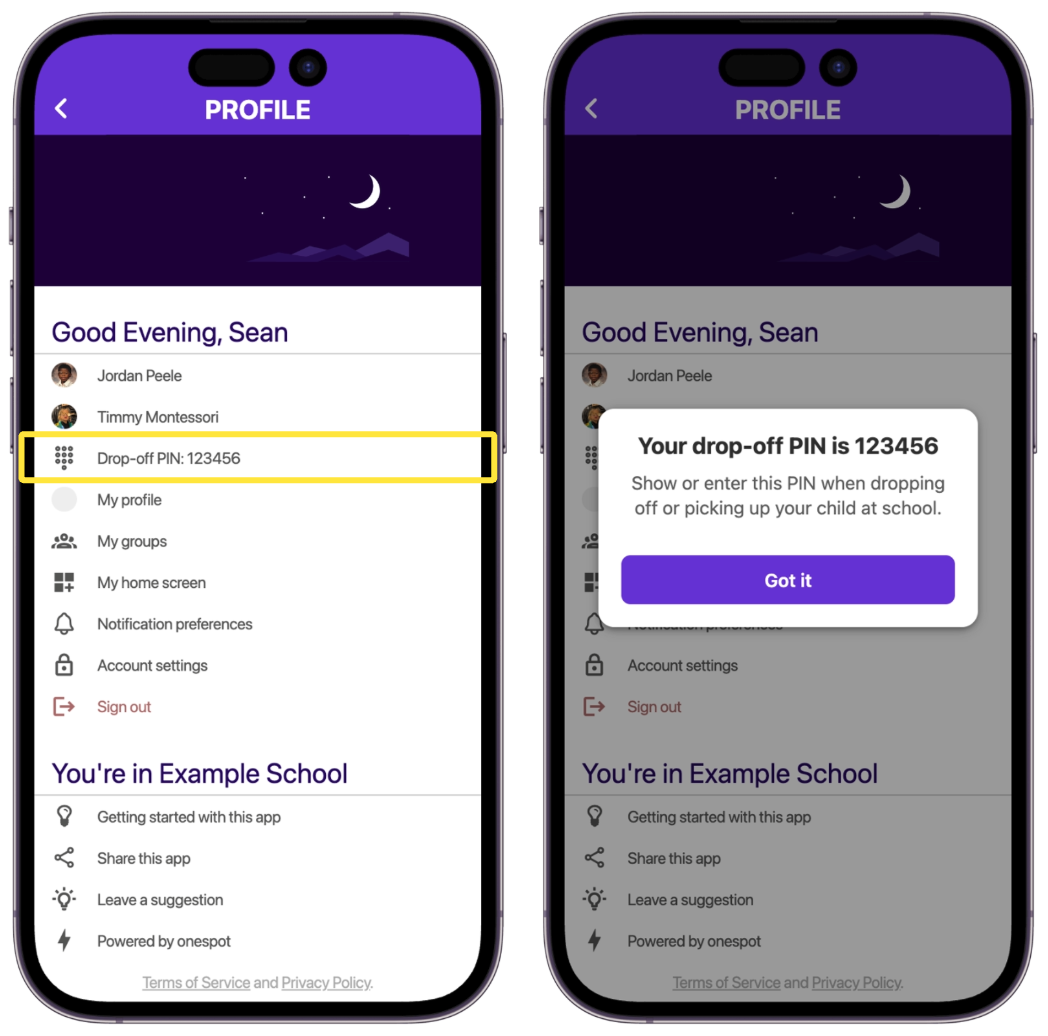
- Open your Onespot app and tap the person icon 👤 in the top-left corner of the home screen to go to your Profile screen.
- Look for the Drop-off PIN row, listed just below your child/children's names.
- Tap it to see a reminder of what the PIN is for: "Show or enter this PIN when dropping off or picking up your child at school."
❓ Why Don't I See a Drop-off PIN?
The Drop-off PIN row only appears when:
- Your school uses the Transparent Classroom integration, and
- Transparent Classroom has a drop-off PIN set for your account.
If your school doesn't use PIN-based drop-off/pickup, or your account doesn't have a PIN configured in Transparent Classroom, this row won't be shown. Contact your school directly if you believe you should have a PIN and don't see one.
🔒 Keep Your PIN Private
Your drop-off PIN helps verify who is authorized to pick up or drop off your child. Treat it like you would any other access code — only share it with people you trust to handle pickup/drop-off.