
Stripe Billing Settings for Onespot (Invoices, Subscriptions & Notifications)
Stripe has a lot of settings — and while Onespot handles most of the payment experience inside the app, there are a few things worth configuring directly in your Stripe dashboard. This guide walks you through the two most important areas: Subscriptions & Emails and Invoices. Getting these right means fewer missed payments, cleaner communication with parents, and payments flowing through the app the way they're supposed to.
Heads up: This guide is for configuration purposes only and is not financial or legal advice.
Step 1: Get to the Right Place in Stripe
- Log in to your Stripe Dashboard.
- Click the gear icon (⚙️) in the top-right corner to open Settings.
- Scroll down to Product settings and click Billing.

Step 2: Configure Subscriptions and Emails
Click Subscriptions and emails.

This section controls how Stripe communicates with your customers (parents) about their payment activity. Onespot already sends push notifications for things like failed payments — but enabling these Stripe emails adds a helpful backup layer.
Email Notifications to Turn On

Under Email notifications and customer management, we recommend toggling on the following:
- Send emails about expiring cards — gives parents a heads-up before their card stops working
- Send emails when a card payment fails — notifies them immediately if a charge doesn't go through
- Send emails when a bank debit payment fails — same as above, but for ACH/bank payments

Managing Failed Payments (Retry Logic)
Scroll down to Managing failed payments for subscriptions. Here you can set how many times Stripe will automatically retry a failed card or bank payment before giving up. We recommend turning this on and setting a few retry attempts.

Automatic Invoice Reminders

Still in this section, scroll down to Manage invoices sent to customers. You can configure Stripe to automatically send reminder emails for:
- Send finalized invoices and credit notes to customers — toggle this on so parents automatically receive their invoice by email
- Send reminders if a recurring invoice hasn't been paid — toggle this on, then set when the reminder goes out
For each reminder, click the dropdown to choose a timing.
You can add multiple reminders by clicking + Add reminder. A good starting setup is "When it is due" plus one follow-up after (e.g. 7 days after). Click Save when done.
Step 3: Configure Invoice Settings
Go back to Settings > Billing and click Invoices.
This section controls how individual invoices look and behave.
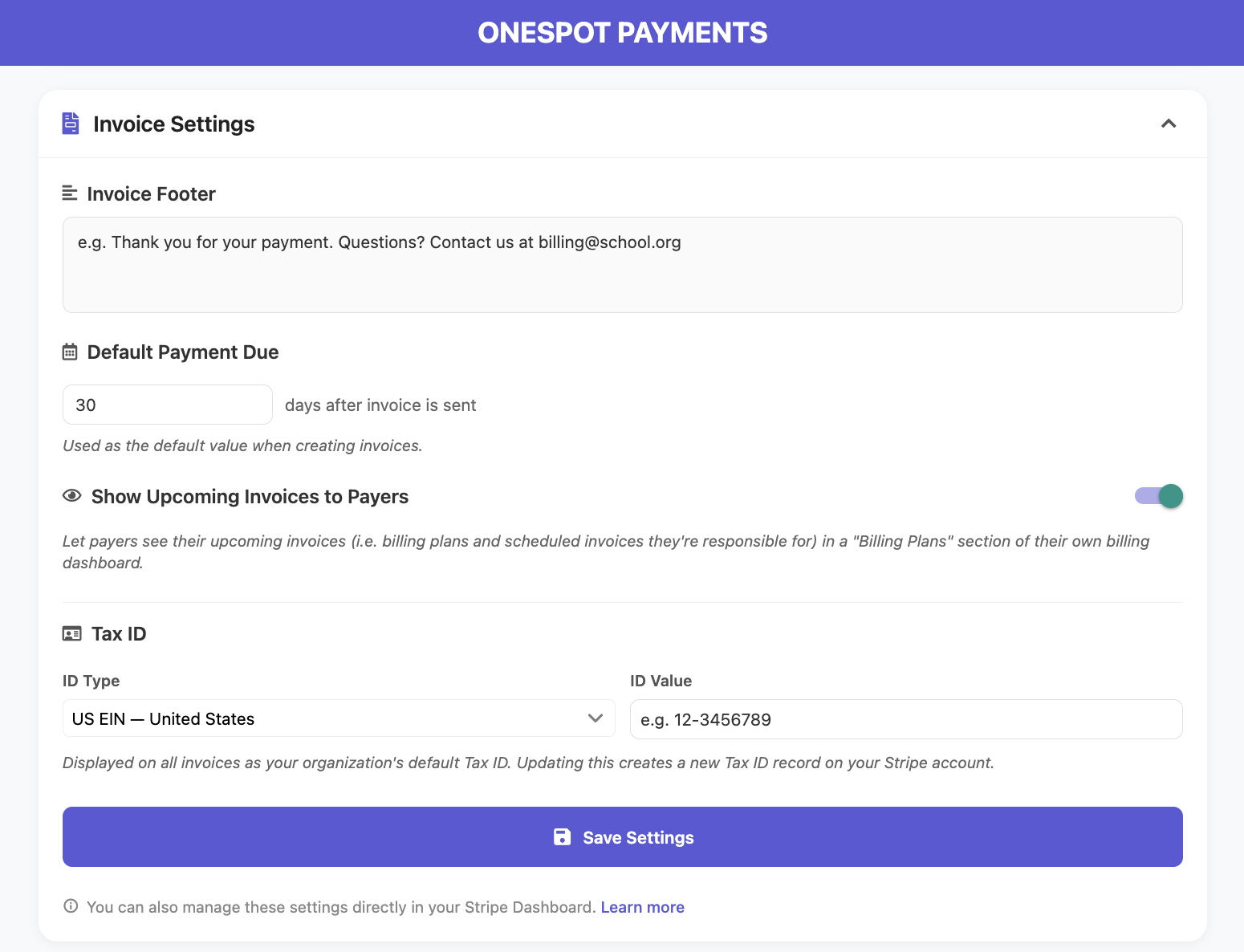
Things You Can Set Here (But Also in Onespot)
- Invoice Footer — a custom message that appears on all invoices
- Default Payment Due — the number of days after an invoice is sent that payment is due
- Tax ID — your organization's EIN or tax ID, displayed on all invoices.
- Show Upcoming Invoices to Payers (Onespot only) — on by default; controls whether payers see a "Billing Plans" section with their scheduled installments on their own payments dashboard before each invoice bills.
Default Payment Terms
⚠️ Important: Turn Off the Payment Page Link

Why this matters: If this is turned on, parents can pay directly from their email — bypassing the Onespot app entirely. That breaks how fees are structured and how payments get tied to the right child and family. Always keep this off so payments go through the app.
Default Payment Methods
Under Default payment methods, you can review which payment methods are active on invoices and subscriptions (Cards, ACH Direct Debit, Cash App Pay, etc.). If your school doesn't want to accept certain payment types (like credit cards), you can disable them here.

⚠️ Important: Turn Off Link (Stripe's Saved Wallet Feature)
When editing payment methods, make sure Link is set to Disabled.

Link is Stripe's feature that saves a customer's payment details for faster checkout. It sounds handy, but it's worth turning off for one simple reason: it costs more.
When parents pay by bank transfer normally, the fee is very low (0.8%, capped at $5). When they pay through Link, even if they're still using their bank account, the fee jumps significantly. For a school collecting tuition and fees from many families, that adds up fast — and there's no real benefit to offset it.
Reminders and Retries
Just like in Subscriptions and Emails, you can also set:
- Customer email reminders for unpaid invoices
- Retry logic for failed card payments
These mirror the subscription settings and are worth configuring if you send manual invoices as well.